
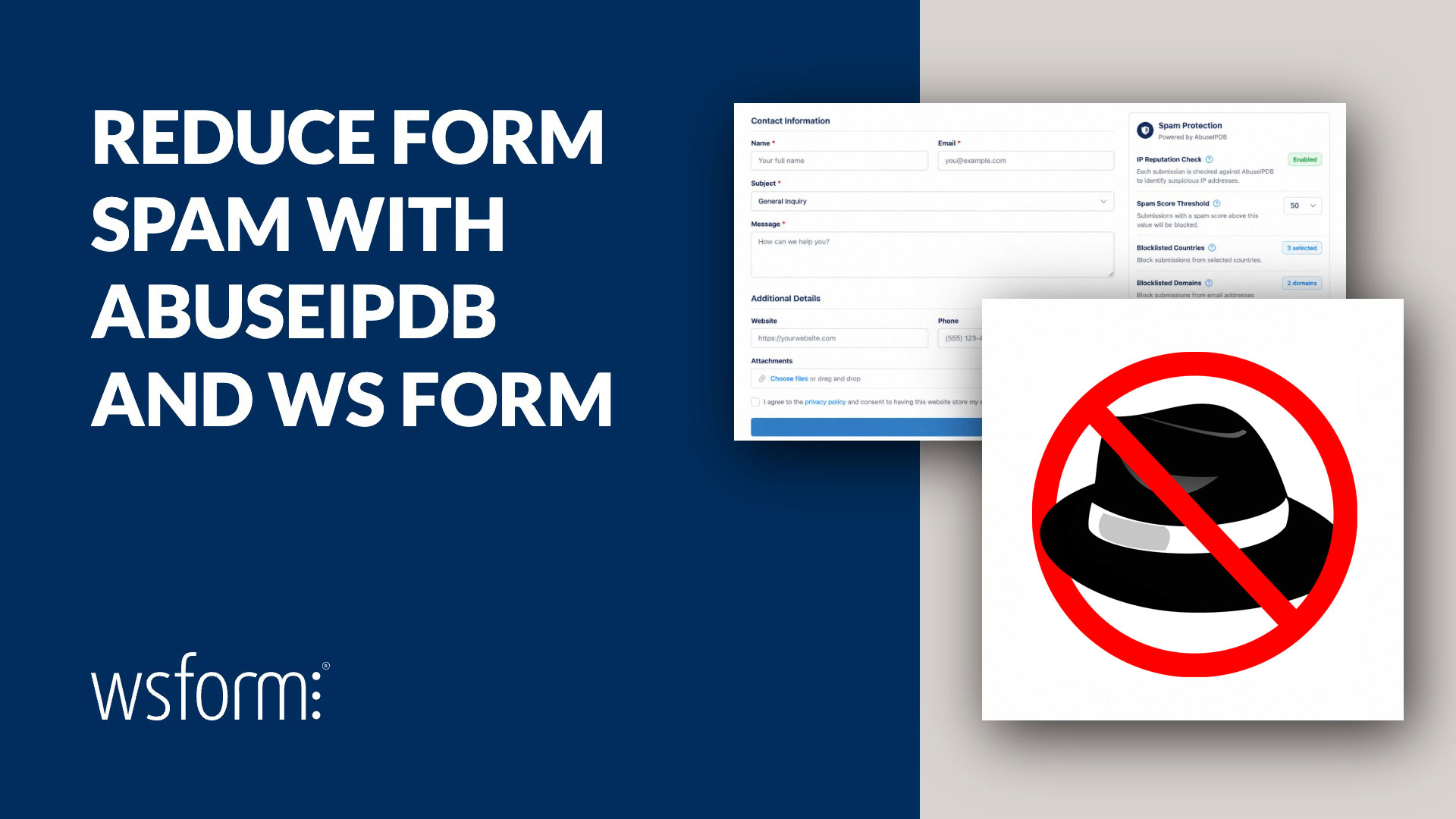
Spam remains a persistent problem for forms in WordPress.
CAPTCHAs can help stop automated submissions, but they are only one part of an effective spam protection strategy. Some bots can bypass basic challenges, while other unwanted submissions come from compromised devices, proxy networks, or IP addresses with a history of abusive activity.
WS Form integrates with AbuseIPDB to add IP reputation checking to its existing spam protection tools. This gives WordPress site owners, agencies, and developers another useful signal when deciding whether a form submission should be accepted, marked as spam, or prevented from triggering further actions.
What Is AbuseIPDB?
AbuseIPDB is a community-driven IP reputation database containing reports about IP addresses associated with abusive online activity.
Reports may relate to activities such as:
- Web form spam
- Brute-force login attempts
- Credential attacks
- Scanning
- Malicious bots
- Other suspicious or abusive traffic
Each IP address can receive an Abuse Confidence Score between 0 and 100. A higher score indicates greater confidence that the IP address has been involved in abusive activity.
By checking the IP address associated with a WordPress form submission, WS Form can use this reputation data as part of its spam scoring process.
IP reputation does not guarantee that a submission is spam. However, it can provide valuable context when combined with other signals such as CAPTCHA results, submission frequency, keywords, duplicate content, and existing blocklists.
How WS Form Uses AbuseIPDB
When AbuseIPDB protection is enabled, WS Form checks the submitter’s IP address against the AbuseIPDB API when the form is submitted.
AbuseIPDB returns information about the IP address, including its Abuse Confidence Score and other available reputation details.
WS Form can then use that data in several ways.
A submission can be treated as spam when:
- The Abuse Confidence Score meets or exceeds a configured threshold.
- The IP address is associated with a country on the configured country blocklist.
- The IP address is associated with a domain on the configured domain blocklist.
When a submission is identified as spam, WS Form can prevent non-database actions from running. This can stop actions such as sending emails, adding contacts to third-party services, or triggering other integrations, while still retaining the submission for review.
If the AbuseIPDB API request fails or cannot be completed, WS Form does not block the submission solely because the reputation check was unavailable.
Abuse Confidence Score Threshold
The Abuse Confidence Score provides a numerical indication of how likely an IP address is to have been involved in abusive activity.
In WS Form, you can configure an optional threshold between 0 and 100.
For example, if the threshold is set to 80, an IP address with an Abuse Confidence Score of 80 or higher can cause the submission to be treated as spam.
If the AbuseIPDB threshold is left blank, WS Form uses the spam threshold configured for the form.
This allows you to choose between:
- A global AbuseIPDB threshold
- The existing spam threshold configured on each form
The most appropriate threshold depends on your audience and the type of form being protected. A public contact form may require a different configuration from a customer portal, support form, or internal form.
Country Blocklist
WS Form can block submissions based on the country associated with the submitter’s IP address.
The Country Blocklist setting allows you to select one or more countries using standard ISO country values.
If the IP address is associated with a selected country, the submission can be treated as spam regardless of the Abuse Confidence Score.
This may be useful for businesses and organizations that only accept inquiries from specific regions. However, country blocking should be configured carefully because IP geolocation is not always exact, and legitimate visitors may use VPNs, corporate networks, or mobile connections.
Domain Blocklist
The Domain Blocklist allows you to identify domains associated with IP addresses you do not want to accept submissions from.
Domains can be entered as a comma-separated or newline-separated list.
Domain matching is suffix-aware. This means that blocking a parent domain can also match related subdomains.
A submission associated with a blocked domain can be treated as spam even when its Abuse Confidence Score is below the configured threshold.
This provides another way to respond to repeated spam originating from known hosting networks, proxy services, or infrastructure associated with abusive traffic.
Report Window
AbuseIPDB reports include information about when the abusive activity was reported.
The Report Window, also referred to as the maximum age in days, controls how far back WS Form considers AbuseIPDB reports.
The default value is 30 days, and the supported range is 1 to 365 days.
A shorter report window places more emphasis on recent activity. A longer report window considers a broader history of reports associated with the IP address.
This setting helps prevent very old reports from carrying the same weight as recent abusive behavior.
Administrator Bypass
WS Form includes a Bypass If Administrator option.
When enabled, logged-in WordPress administrators can submit forms without being evaluated by AbuseIPDB.
This is enabled by default and can be useful when building, testing, or troubleshooting forms in WordPress.
The administrator bypass can be configured globally and, where applicable, at the individual form level.
Reporting Form Spam to AbuseIPDB
AbuseIPDB support in WS Form can work in both directions.
In addition to checking IP reputation when a form is submitted, WS Form can report an IP address back to AbuseIPDB when an administrator marks a submission as spam.
The IP address is reported under AbuseIPDB category 11, which represents web spam.
This optional feature allows WordPress site owners to contribute information back to the AbuseIPDB community database.
Over time, community reporting helps improve the reputation data available to other website owners, security professionals, hosting providers, and developers.
You can enable this behavior using the Report Spam To AbuseIPDB setting.
Submission Notes and Spam Details
When AbuseIPDB evaluates a form submission, WS Form records locked system notes on the submission.
These notes can include details such as:
- Submitter IP address
- Abuse Confidence Score
- Country
- Associated domain
- Total number of reports
- Reason the submission was flagged
Locked system notes provide a permanent record of the AbuseIPDB response and the reason a submission was treated as spam.
This makes it easier to review suspicious submissions and understand which spam protection rule was triggered.
It also provides useful context when deciding whether a submission was correctly classified.
How to Configure AbuseIPDB in WS Form
AbuseIPDB settings are located in:
WS Form → Settings → Spam Protection → AbuseIPDB
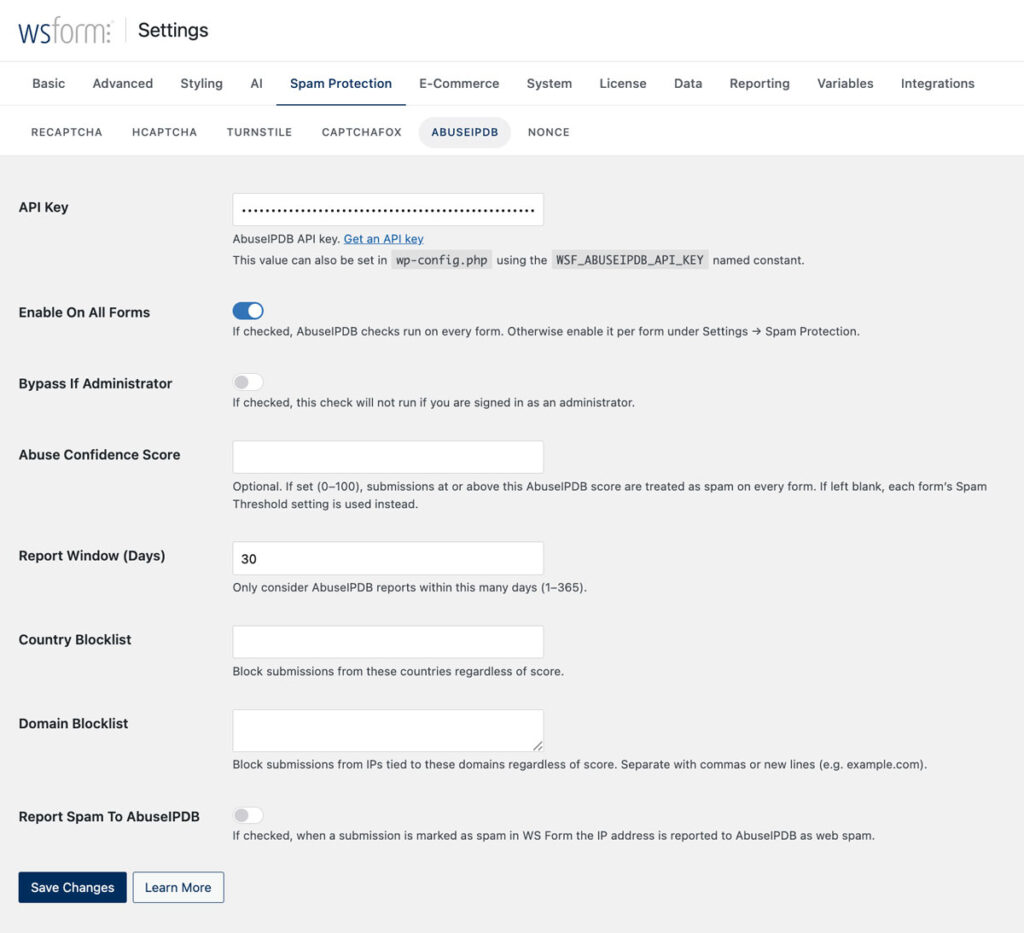
To configure AbuseIPDB:
- Register for an AbuseIPDB account.
- Generate an API key.
- Enter the API key in the WS Form settings.
- Choose whether to enable AbuseIPDB on all forms.
- Configure an optional Abuse Confidence Score threshold.
- Set the report window.
- Add any required countries or domains to the blocklists.
- Choose whether spam submissions should be reported back to AbuseIPDB.
The AbuseIPDB API key can also be defined using the following PHP constant:
WSF_ABUSEIPDB_API_KEY
This can be useful when API credentials are managed through a site’s configuration rather than stored in the WordPress database.
Enabling AbuseIPDB on Individual Forms
AbuseIPDB can be enabled globally or on selected forms.
The Enable On All Forms option applies AbuseIPDB protection across the site.
Alternatively, AbuseIPDB can be enabled or disabled for an individual form under:
Form Settings → Spam Protection
The per-form Bypass If Administrator option is also available unless that behavior has already been configured globally.
Per-form settings are useful when different forms have different audiences or spam protection requirements.
For example, you may want AbuseIPDB enabled on a public contact form but disabled on a private form only accessible to logged-in users.
Using AbuseIPDB with Other WS Form Spam Protection Features
AbuseIPDB is most effective when used as part of a layered spam protection strategy.
It is not intended to replace every other form spam prevention method.
WS Form includes a range of spam protection features for forms in WordPress, including:
- Honeypot protection
- Rate limiting
- Duplicate submission detection
- Keyword blocking
- Domain blocking
- IP blocking
- Akismet integration
- Cloudflare Turnstile
- hCaptcha
- Google reCAPTCHA
- CaptchaFox
- Other CAPTCHA and validation options
Each feature addresses a different type of unwanted activity.
A CAPTCHA may help determine whether a visitor appears human. Rate limiting can reduce repeated submissions. Keyword rules can detect common spam content. AbuseIPDB adds information about the reputation of the submitter’s IP address.
Using several complementary signals is generally more reliable than depending on a single spam protection method.
Add IP Reputation Checking to Forms in WordPress
AbuseIPDB gives WS Form users another practical way to evaluate suspicious form submissions.
By combining IP reputation data with spam scoring, country and domain blocklists, submission notes, administrator bypass options, and community reporting, WS Form provides WordPress site owners and agencies with greater visibility and control over form spam.
AbuseIPDB will not block every unwanted submission, and no single spam protection tool can guarantee complete protection. However, it can provide valuable additional context when used alongside the other spam prevention features available in WS Form.
For setup instructions and a complete explanation of each option, read the AbuseIPDB knowledge base article.
To learn more about building and protecting forms in WordPress, visit WS Form.