
Managing forms in WordPress can become challenging as your website grows. Whether you’re building websites for clients or managing a site with dozens of forms, keeping everything organized makes it easier to find what you need and maintain your forms over time.
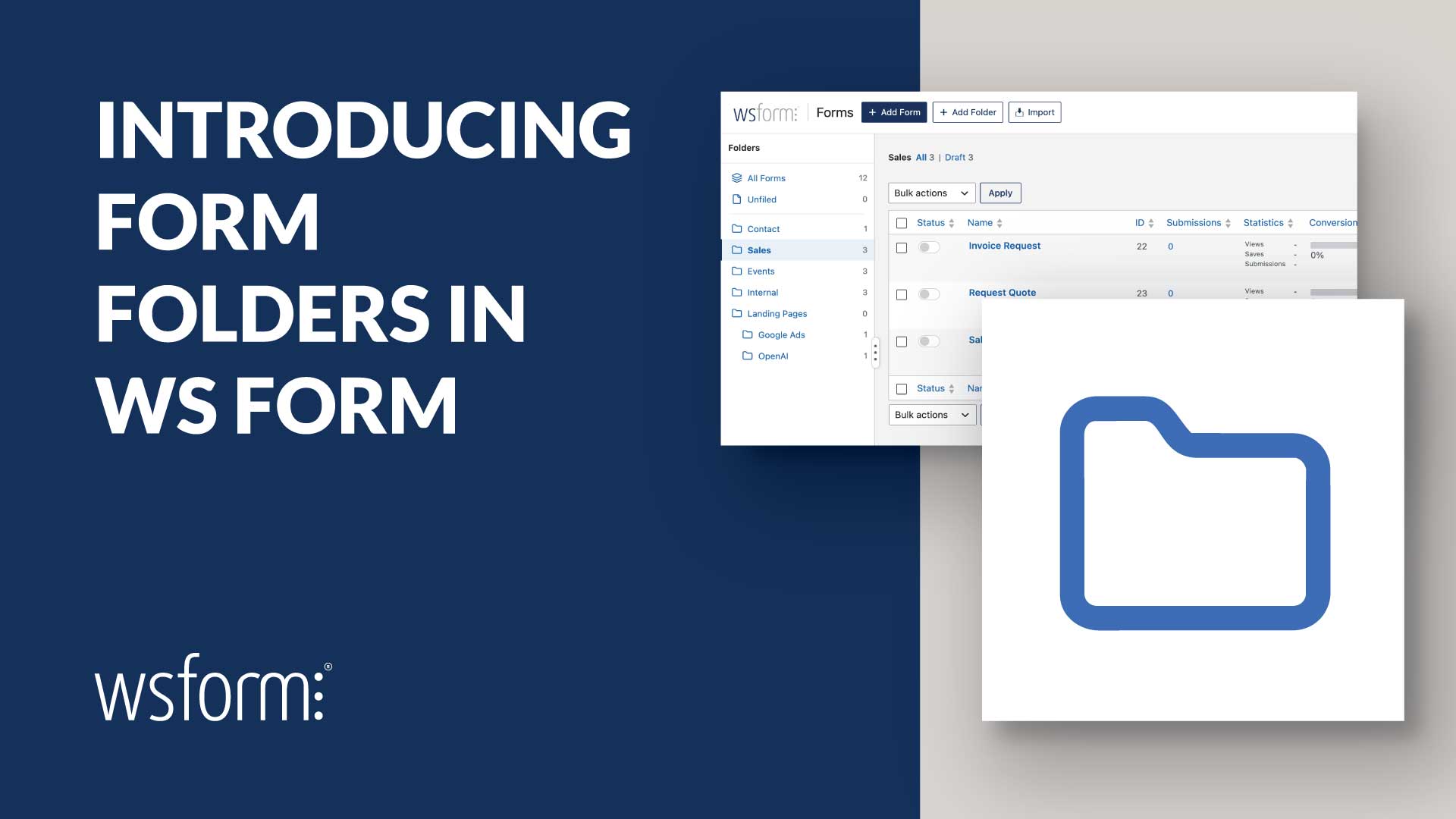
That’s why we’ve introduced Form Folders in WS Form, a new way to organize your forms into folders and subfolders directly from the WordPress administration area.
With drag-and-drop organization, bulk actions, and a customizable folder sidebar, Form Folders makes managing forms faster and more intuitive.
Keep Your Forms Organized
Form Folders lets you group related forms together, making it easier to navigate your forms as your website grows.
For example, you could create folders for contact forms, registration forms, calculators, and surveys. If you’re building a website for a client, you could organize forms by department, service, or purpose.
Folders can also contain subfolders, allowing you to create a structure that suits your project. For example, a Calculators folder could contain subfolders for Mortgage, Insurance, and Finance.
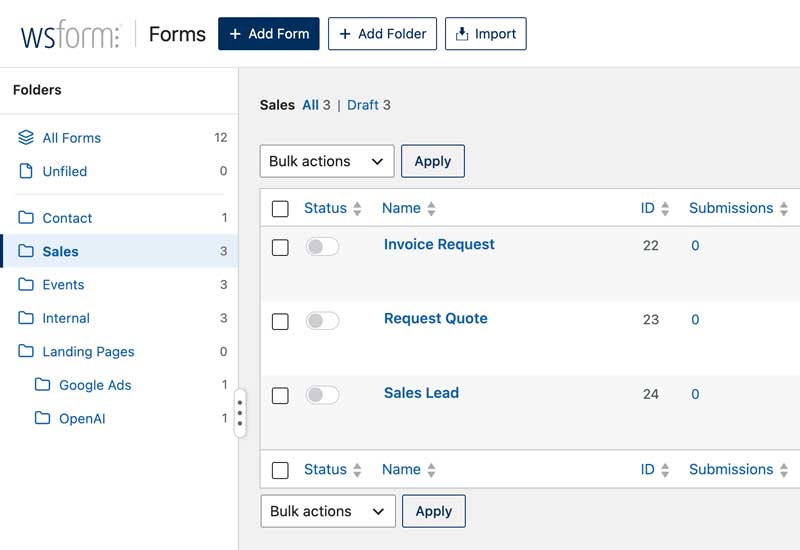
The new folder sidebar appears alongside your forms list, providing quick access to your folders as well as All Forms and Unfiled views.
Each folder displays the number of forms it contains, making it easy to see how your forms are distributed.
Organize Forms With Drag and Drop
Moving forms between folders couldn’t be easier. Simply drag a form from the forms list and drop it onto a folder in the sidebar.
Need to move several forms at once? Select multiple forms using their checkboxes, then drag any selected form onto the destination folder. All selected forms will move together.
You can also use the new Move to Folder bulk action to select a destination folder and move multiple forms in one operation.
Forms that haven’t been assigned to a folder appear under Unfiled. You can also drag forms back to Unfiled whenever you want to remove them from a folder.
Built for Agencies and Developers
Form Folders is particularly useful for agencies and developers who build and maintain websites for clients.
As a project develops, the number of forms can grow quickly. Contact forms, lead generation forms, payment forms, registrations, and other functionality can soon result in a lengthy forms list.
Organizing these forms into logical folders helps keep your working environment tidy and reduces the time spent searching for a particular form.
Folders also make client handover easier. Instead of presenting clients with a long list of forms, you can deliver a clearly organized structure that makes it easier for them to locate the forms they need.
And because folders only affect how forms are organized in the administration area, they have no impact on the forms displayed on your website or how submissions are processed.
A Workspace That Works for You
We’ve also made the folder sidebar flexible so it fits naturally into your workflow.
- Resizable sidebar: Adjust the sidebar width to accommodate longer folder names.
- Show or hide folders: Toggle the folder sidebar using Screen Options.
- Remember your location: WS Form remembers the last folder you visited, so you can pick up where you left off.
- Individual user preferences: Each WordPress user has their own sidebar visibility setting and last selected folder.
These small improvements help make managing forms more efficient, particularly on websites with a large number of forms.
Making Client Handover Easier
Form Folders is part of our ongoing effort to make WS Form an even better solution for developers and agencies, from initial form development through to client handover and ongoing maintenance.
Alongside folders, we’ve recently introduced form locking and style locking, giving you additional control over completed forms and their appearance.
With folders keeping forms organized and locking features helping prevent accidental changes, you can hand over websites to clients with greater confidence.
Get Started With Form Folders
Form Folders is available directly from the WS Form administration area. To get started, navigate to WS Form and click Add Folder to create your first folder.
Once you’ve created a folder, the folder sidebar will appear automatically, and you can start organizing your forms using drag and drop or bulk actions.