
Organize your forms in WordPress using folders in WS Form. Folders make it easier to manage large numbers of forms by grouping them into categories, such as contact forms, registration forms, calculators, or customer projects.
You can create folders and subfolders, move forms between folders using drag and drop or bulk actions, and customize the folder sidebar to suit your workflow.
Each form can belong to one folder at a time. Forms that have not been assigned to a folder remain accessible under Unfiled. Organizing forms into folders does not affect how they appear or function on your website.
Viewing Folders
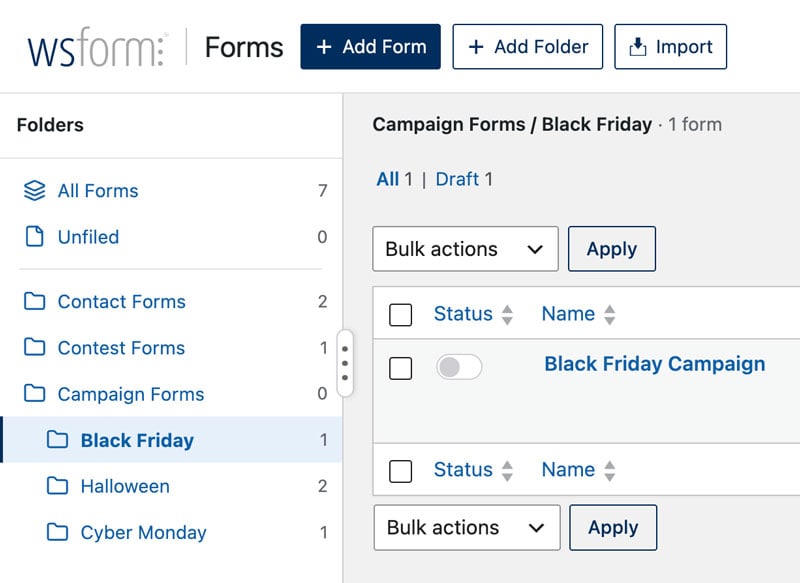
To view your folders, click WS Form in the WordPress administration menu. The folder sidebar appears on the left side of the forms list once you have created at least one folder.
The sidebar contains the following:
- All Forms – Displays all forms, regardless of which folder they belong to. Forms in the trash are excluded.
- Unfiled – Displays forms that have not been assigned to a folder.
- Folders – Displays your custom folders and subfolders. Subfolders are indented beneath their parent folders.
Each folder displays a count of the forms it contains. The count only includes forms assigned directly to that folder, not forms in its subfolders. Forms in the trash are excluded.
Click a folder in the sidebar to display the forms it contains.
When viewing a folder, its name and form count appear above the forms table. For subfolders, the full folder path is displayed. For example, Calculators / Mortgage.
When viewing All Forms, the folder path is also displayed beneath the name of each form assigned to a folder. This makes it easy to identify where forms are organized without opening individual folders.
Creating a Folder
To create a new folder:
- Click WS Form in the WordPress administration menu.
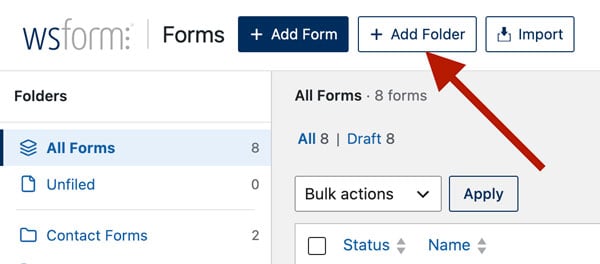
- Click Add Folder at the top of the forms page, next to Add Form.
- Enter a name in the Label field.
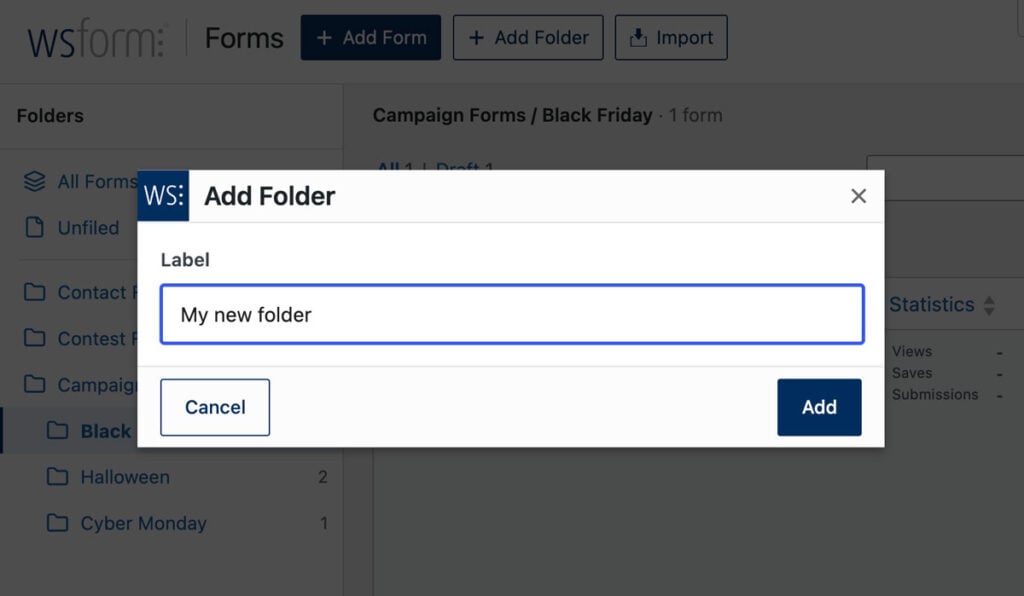
- Click Add.
The folder will appear in the folder sidebar and is ready to receive forms.
Folder names must be unique within the same parent folder. However, you can use the same folder name in different locations. For example, two customer folders could each contain a subfolder named Contact Forms.
Creating Subfolders
Subfolders allow you to organize related forms into smaller groups within a parent folder.
For example, you might create a Calculators folder containing Mortgage, Insurance, and Finance subfolders.
To create a subfolder:
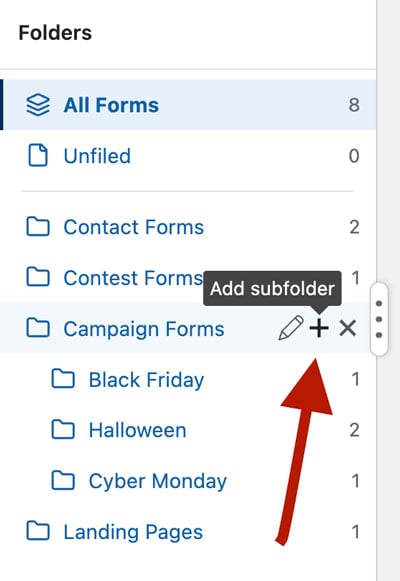
- Hover over the parent folder in the folder sidebar.
- Click the Add Subfolder (+) icon.
- Enter a name in the Label field.
- Click Add.
The new subfolder will appear beneath its parent folder.
Note: WS Form supports up to five levels of subfolders beneath a top-level folder. Once the maximum nesting depth is reached, the Add Subfolder icon will no longer appear.
Moving Forms Into Folders
WS Form provides two ways to move forms between folders: drag and drop or bulk actions.
A form can only belong to one folder at a time. Moving a form into a different folder automatically removes it from its previous folder.
Moving Forms Using Drag and Drop
Drag and drop provides a quick way to organize forms directly from the forms list.
To move a form:
- Locate the form in the forms list.
- Click and drag the form row.
- Drop the form onto the destination folder in the folder sidebar.
The form will be moved into the selected folder.
You can also move multiple forms at once:
- Check the boxes next to the forms you want to move.
- Drag one of the selected form rows.
- Drop the selected forms onto the destination folder.
To remove a form from a folder, drag it onto Unfiled.
Note: All Forms is not a drop target because it displays forms from all folders rather than representing a specific folder.
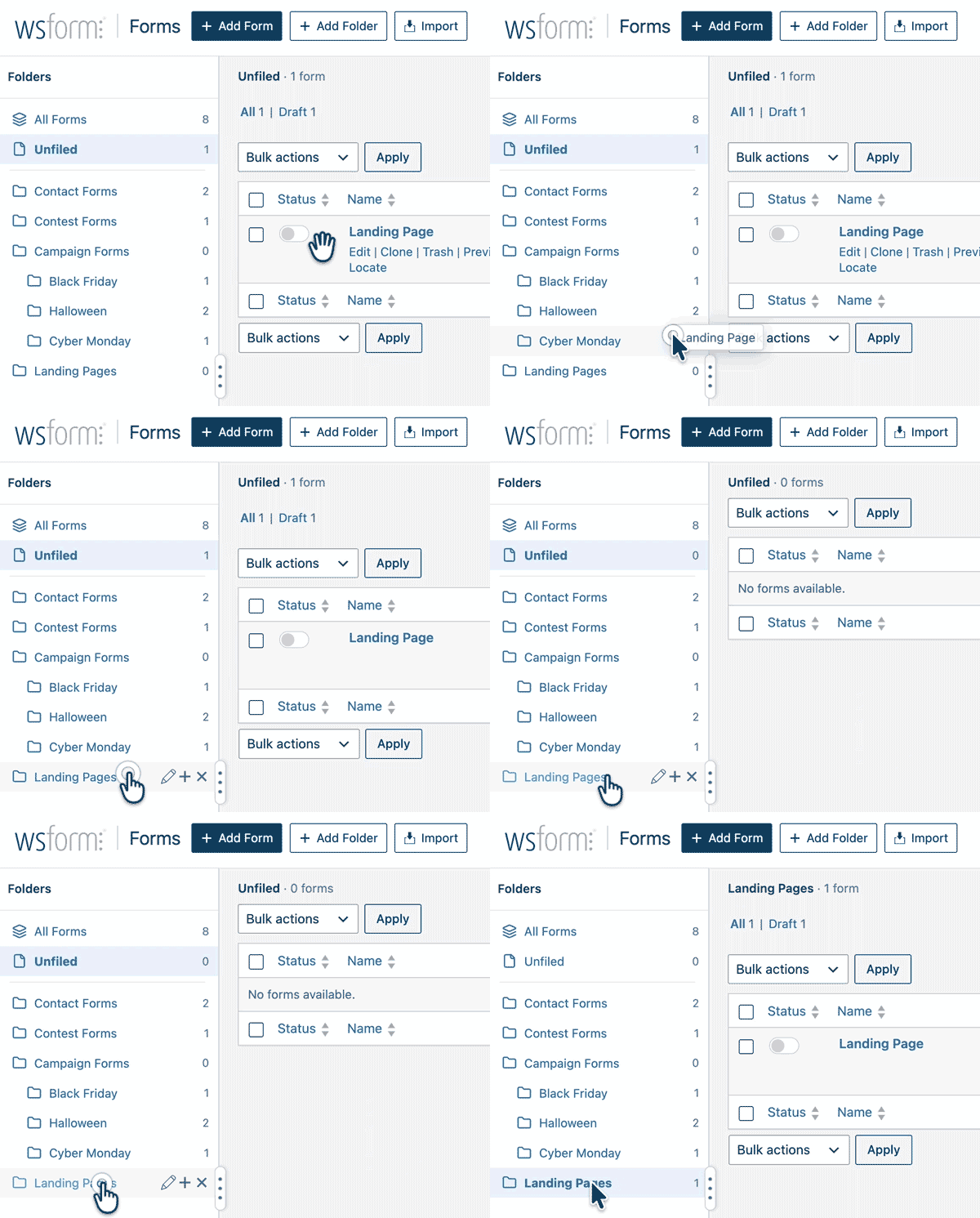
Moving Forms Using Bulk Actions
You can also move one or more forms using the Bulk actions menu.
To move forms using bulk actions:
- Check the boxes next to the forms you want to move.
- Select Move to Folder from the Bulk actions menu.
- Click Apply.
- Select the destination folder.
- Click Move.
The destination folder list includes both top-level folders and subfolders. Subfolders are indented using dashes to indicate their position in the folder structure.
To remove the selected forms from their folders, choose Unfiled as the destination.
Renaming a Folder
You can rename an existing folder without affecting the forms it contains.
To rename a folder:
- Hover over the folder in the folder sidebar.
- Click the Rename (pencil) icon.
- Update the Label field.
- Click Save.
The folder name will be updated wherever it appears in the folder sidebar and folder paths.
Deleting a Folder
You can delete folders that are no longer needed without deleting the forms they contain.
To delete a folder:
- Hover over the folder in the folder sidebar.
- Click the Delete icon.
- Confirm the deletion by clicking Delete in the confirmation dialog.
Important: Deleting a folder does not delete its forms. Instead, the forms are moved to Unfiled.
If the folder contains subfolders, those subfolders will also be deleted. Any forms contained within them will also become unfiled.
Forms are not automatically moved into the deleted folder’s parent folder.
After deleting a folder, WS Form will return you to its parent folder if you were viewing the deleted folder. If you delete a top-level folder, you will be returned to All Forms.
Viewing Unfiled Forms
Forms do not have to be assigned to a folder.
Click Unfiled in the folder sidebar to view all forms that have not been assigned to a folder.
Forms will appear under Unfiled when:
- A form has been created but has not been assigned to a folder.
- A form has been moved into Unfiled.
- A folder containing the form has been deleted.
You can move unfiled forms into folders at any time using drag and drop or the Move to Folder bulk action.
Resizing the Sidebar
To resize the folder sidebar, drag the resize handle on its right edge.
This allows you to adjust the amount of space available for folder names and the forms table.
Remembering Your Last Folder
WS Form automatically remembers the last folder you viewed.
When you return to WS Form using the WordPress administration menu, the forms list will open at your previously selected folder.
This also applies to All Forms and Unfiled.
Your last viewed folder is remembered separately for each WordPress user, so switching between folders will not affect another user’s view.
If no folder has previously been selected, WS Form will display All Forms by default.