

AI is no longer something you bolt onto a website as an experiment. In WS Form, it is built in as a practical tool that fundamentally changes how forms are created, managed, and improved.
With the OpenAI premium integration for WS Form, you can go from a blank canvas to a fully working form using nothing more than a prompt. Describe the form you want and WS Form can generate the structure for you, including calculations, select options, and more. What once required careful planning and manual configuration can now happen in minutes, giving you a powerful starting point that you can refine and customize.
AI in WS Form also helps with the details that take the most time. The same OpenAI integration can generate clear, consistent copy for your form fields, write helpful descriptions and placeholders, create images on demand, and even moderate submitted content. Instead of juggling multiple tools or second-guessing your wording, you can rely on AI to produce and polish content directly inside your form builder.
Beyond form creation, WS Form opens the door to something even more powerful with its MCP server. This allows WS Form to connect to AI clients such as Claude Desktop and Elementor’s Angie, turning your forms into data sources that AI can reason about. You can ask questions like how a form is performing, which fields are causing drop-offs, or what changes might improve completion rates, and get informed recommendations based on real form data.
Together, these features turn WS Form into more than a form plugin. It becomes an AI-enabled system for building smarter forms, generating better content, and continuously improving how users interact with your site.
Lets explore five cool and practical ways to start using these capabilities right now.
Rapid Form Creation Using a Single AI Prompt
One of the most impressive uses of AI in WS Form is the ability to generate entire forms from a simple prompt.
Instead of manually adding fields one by one, you can describe what you want in plain language. For example, you might ask for a project quote form with multiple services, conditional fields, and a total cost calculation. WS Form can generate the full structure for you, including field types, select dropdown options, calculations, and logical conditions.
This does not lock you into a black box. The generated form is fully editable, so you can tweak field names, adjust logic, or add custom styling. AI handles the heavy lifting, while you stay in full control.
This approach is especially powerful for complex forms that would normally take a long time to plan and build.
Here’s how to do that:
- Install and activate the free WS Form OpenAI premium integration.
- Go to WS Form > Settings > OpenAI and enter your OpenAI API key. You can find this on the OpenAI API Keys page.
- Go to WS Form > Add New and click on the OpenAI tab.
- Click the AI Generated template.
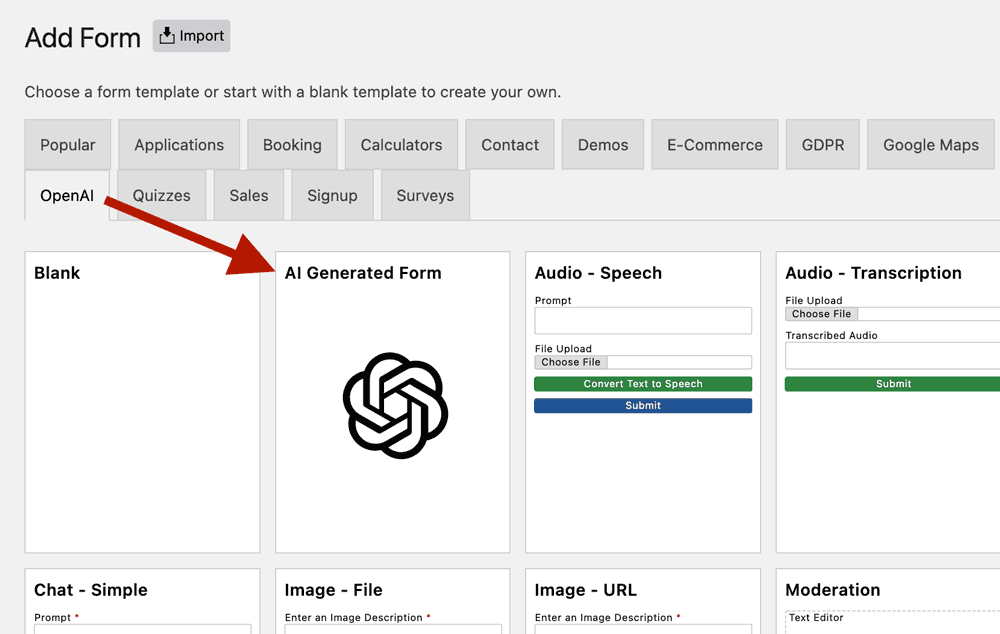
- Enter a prompt that describes the type of form you would like to create. For example:
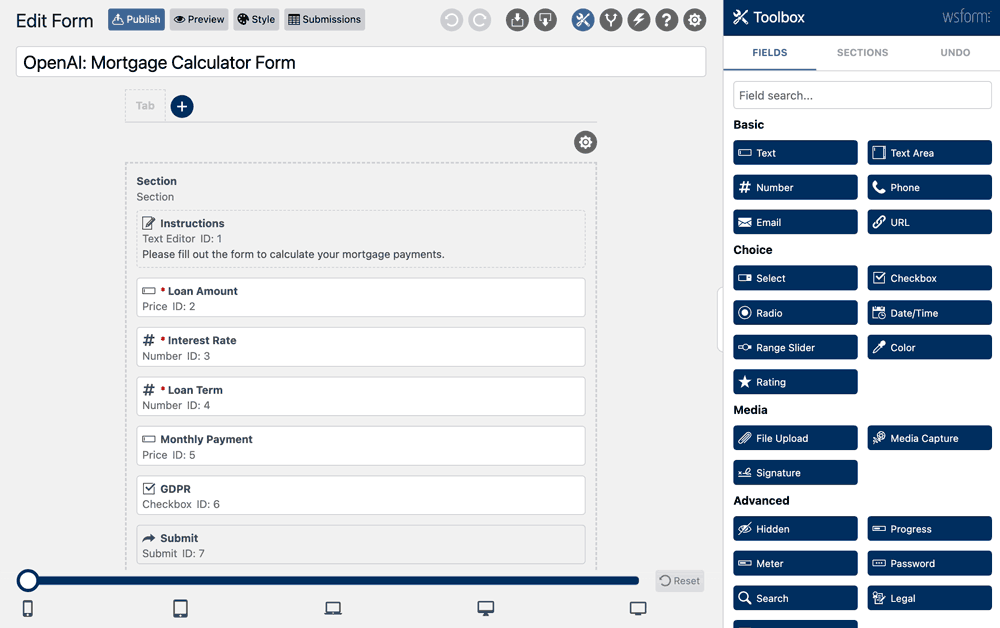
Create a mortgage calculator form. Add help text to each field to improve accessibility.
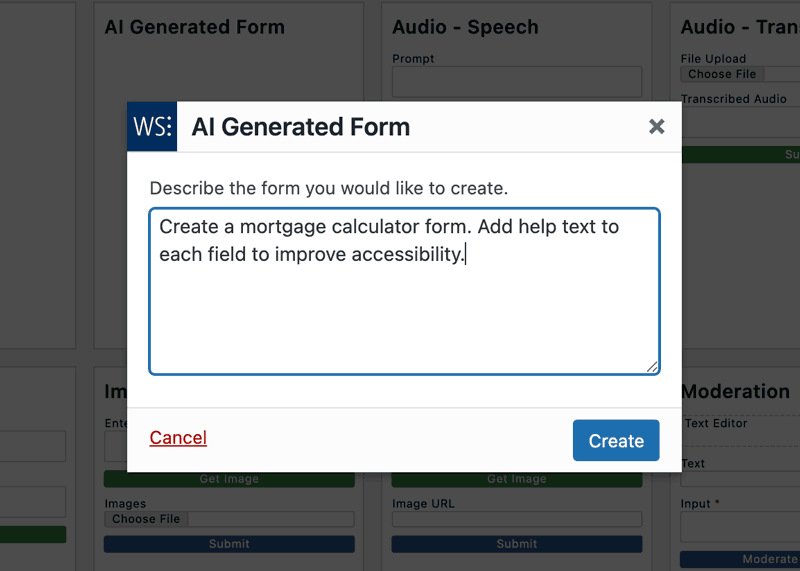
- Click Create.
WS Form then creates the form for you automatically. From there, you can edit it just like any other form, adjusting fields, logic, and styling to suit your needs.
Generate and Inject AI-Powered Content Into Your Forms
AI in WS Form can actively generate content and inject it into other fields, turning your forms into content creation tools.
Using the OpenAI premium integration, you can take input from one field and use it as a prompt for AI, then insert the generated response into another field automatically. A simple example is a content generation workflow. You might add a text area field where a user describes a blog post they want to write. That description is sent to OpenAI, which generates draft content and injects the result into a second text area field within the same form.
From there, the generated content behaves like any other field value. It can be reviewed, edited, or used in automations. When the form is submitted, the WS Form Post Management premium integration can take that AI-generated content and create a new post automatically.
This approach works for far more than blog posts. You can generate product descriptions, email drafts, support replies, summaries, or structured content based on user input. Because the AI output is treated as field data, it can be combined with conditional logic, calculations, and other WS Form features.
The result is a form that does more than collect information. It helps users create content, streamlines publishing workflows, and turns AI into a practical, hands-on part of the form experience rather than a background tool.
You can try a demo of this by using the OpenAI > Chat – Simple template.
Here’s how to do that:
- Install and activate the free WS Form OpenAI premium integration.
- Go to WS Form > Settings > OpenAI and enter your OpenAI API key. You can find this on the OpenAI API Keys page.
- Go to WS Form > Add New and click on the OpenAI tab.
- Click the Chat – Simple template.
WS Form will then create a form that demonstrates how to use the OpenAI chat endpoint.

Learn more: OpenAI Premium Integration
Use AI to Create Images and Moderate Content
AI in WS Form goes beyond text generation.
You can use the OpenAI integration to generate images that can be used within your forms or confirmation messages. This is useful for visual guidance, branding, or simply making forms feel more engaging without relying on external design tools.
AI can also be used to moderate content submitted through your forms. For fields that allow free text, such as feedback or support requests, AI can review submissions for spam, abusive language, or policy violations. You can automatically flag, reject, or handle problematic entries before they reach your inbox or database.
This helps maintain data quality and reduces the time spent dealing with low quality or inappropriate submissions.
Here’s how to do that:
- Install and activate the free WS Form OpenAI premium integration.
- Go to WS Form > Settings > OpenAI and enter your OpenAI API key. You can find this on the OpenAI API Keys page.
- Go to WS Form > Add New and click on the OpenAI tab.
- Click either the Image – File or Moderation template.
WS Form will then create a form that demonstrates these features.
Learn more: OpenAI Premium Integration
Analyze Form Performance With AI via the MCP Server
The WS Form MCP server takes AI integration to another level by allowing external AI clients to interact directly with your form data.
By connecting WS Form to AI tools like Claude Desktop or Elementor’s Angie, you can ask natural language questions about your forms. For example, you might ask how many submissions a form receives, which fields are most often left blank, or where users tend to abandon the form.
Instead of digging through raw statistics or exporting data for manual analysis, you can get clear summaries and insights directly from an AI that understands the structure and behavior of your forms.
This turns form analytics into a conversation rather than a reporting task.
Learn more: MCP Server
Get AI-Powered Recommendations to Improve Your Forms
The final and most forward-looking use of AI in WS Form is using it to actively improve your forms over time.
Because AI can analyze real submission data through the MCP server, it can also make recommendations. You can ask for suggestions on how to improve completion rates, simplify confusing sections, or reorder fields for a better user experience.
For example, AI might recommend shortening a form, rewording a specific question, or moving a high-friction field later in the flow. These insights are based on actual usage patterns, not guesswork.
This creates a feedback loop where your forms are not just built once, but continuously refined with the help of AI.
Learn more: MCP Server
Final Thoughts
AI in WS Form is not about replacing form builders or removing control. It is about removing friction, saving time, and unlocking insights that were previously hard to access.
From generating complete forms and writing better copy to moderating content and improving performance through AI-driven analysis, WS Form shows what is possible when AI is deeply integrated rather than bolted on.
If you build forms regularly, AI turns WS Form into more than a tool you use occasionally. It becomes an intelligent system that helps you build better forms every time.