
WordPress 7 introduces Connectors, a centralized system for managing AI provider credentials from within WordPress. Each connector is implemented as its own plugin, allowing AI providers and services to be added independently over time.
This makes it easier to connect services such as OpenAI, Anthropic, and Gemini without each plugin needing its own separate API key settings. Very cool!
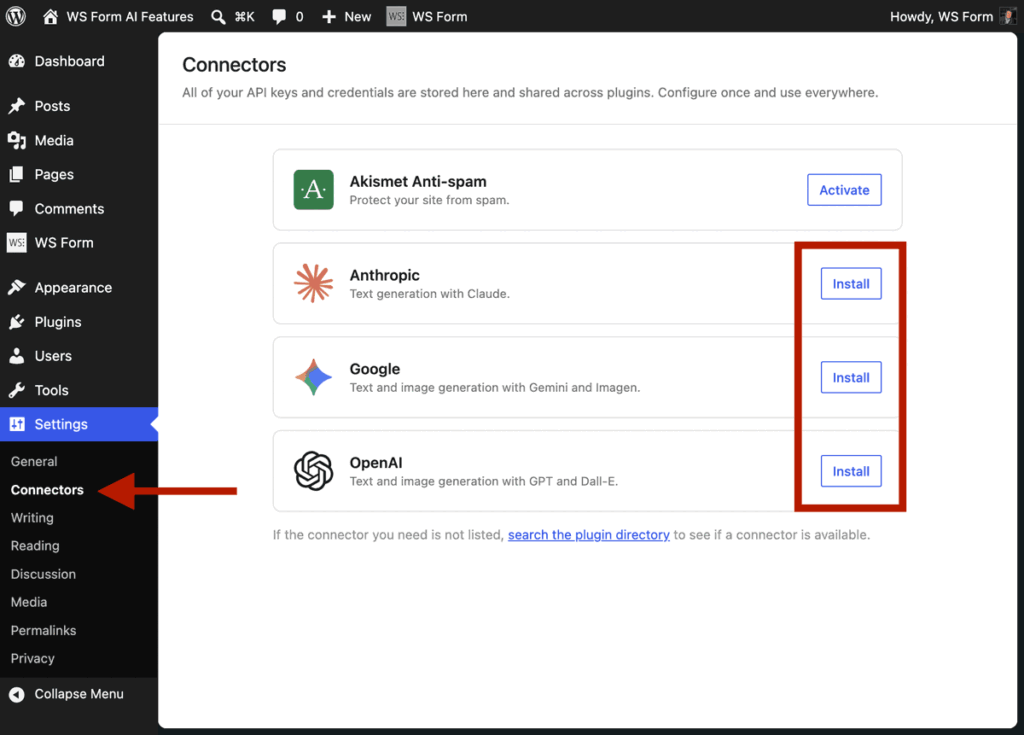
While this capability is useful, it also creates an important responsibility for site owners, developers, and agencies. API keys should be treated like privileged credentials because they can authorize paid usage and access provider resources. If they are exposed, abused, or left unrestricted, they can quickly generate unexpected costs.
Although this article focuses on OpenAI, Anthropic, and Gemini, the same security practices should be applied to any future connectors introduced to the WordPress Connectors system.
TL;DR: API Key Best Practices
- Treat API keys like passwords because they can generate real usage charges
- Create a separate project or workspace in OpenAI, Anthropic, or Gemini for each website
- Use a unique API key for every site and environment
- Set monthly spending limits and usage alerts
- Restrict models, APIs, domains, server IP addresses, and quotas wherever possible
- Store keys in
wp-config.phpor environment variables instead of the database for production sites - Monitor usage regularly for unusual activity or unexpected spikes
- Rotate keys periodically and immediately after any suspected exposure
- Apply the principle of least privilege by limiting models, APIs, origins, and quotas to only what the site requires
- Never commit API keys to Git repositories or public code repositories
API Keys Are Not Traditional Subscriptions
One important thing many users do not realize is that AI API keys work very differently from traditional software subscriptions.
With a normal SaaS subscription, you typically pay a fixed monthly fee with predictable costs.
AI services such as OpenAI, Anthropic, and Gemini usually charge based on usage. This means your costs increase depending on how many requests are made and how many tokens are consumed.
A token is roughly a small chunk of text processed by the AI model. Larger prompts and larger responses consume more tokens, increasing costs over time.
This creates a very different risk profile compared to standard subscriptions.
If an API key is abused, exposed publicly, or used by automated systems unexpectedly, charges can accumulate rapidly without any manual approval step.
For example:
- A spam bot could continuously generate requests
- A misconfigured plugin could create runaway usage
- A compromised administrator account could trigger large amounts of API activity
Unlike a flat monthly subscription, there may be no automatic hard stop unless you explicitly configure one. Even when budget controls are available, they should be treated as safeguards rather than guarantees. Some providers use soft limits, delayed enforcement, or limits that depend on account configuration.
This is why spending caps, usage alerts, quotas, rate limits, and regular monitoring are essential when using AI APIs inside WordPress.
Where API Keys Are Stored in WordPress
When you add an AI provider in Settings > Connectors, WordPress stores that provider’s API key so it can make requests on your behalf.
API keys are saved in your WordPress database inside the wp_options table. There is no separate encrypted vault for AI credentials.
The built-in providers use these option names:
| Provider | Option Name |
|---|---|
| Anthropic | connectors_ai_anthropic_api_key |
| Google (Gemini) | connectors_ai_google_api_key |
| OpenAI | connectors_ai_openai_api_key |
When you save a key in the Connectors screen, WordPress stores it as plain text in the database.
This is standard behavior in WordPress. Many plugins store API keys, payment credentials, SMTP passwords, and third-party tokens in a similar way. WordPress has traditionally relied on server, file system, and database security rather than encrypting every option value.
WordPress does add some protections in the admin area:
- API keys are masked in the REST API
- Keys are validated before being saved
Those protections help prevent accidental exposure in the dashboard, but the full key still exists in the database.
This means database exports, backups, staging copies, compromised administrator accounts, vulnerable plugins, or direct database access could expose the key.
These same considerations should apply to any future connectors added to the Connectors system, regardless of which AI provider or external service they integrate with.
Setting API Keys in wp-config.php
For production sites, storing API keys outside the database is generally the better approach.
WordPress checks for environment variables and constants before looking in wp_options, which means you can define keys in server configuration or wp-config.php and avoid storing them in the database entirely.
Supported environment variables and constants include:
ANTHROPIC_API_KEYGOOGLE_API_KEYOPENAI_API_KEY
Example using wp-config.php:
define( 'OPENAI_API_KEY', 'your-api-key' );
define( 'ANTHROPIC_API_KEY', 'your-api-key' );
define( 'GOOGLE_API_KEY', 'your-api-key' );
Example using environment variables:
define( 'OPENAI_API_KEY', getenv( 'OPENAI_API_KEY' ) );
define( 'ANTHROPIC_API_KEY', getenv( 'ANTHROPIC_API_KEY' ) );
define( 'GOOGLE_API_KEY', getenv( 'GOOGLE_API_KEY' ) );
This approach has several advantages:
- Keys are not included in database exports or backups
- Administrators cannot accidentally change or expose them in WordPress
- Secrets can be managed centrally at the server level
- Deployments are cleaner across staging and production environments
For developer-managed or production sites, using wp-config.php or environment variables should be considered best practice.
Storing API keys in wp-config.php improves separation from the WordPress database, but the file must still be protected with proper server permissions, deployment controls, and repository exclusions.
Never commit wp-config.php, environment files, deployment secrets, or API keys to Git.
The Biggest Risk: Unlimited Spending
Most AI providers bill usage automatically.
If an attacker gains access to your API key, they may be able to:
- Generate large amounts of AI content
- Run automated scripts against your account
- Use your account for spam or malicious automation
- Consume expensive model resources continuously
A leaked key can generate significant charges before the issue is discovered. This is why spending limits, rate limits, alerts, and provider-level restrictions are critical.
Budget limits should not be treated as your only protection. Depending on the provider, budget controls may be soft limits, may not stop requests immediately, or may only apply after a short delay. You should always combine budget controls with least-privilege API keys, monitoring, and usage restrictions.
OpenAI API Key Best Practices
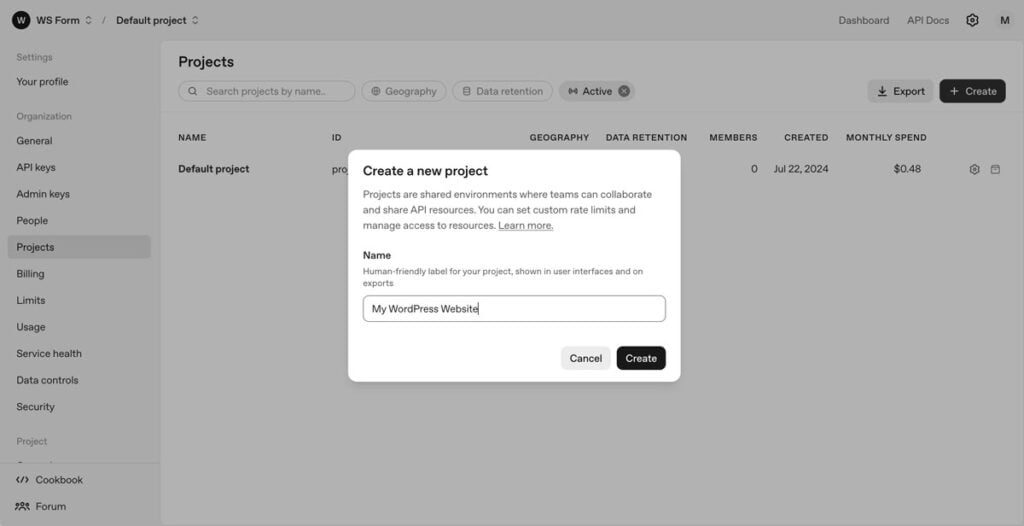
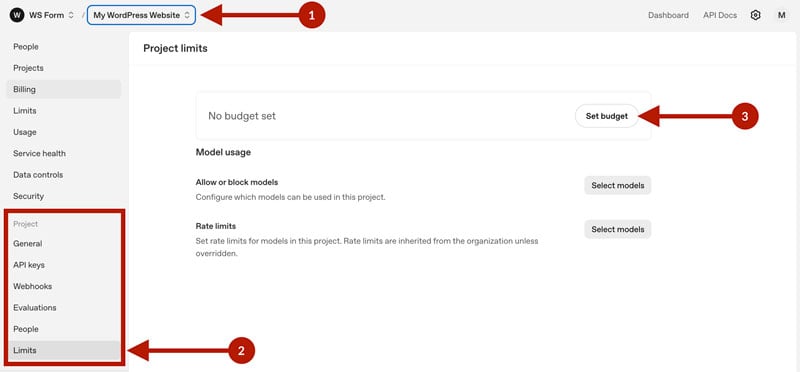
OpenAI provides Projects and usage monitoring tools to improve security and reduce financial risk. It is recommended that you create a separate project for each website you connect to WordPress.
To do this:
- Log in to the OpenAI Dashboard.
- Click Projects in the side menu.
- Create a new project for your website by clicking Add Project.
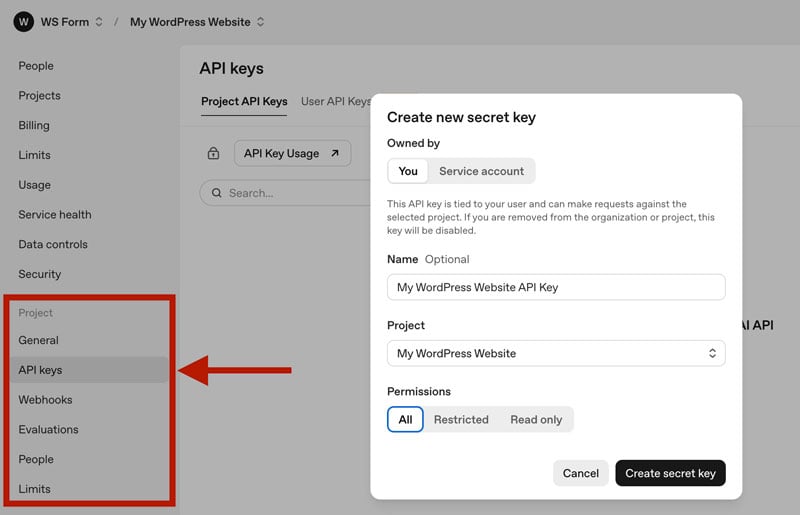
- Create an API key for the project. Click API keys under Project in the sidebar, then click Create new secret key.
- Set a monthly budget. Select your project, click Limit under Project, then click Set budget.
- Create usage alerts so you receive email notifications when spending reaches specific thresholds such as 25%, 50%, and 75%.
- Restrict which AI models can be used and configure rate limits where possible. If you are using the Make AI Request Action in WS Form, you can also specify which models are allowed.
You can now register this key in WordPress for the OpenAI connector.
It is important to understand that OpenAI project budgets should not be treated as immediate hard-stop protections. Requests may continue after a budget threshold is reached.
Because of this, budgets should be treated as an important safeguard rather than a guarantee against overspending.
Anthropic API Key Best Practices
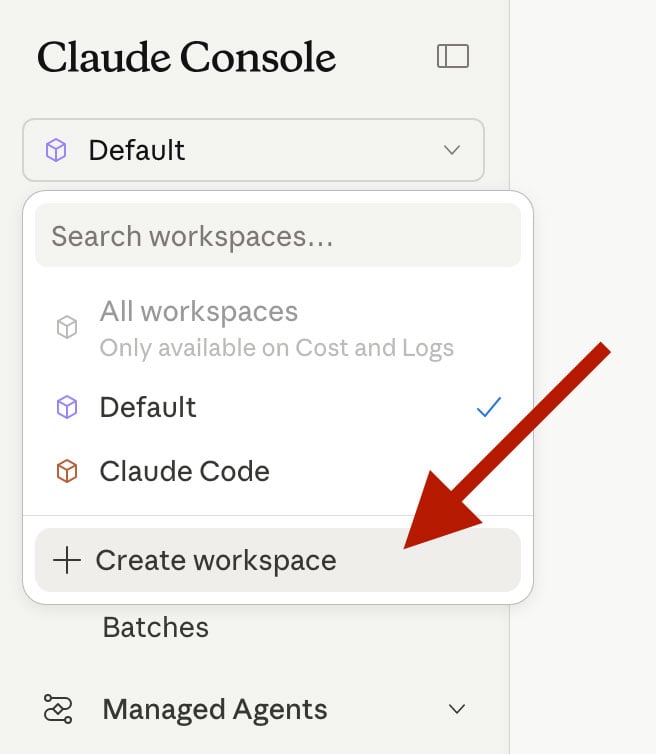
Anthropic provides Workspaces and usage monitoring tools to improve security and reduce financial risk. It is recommended that you create a separate workspace for each website you connect to WordPress.
To do this:
- Log in to the Claude Console.
- Create a new workspace for your website by clicking Create workspace from the Workspace dropdown or from the Workspaces page.
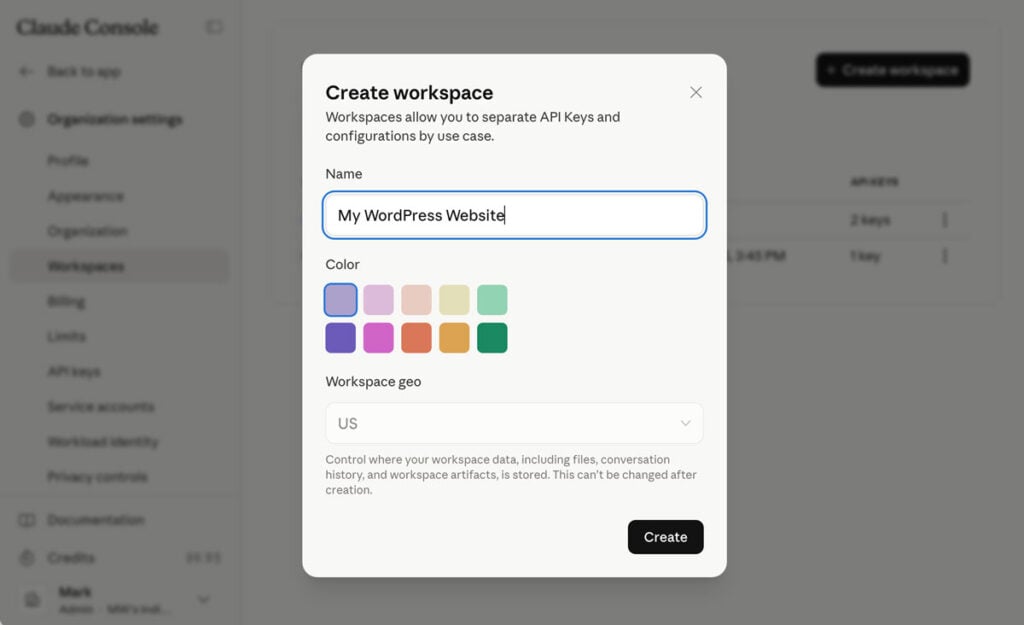
- Enter a workspace name and click Create.
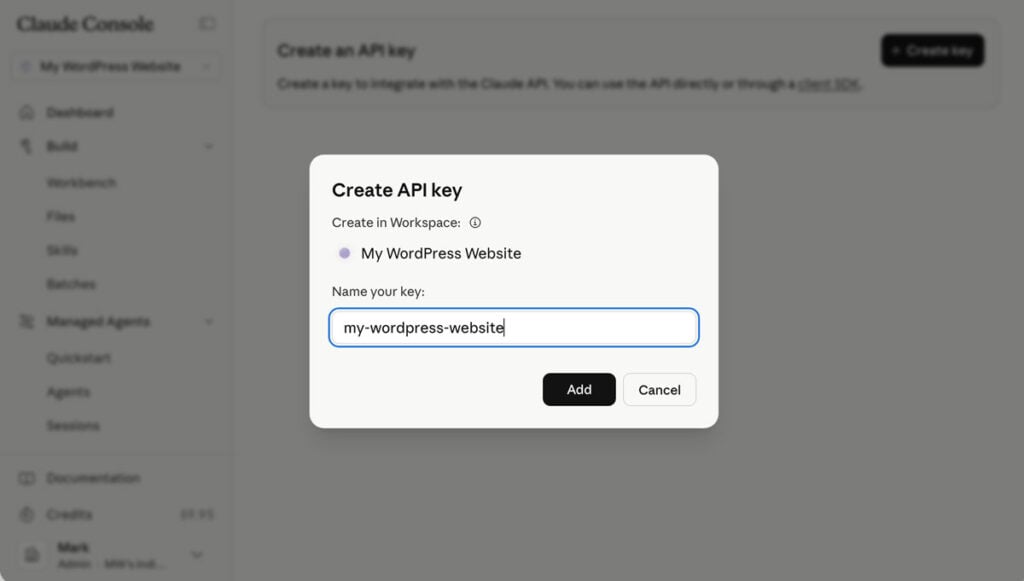
- Create an API key for the workspace. Open the workspace, click Create key, then enter a name for the key.
- Set a monthly spending limit and usage alerts. Click Limits from the Manage menu, then click Change limit and Add notification.
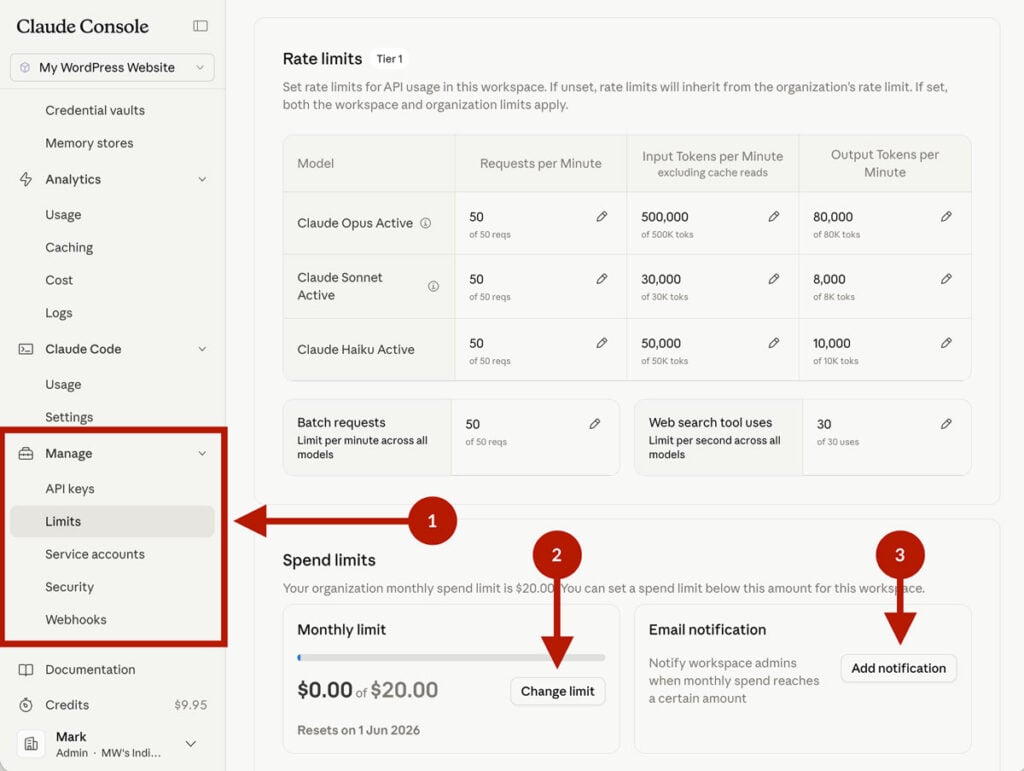
You can now register this key in WordPress for the Anthropic connector.
Anthropic also supports rate limits and spend limits. Where available, set lower workspace-specific limits so one website cannot consume the full organization allowance.
Gemini API Key Best Practices
Gemini provides Projects and usage monitoring tools to improve security and reduce financial risk. It is recommended that you create a separate project for each website you connect to WordPress.
To do this:
- Log in to Google AI Studio.
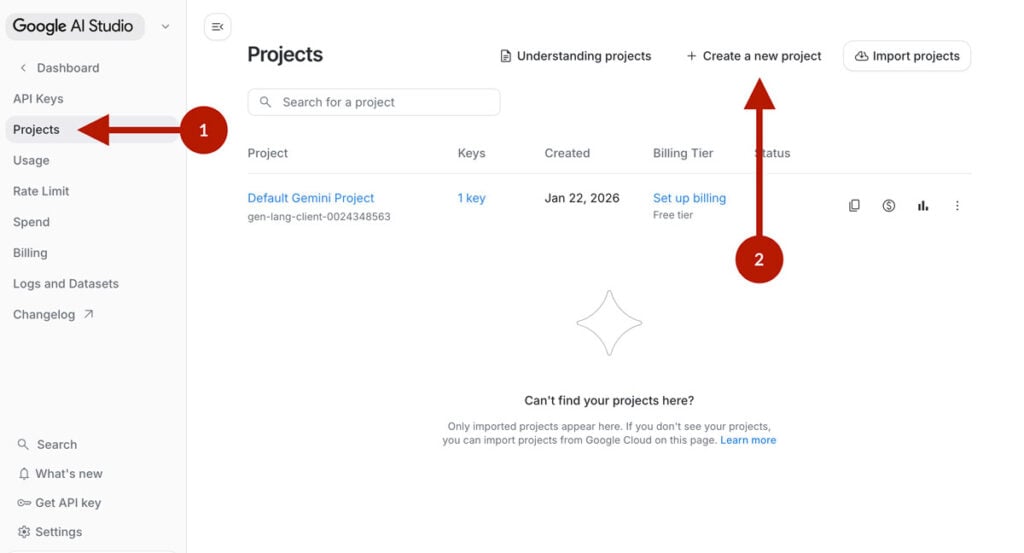
- Click Projects, then click Create a new project.
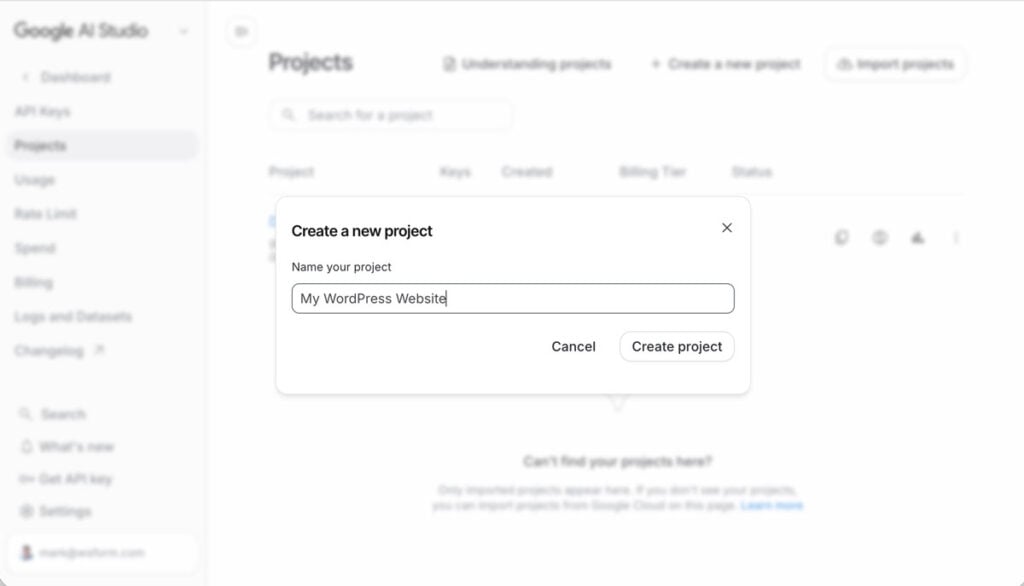
- Enter a project name, then click Create project.
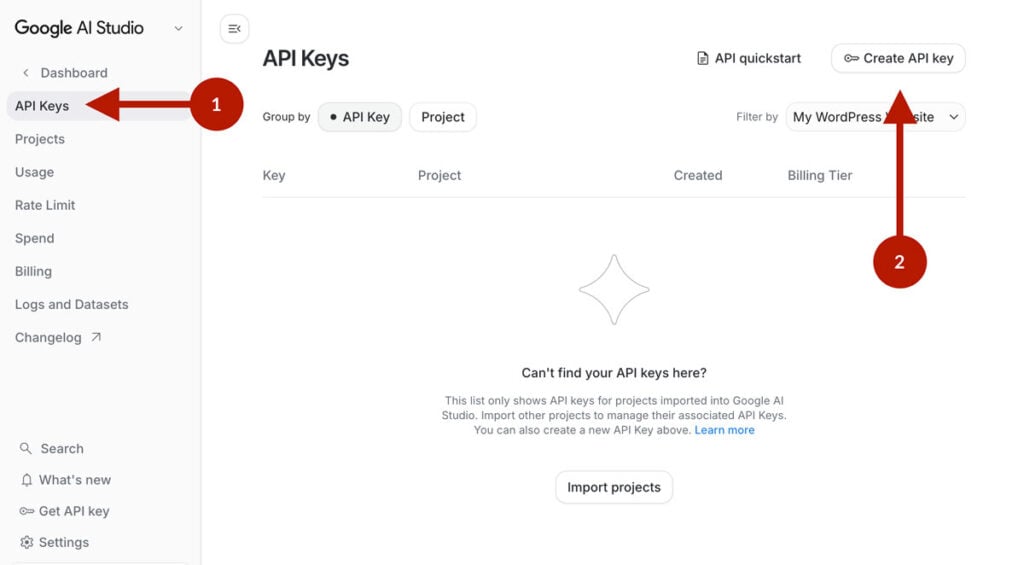
- Create an API key for the project. Click API Keys in the side menu, then click Create API key.
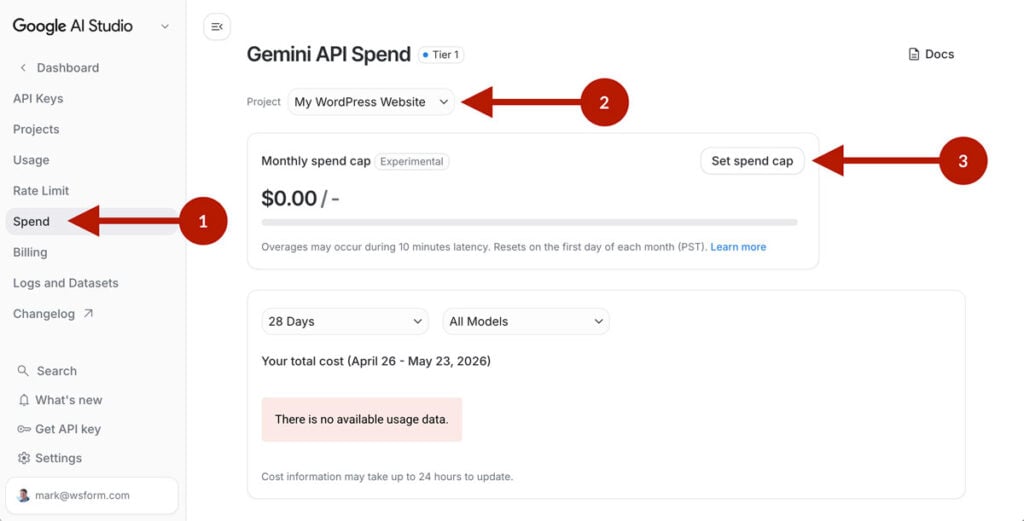
- Set a monthly spending limit. Click Spend in the side menu, select your project, then click Set spend cap.
For more granular rate limits and quota controls, use the Google Cloud Console because AI Studio may only show your current usage tier limits.
To configure rate limits:
- Go to the Google Cloud Quotas & System Limits page.
- Select your project from the top dropdown.
- Filter for Generative Language API.
- Locate metrics such as
GenerateContent requests per minute per project. - Click the edit icon next to the quota to reduce the allowed limit.
You should also restrict your API key to prevent unauthorized use:
- API Restrictions: In the Cloud Console Credentials page, restrict the key to the Generative Language API.
- Application Restrictions: Under Application restrictions, restrict the key to your website domain or server IP address.
You can now register this key in WordPress for the Gemini connector.
If you ever need to revoke or restrict a Google API key during an incident, continue monitoring usage after making the change. Like many distributed cloud systems, key changes may require a short propagation period before they are fully enforced everywhere.
What To Do If an API Key Is Exposed
If you believe an API key has been exposed, act quickly.
- Revoke or delete the exposed API key in the provider dashboard.
- Create a new API key for the affected website.
- Update the key in
wp-config.php, your environment variables, or Settings > Connectors. - Review provider usage logs for unusual requests, unexpected models, unfamiliar IP addresses, or sudden spending spikes.
- Check WordPress administrator accounts for unfamiliar users, weak passwords, or missing two-factor authentication.
- Review recent plugin, theme, and server changes.
- Check database exports, staging sites, backups, Git repositories, and deployment logs for accidental key exposure.
- Rotate any other credentials that may have been exposed at the same time.
- Continue monitoring provider usage after the key is revoked or replaced.
Do not simply remove the key from WordPress and assume the issue is resolved. If the key was copied, leaked, logged, committed to Git, included in a backup, or exposed through a compromised account, it should be treated as compromised and replaced.
Recommended Security Practices
Connectors make AI services easier to integrate with WordPress, but they do not replace good security practices. No matter where you store API keys, basic WordPress security still matters:
- Keep WordPress updated
- Update plugins and themes regularly
- Remove unused plugins and themes
- Enable two-factor authentication for administrator accounts
- Use strong, unique passwords
- Install a web application firewall such as Cloudflare
- Use reputable hosting
- Protect database access with strong passwords and limited accounts
- Restrict access to Settings > Connectors to highly trusted administrators only
- Treat database backups as sensitive data
- Use separate keys for production, staging, development, and local environments
- Rotate keys immediately if one is exposed or compromised
- Use environment variables and/or
wp-config.phpwhenever possible
API keys should be managed with the same care as payment credentials, SMTP passwords, and administrator accounts. They may not look like passwords, but they can grant access to paid services and generate real costs.
The practices outlined in this article should be applied consistently to any future connectors added to the WordPress Connectors ecosystem, regardless of the provider, plugin, or external service being integrated.
For production websites, the safest approach is to combine least-privilege provider settings, per-site API keys, usage alerts, spending controls, server-side secret storage, and regular monitoring.
Security & Legal Disclaimer
This article is provided for informational purposes only. While these practices may help improve security, no security measure can guarantee complete protection against unauthorized access, abuse, financial loss, or security incidents.
You are responsible for securing your own WordPress installation, hosting environment, API credentials, plugins, and third-party services. Always test changes before deploying to production systems and consult qualified professionals where appropriate.
The author and publisher accept no liability for any loss, damage, costs, or issues arising from the use of this information.