
Note: This feature requires WordPress 7
The WS Form Make AI Request action can be used to make a request to Anthropic, Google or OpenAI to generate content such as text or images. This content can then be used directly in your form such as in a Text Area or File Upload field.
Example use cases include:
- Produce text and image content when creating a post using the post management integration.
- Provide the ability to improve copy in a text area field using instructions (e.g. Fix my grammar!).
- Create an avatar image when using the user management integration.
- Question and answer capability on a support page
Configuring Connectors
In order to use the Make AI Request action you will need to configure at least one AI connector in WordPress such as Anthropic, Google or OpenAI.
To do this:
- Click on Settings > Connectors from the WordPress administration menu.
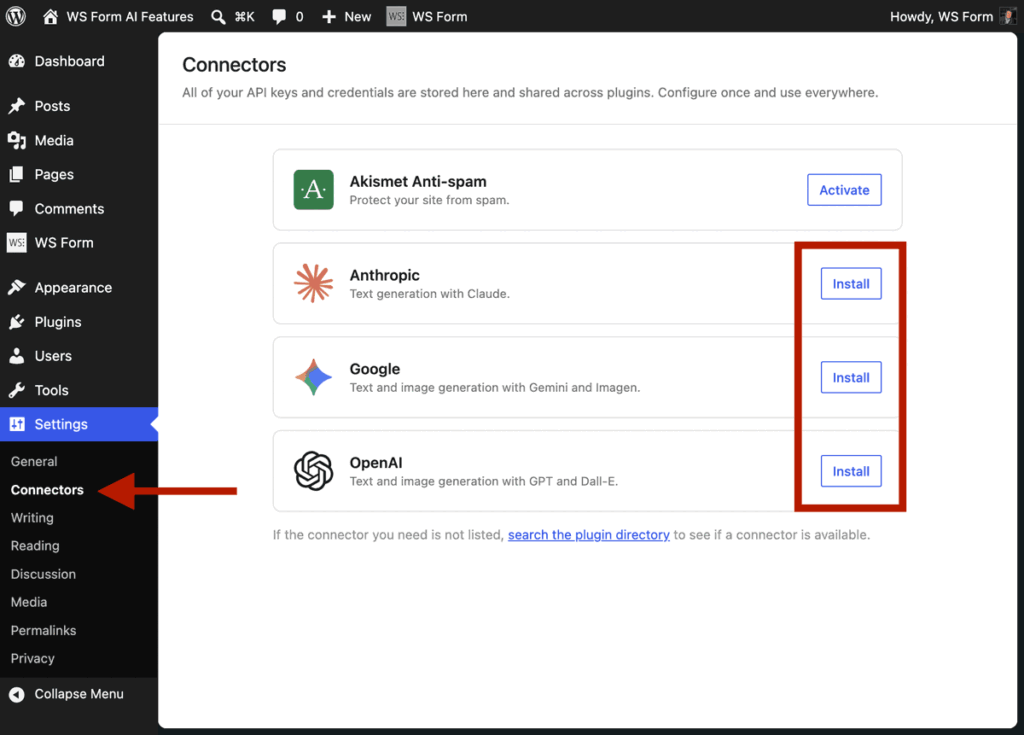
- Click the Install button for Anthropic, Google and/or OpenAI and enter your API keys.
- Click Save.
- WordPress will show Connected when the provider is successfully connected.
Once you have completed the step above a new Create from AI template will appear in the WS Form Add Form admin page and you will also be able to use the Make AI Request action.
Demo Templates
WS Form includes demo templates to get you started. These show how the Make AI Request action can be used to create text and image content. To access those demos:
- Click on WS Form > Add Form from the WordPress admin menu.
- Click on the AI tab.
- Click Use Template on one of the demo templates.
- Click Preview to test the form.
Tutorial
Here is how to create a basic form that would take input from a Text Area field and use it as a prompt to generate some output text.
Create a Blank Form
First we’ll create a blank form.
- Click on WS Form > Add New.
- Click Use Template on the Blank form.

Add Fields
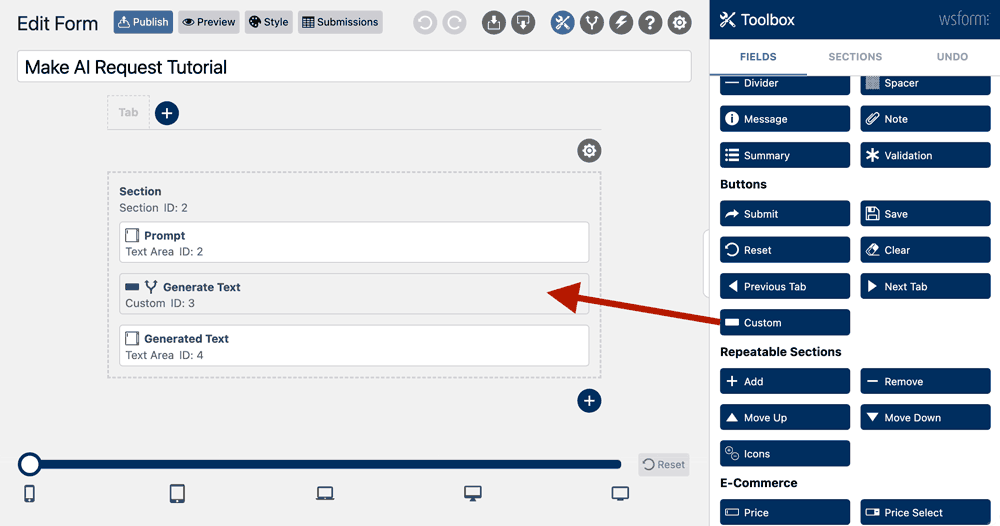
For this tutorial, we’re going to add three fields. A Text Area field for the input, a Custom Button that when clicked will make the AI request, and another Text Area field to hold the output of the AI request.
Drag these fields to your form and label them appropriately.
Create the Make AI Request Action
Next we need to add the Make AI Request Action. To do this:
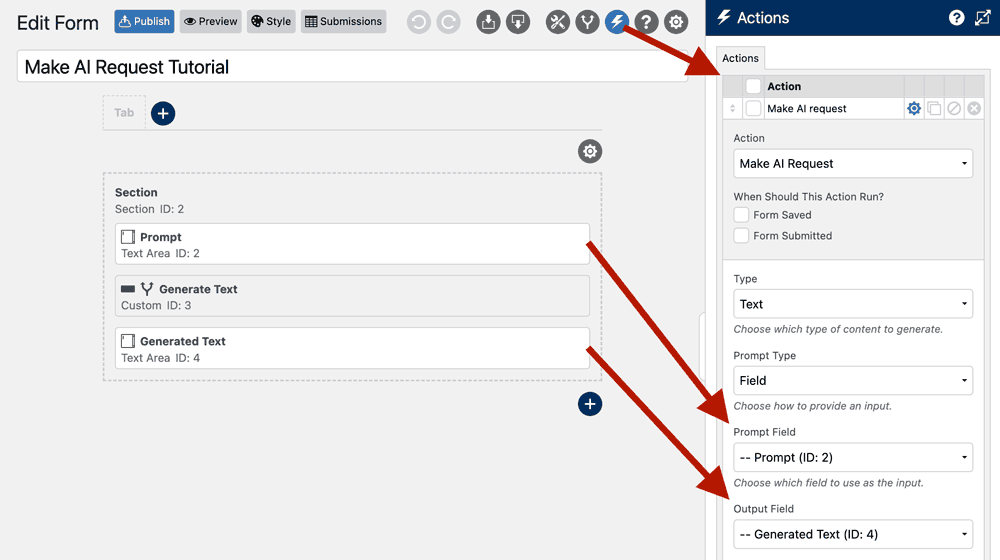
- Click the Actions icon at the top of the layout editor.
- Click the Add icon .
- Choose Make AI Request from the Action setting.
- Configure the action by choosing the Prompt Field and Output Field from your form.
- Click Save & Close.
You will noticed that the When Should This Action Run? setting has neither checkbox checked. This is because we recommend using conditional logic to run the Make AI Request action when a custom button is clicked. This ensures the AI requests run without submitting the form and keeps the user on the form while they interact with it.
Add Conditional Logic to the Custom Button
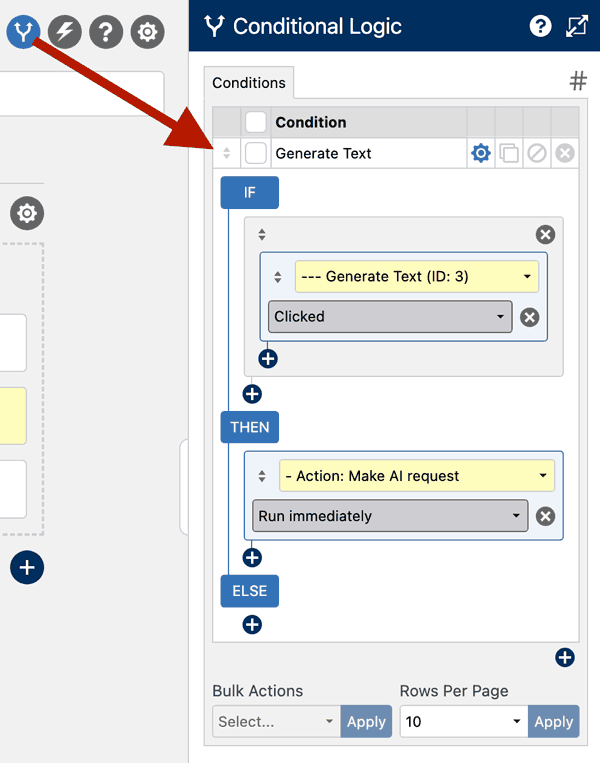
To run the Make AI Request action when the Generate Text custom button is clicked, we are going to use conditional logic.
- Click the Conditional Logic icon at the top of the layout editor.
- Click the Add icon .
- Add the following condition:IF [Generate Text] [Clicked] THEN [Action: Make AI Request] [Run Immediately]
- Click Save & Close.
Preview the Form
Click the Preview button at the top of the layout editor to test the form. Enter a prompt, such as:
Write a haiku about WordPress.
… then click the Generate Text button. WS Form will then use the WordPress AI Client SDK to make an API request to your preferred AI provider and will place the result in the Generated Text field.
Settings
The Make AI Request action settings depend on the Type setting selected.
Text
The Text action settings are as follows:
Prompt Type
There are two ways of obtaining input:
- Field
- Mask
Prompt Field
If you choose the Field type, you simply choose a field on your form to use for the input. You can choose any text based field such as a Text or Text Area field.
Mask
If you choose the Mask method you can create an input mask and use WS Form variables to dynamically insert field variables. See Input Mask below.
Input Field
Choose the field to use for the input (prompt). This will typically be a text area field on your form.
Input Mask
Use the input mask to create a custom prompt and use WS Form variables to dynamically insert field variables. This is particularly useful if you are developing prompt engineering.
The following is a conversation between an Agent and a Customer. The agent will attempt to diagnose the problem and suggest a solution, whilst refraining from asking any questions related to PII. Instead of asking for PII, such as username or password, refer the user to the help article wsform.com/knowledgebase

Customer: #field(123)
Agent:
In the above example mask, the pre-amble provides context about the prompt. We then insert the customers question from field ID 123 into that prompt.
Output Field
Choose the field to use for the output. This will typically be a Text Area field on your form. The output field can also be configured as the same field as your input field.
Use Output Mask
If checked, an Output Mask field will appear allowing you to finely control the output that is injected into the Output Field. You can use WS Form variables in the mask. Use #output to inject the output anywhere in the mask.
Trim Output
If checked, the completion will be trimmed.
Apply WPAutoP to Output
wpautop is a WordPress function that automatically adds paragraph and line break tags to the text content of a post or page, to properly format the text and make it easy to read on the website.
If checked, WS Form will apply wpautop to the output so that it can be used in fields such as HTML and Text Editor field types.
Temperature
The Temperature setting is used to adjust how much of a random element is introduced into the output generated by the AI model. A lower completion temperature indicates that the model should be more conservative in its output, while a higher temperature indicates that the model should be more creative with its output.
Model Preference
It is possible to specify preferences for which model is used with the action runs.
- Click the Add icon .
- Choose which provider and model you would like to use for the request.
- Repeat this for each provider and model you wish to add.
API Request Timeout (Seconds)
The maximum permissible time in seconds that the API request will run for. Longer timeouts may be required for longer or more complex AI requests.
Image
The Image action settings are as follows:
Prompt Type
There are two ways of obtaining input:
- Field
- Mask
Prompt Field
If you choose the Field type, you simply choose a field on your form to use for the input. You can choose any text based field such as a Text or Text Area field.
Mask
If you choose the Mask method you can create an input mask and use WS Form variables to dynamically insert field variables. See Input Mask below.
Input Field
Choose the field to use for the input (prompt). This will typically be a text area field on your form.
Input Mask
Use the input mask to create a custom prompt and use WS Form variables to dynamically insert field variables. This is particularly useful if you are developing prompt engineering.
Output Field
Choose the field to use for the output. This will typically be a File field on your form. The file field must be configured to use DropzoneJS.
Image Count
Choose the number of images to create (max 10).
Model Preference
It is possible to specify preferences for which model is used with the action runs.
- Click the Add icon .
- Choose which provider and model you would like to use for the request.
- Repeat this for each provider and model you wish to add.
API Request Timeout (Seconds)
The maximum permissible time in seconds that the API request will run for. For longer or more complex AI requests, you may need to set longer timeouts.
Variables
The Make AI Request action introduces the following variables for use in actions:
| Variable | Name | Description | Usage |
|---|---|---|---|
#wp_ai_client_completion_tokens | Completion Tokens | Returns the completion token count. | Actions |
#wp_ai_client_input | Input | Returns the input. | Actions |
#wp_ai_client_output | Output | Returns the output. | Actions |
#wp_ai_client_prompt_tokens | Prompt Tokens | Returns the prompt token count. | Actions |
#wp_ai_client_total_tokens | Total Tokens | Returns the total token count. | Actions |
#wp_ai_client_type | Type | Returns the generation type. | Actions |