
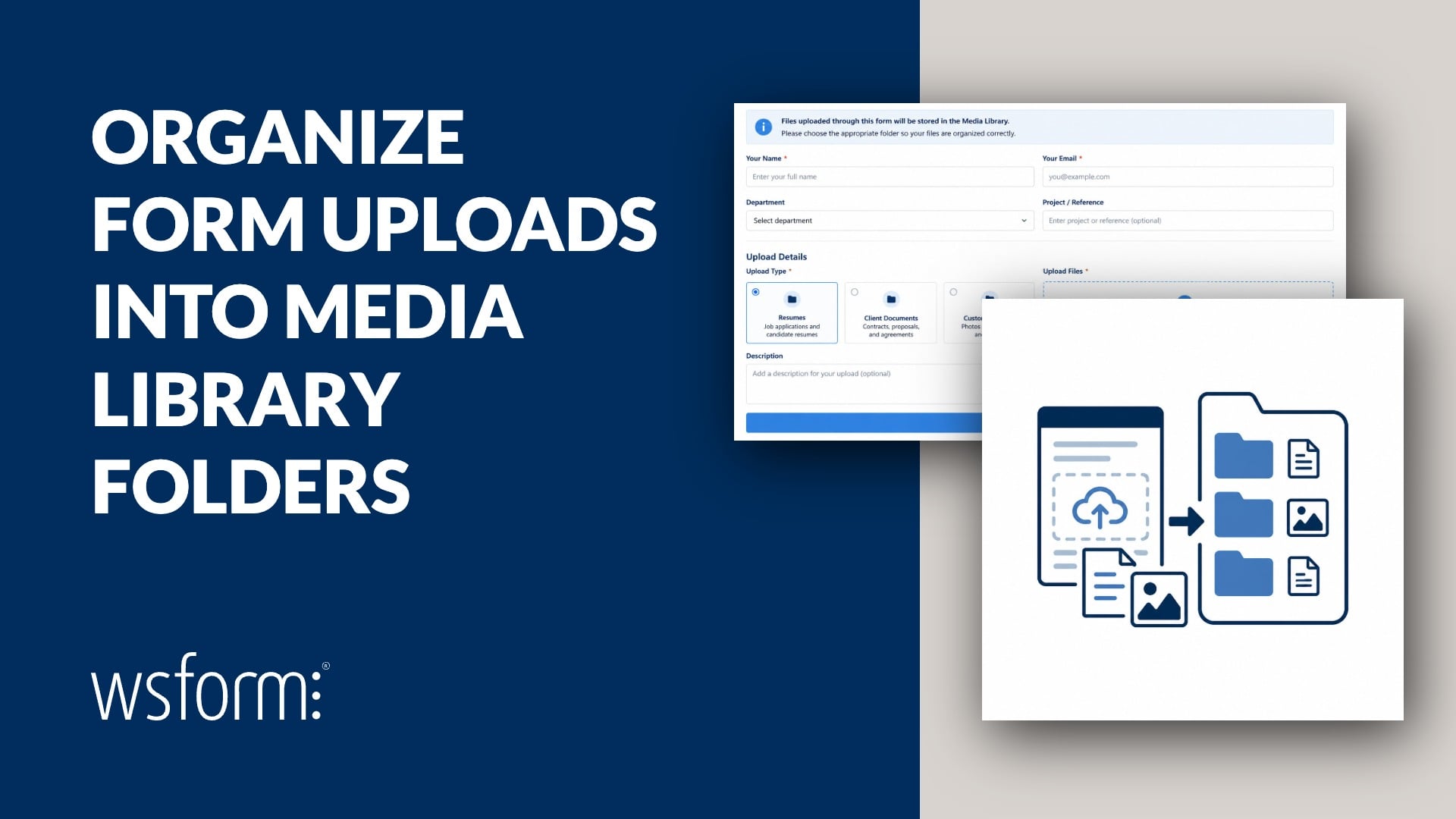
File uploads are an essential part of many forms, but keeping those files organized can quickly become a challenge. Resumes, customer photos, signed documents, and other attachments can all end up mixed together in your WordPress Media Library.
WS Form PRO makes organizing those uploads easier with built-in integrations for FileBird, Premio Folders, and HappyFiles. Simply choose a destination folder for your file upload field, and WS Form automatically assigns uploaded files to that folder when the form is submitted.
Three Media Library Integrations, Built Right In
WS Form PRO supports three popular Media Library organization plugins:
- FileBird – Organize uploaded files into FileBird folders and subfolders.
- Premio Folders – Automatically assign uploaded files to folders created using the Premio Folders plugin.
- HappyFiles – Send files directly to selected HappyFiles folders in your Media Library.
All three integrations are built into WS Form PRO, with no additional WS Form add-ons required. Install and activate your preferred folder plugin, and WS Form makes its folder selection available in the field settings.
Organize Different Uploads into Different Folders
One of the most useful aspects of this feature is that folders are assigned at the field level. This means you can send files from different fields on the same form to different folders.
For example, imagine a job application form with two upload fields:
- Upload Resume – Save files to HR / Resumes.
- Upload Portfolio – Save files to HR / Portfolios.
When an applicant submits the form, WS Form automatically organizes the uploaded documents into their respective folders. There’s no need to manually move files around afterward.
This is particularly useful for applications, customer onboarding, support requests, document collection, and any form that receives multiple types of attachments.
Works with File Uploads, Media Capture, and Signatures
Folder organization is supported by three WS Form PRO field types:
- File Upload – Organize documents, images, and other uploaded files, including multiple files and uploads using DropzoneJS.
- Media Capture – Organize photos, videos, and audio captured directly from a visitor’s device.
- Signature – Save captured signatures into a designated Media Library folder.
Each field can have its own destination, giving you complete control over how files are organized when a form is submitted.
How to Save Form Uploads to a Media Library Folder
Setting up a folder destination takes just a few steps.
- Install and activate FileBird, Premio Folders, or HappyFiles alongside WS Form PRO.
- Open Media > Library and create the folder where you want your uploads to be stored.
- Open your form in the WS Form layout editor.
- Add a File Upload, Media Capture, or Signature field, or select an existing one.
- Click the field’s Settings icon.
- Under the Basic tab, locate the File Handler settings.
- Set Save To to Media Library.
- Select your destination using the Folder (FileBird), Folder (Premio), or Folder (HappyFiles) setting, depending on which plugin is installed.
- Click Save & Close and save your form.
That’s it! When someone submits your form, WS Form saves the uploaded files to the WordPress Media Library and assigns them to your chosen folder.
You can also select nested folders, making it easy to organize uploads into existing folder structures.
Take Control of File Names and Attachment Details
Folder organization is just one way WS Form helps you manage uploaded files.
While configuring your upload field, you can also take advantage of these features:
- Custom File Names: Dynamically name uploaded files using values from your form submissions and WS Form variables.
- Attachment Metadata: Populate the WordPress attachment title, caption, description, and alternative text automatically.
- Image Optimization: Resize, crop, compress, and convert uploaded images to formats such as WebP.
- Multiple File Uploads: Allow visitors to upload several files at once and organize them together in the same destination folder.
These settings work alongside Media Library folder assignments, giving you greater control over how uploaded files are named, processed, and organized.
Your Existing File URLs Stay the Same
FileBird, Premio Folders, and HappyFiles use virtual folders to organize attachments in the WordPress Media Library.
This means files can be organized into folders without changing their physical location in your uploads directory. Assigning or moving a file between these virtual folders does not normally change its attachment URL.
You get a cleaner, more organized Media Library without having to restructure the files stored on your server.
Try It Yourself
Once you’ve configured your folder destinations, click Preview in the WS Form layout editor and submit a test upload. Then open Media > Library and navigate to your selected folder to find the uploaded file.
Whether you’re collecting customer documents, processing applications, or accepting media uploads, these integrations make it easy to keep everything in its place.
Explore the WS Form Media Library integrations to learn more.