
Most form plugins treat choices like a simple list. You enter a label, maybe a value, and that is usually where the flexibility ends.
That works fine for basic forms, but it quickly becomes limiting when you need richer datasets, dynamic filtering, grouped selections, external data integration, calculations, pricing, or large amounts of choice data.
That is where Data Grids in WS Form become incredibly powerful.
Instead of managing a flat list of choices, WS Form lets you work with structured, spreadsheet-style datasets that can power Select, Checkbox, Radio, Price, and other choice-based fields in far more advanced ways.
In this article, we will look at practical ways to use Data Grids in WS Form that simply are not possible with most form plugins.
What Is a Data Grid?
A Data Grid is a multi-column dataset used to populate field choices in WS Form.
Think of it like a spreadsheet embedded directly into your form configuration.
Instead of this:
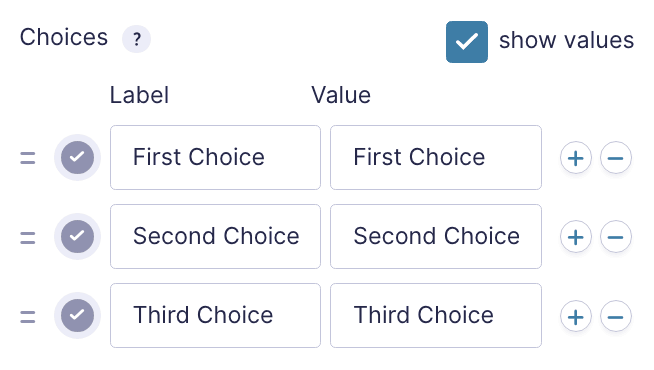
You can work with structured datasets like this:
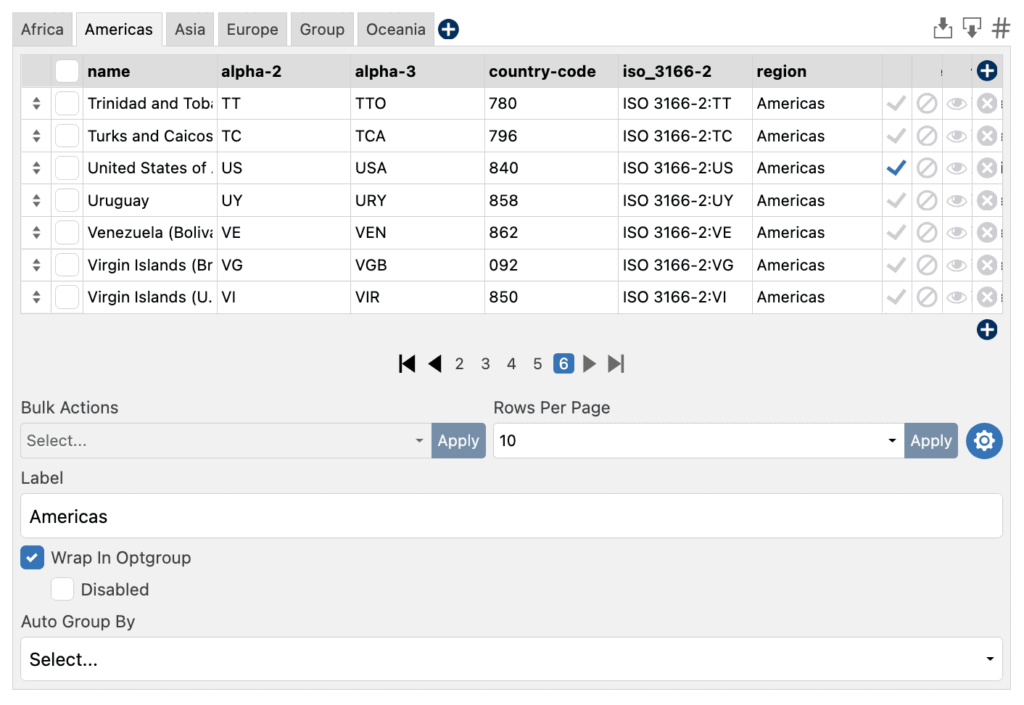
Each column can be used for a different purpose.
For example, you might use one column for the user-facing label, another for the stored value, and additional columns for calculations, conditional logic, pricing, or integrations.
Learn more: Data Grids
Multi-Column Choice Data
One of the biggest advantages of Data Grids is that each choice can contain multiple pieces of information.
For example:

You could:
- Use the Label column as the user-facing choice
- Store the Value column in the submission
- Use Width and Height in calculations
- Reference additional columns in conditional logic or actions
Let’s look at how this works with Column Mapping and the #calc and #field variables.
Column Mapping
With column mapping, you can choose which Data Grid columns are used for each choice feature, such as Label and Value.
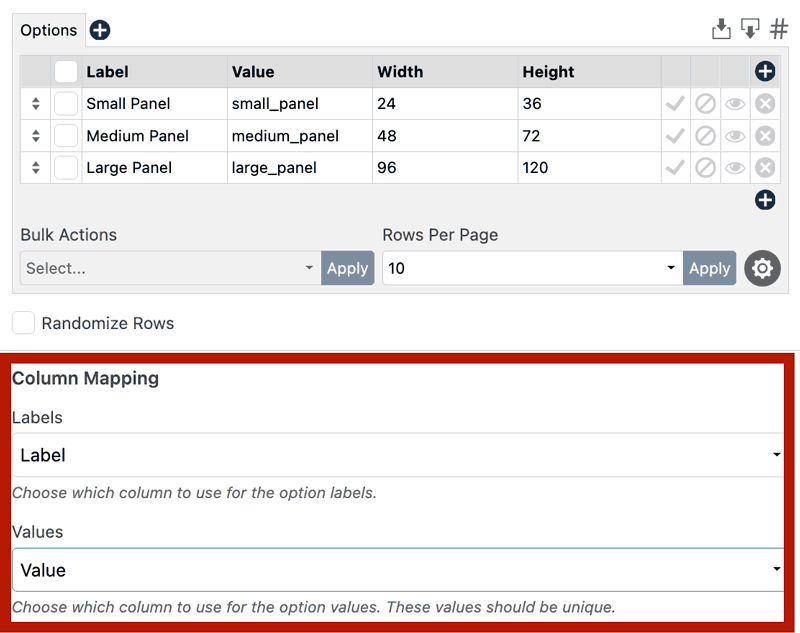
In this example, the Width and Height columns remain available for calculations, conditional logic, and other advanced functionality.
This means the same dataset can support multiple workflows without duplicating data.
Learn more: Data Grid Column Mapping
Calculations
Because Data Grids support multiple columns, you can use additional column data in calculations throughout your form.
Using the #field variable with a column parameter, you can pull individual column values from the selected row:
#field(123, ",", "Width") #field(123, ",", "Height")
In this example, 123 is the ID of the field.
You could then add a Number field and set its Default Value to:
#calc(#field(123, ",", "Width") * #field(123, ",", "Height"))
When the user selects a panel size, the Number field can automatically calculate the area from the selected row’s Width and Height values.
You can also use this approach with other field types, such as a Hidden field.
Learn more:
Copy and Paste Data Directly Into Forms
Nobody enjoys manually entering hundreds of choices one row at a time.
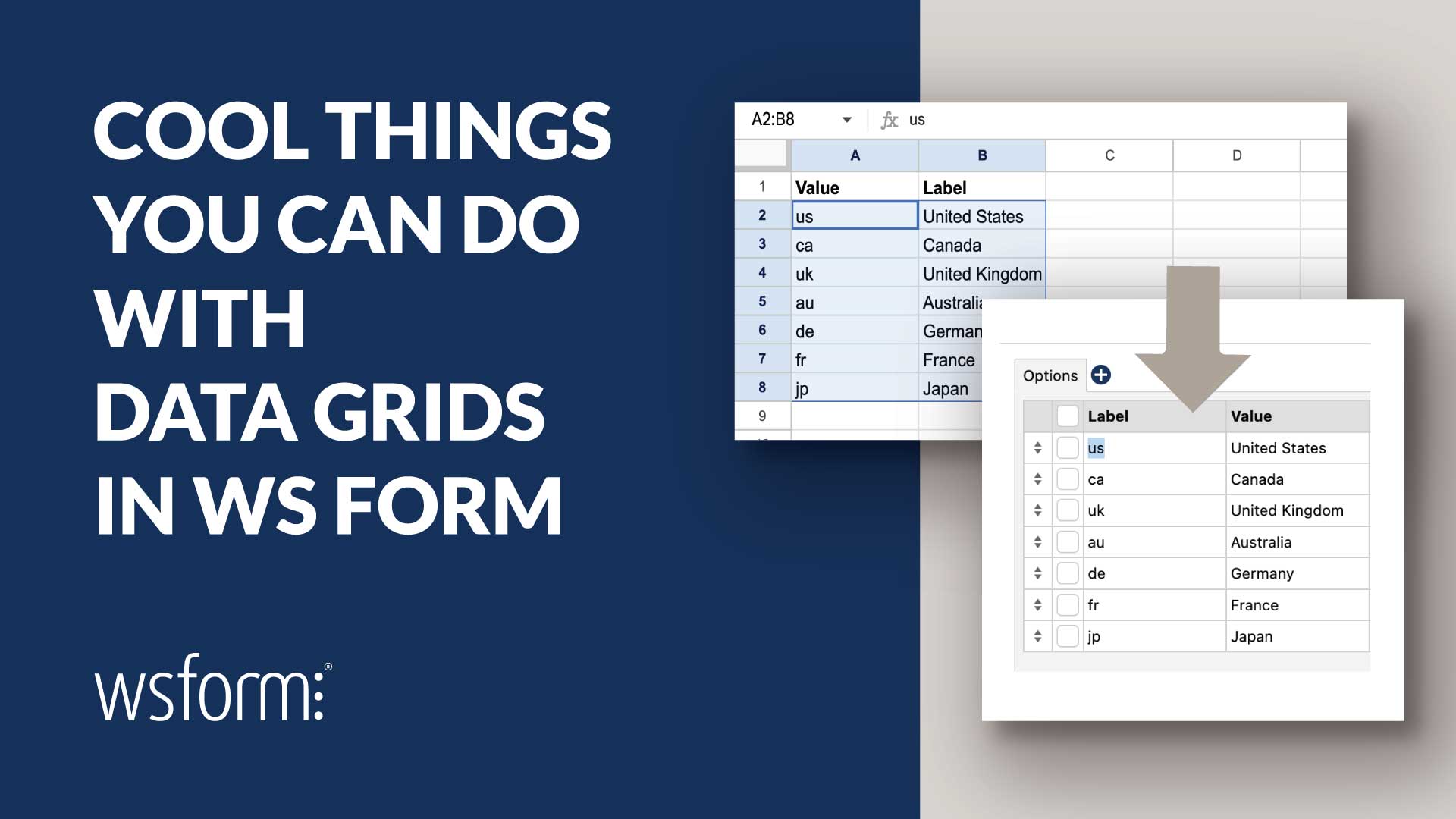
WS Form lets you paste directly from spreadsheet applications such as Microsoft Excel, Google Sheets, LibreOffice Calc, and Airtable exports.
You can paste:
- Multiple rows
- Multiple columns
- Entire datasets
You can copy spreadsheet cells and paste them straight into a Data Grid.
That makes large choice datasets much easier to create and maintain.
Learn more: Pasting Content into Data Grids
Import and Export Data Grids as CSV
Data Grids also support CSV import and export.
This is useful when:
- Migrating data between forms
- Reusing datasets
- Maintaining datasets externally
- Backing up configurations
- Collaborating with non-technical team members
You can even export and import Data Grids with multiple groups.
Learn more: Data Grid CSV Import and Export
Using Data Grid Presets
Data Grid Presets let you quickly populate forms with commonly used datasets such as countries, currencies, credit card types, languages, industries, priorities, and other standardized option lists.
Instead of manually recreating rows for every form, you can instantly load pre-built datasets directly into a Data Grid using the Preset data source option.
Presets are especially useful for populating Select, Checkbox, and Radio fields with consistent option values across multiple forms.

Learn more: Data Grid Presets
Pull Choice Data From External Data Sources
WS Form can populate Data Grids using external data sources.
For example, choice data can come from:
- Google Sheets
- WordPress data
- WooCommerce
- Posts
- Users
- Taxonomies
- Custom integrations
This makes it possible to maintain datasets outside your form entirely.
A particularly useful workflow is managing choice data in Google Sheets and having your forms update when the sheet changes.
Learn more about Data Sources.
Create Select Optgroups
Managing large sets of select options can quickly become difficult for both form builders and users. Data Grids simplify the process by letting you organize options into logical optgroups directly within the grid editor.
Grouped select options make long dropdowns easier to scan, improve usability, and help users find the option they need faster.
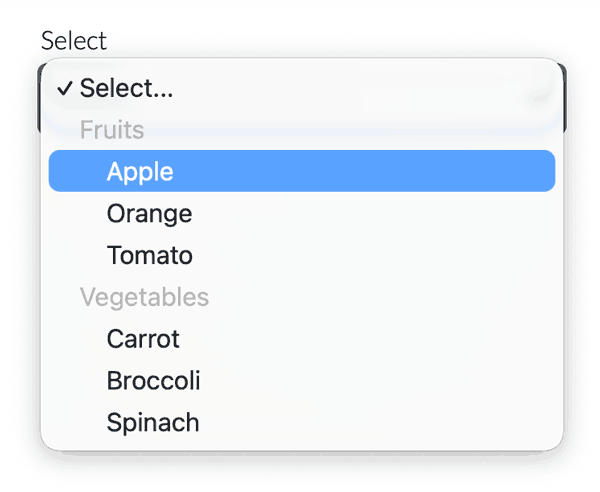
For example, you can group options by:
- Category
- Region or country
- Product type
- Department
- Service level
Once configured, WS Form automatically generates the appropriate optgroup structure for your Select field.
Learn more: How to Create Select Optgroups Using Data Grids
Automatically Generate Groups
WS Form can automatically generate groups directly from Data Grid columns.
For example, assume you have a Data Grid containing fruits and vegetables:

WS Form can automatically organize the choices into groups, such as by Type:
- Fruit
- Vegetable
Instead of manually creating groups and moving choices into them yourself, WS Form builds the grouped structure automatically from the dataset.
To automatically create groups:
- Click the Settings icon in the Data Grid group.
- In the Auto Group By setting, choose the column to group by.
- WS Form automatically creates grouped tabs and organizes the choices.
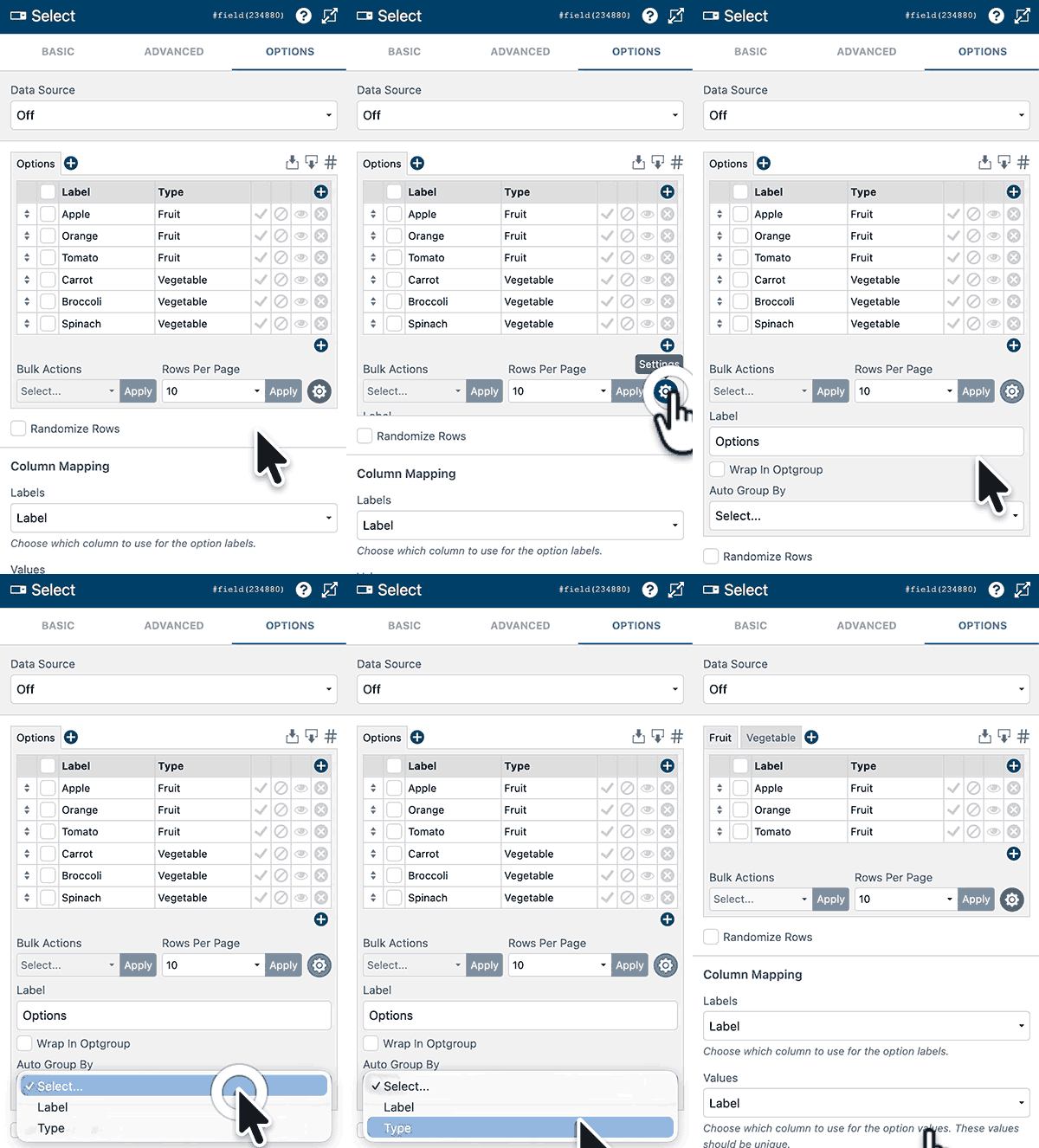
This becomes especially powerful when using presets or external Data Sources because the grouping updates automatically whenever the data changes.
Populate Data Grids Using PHP
Because WS Form is developer friendly, you can dynamically generate Data Grid data using PHP.
Instead of hardcoding choices, your form can stay synchronized with live application data.
Learn more: Data Sources: WordPress Filter Hook
Why Data Grids Matter
Most form plugins treat choices as simple text lists.
WS Form treats choices as structured data.
That difference unlocks a much higher level of flexibility.
Once your choices become structured datasets, you can:
- Build smarter forms
- Create dynamic calculations
- Sync external data
- Reuse datasets
- Automate grouping
- Reference additional column data
- Build scalable workflows
And you can do it all without needing custom front-end code.