

QR codes are everywhere. You see them on event badges, tickets, product packaging, restaurant tables, and conference materials. Many websites now rely on QR codes for things like check-ins, RSVPs, inventory lookups, and quick redirects.
If you are building a web-based workflow that needs to read QR codes, the first assumption is often that you need a custom JavaScript scanner, camera libraries, and decoding tools.
Fortunately, that is not necessary if you are using WS Form.
WS Form includes a Media Capture field that can access the device camera directly from the browser. When QR code detection is enabled, the camera automatically scans the code and injects the decoded value into a field in your form.
This makes it possible to build QR-powered workflows like RSVP check-ins, conference badge scanners, or inventory lookups with very little configuration.
This functionality is only available in certain browsers that support the BarcodeDetector interface.
How QR Code Scanning Works in WS Form
The process is simple.
Add a Media Capture field to your form and set the capture mode to Photo. Then enable the QR Codes option in the field settings.
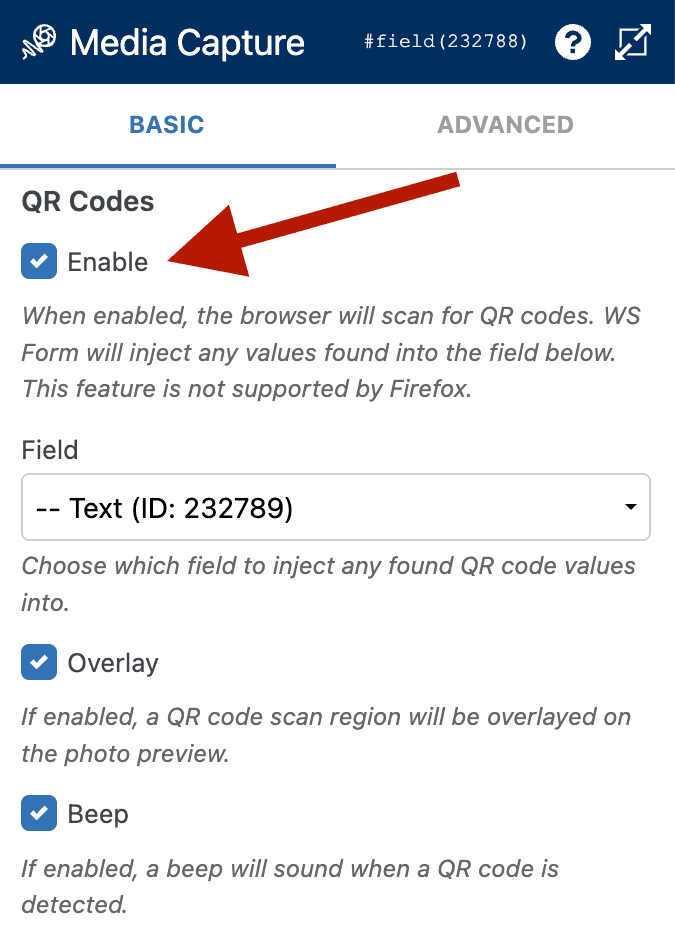
When this setting is enabled, WS Form continuously scans the camera feed for QR codes. As soon as a QR code is detected, the value inside the code is decoded automatically.
The decoded value is then inserted into a field that you specify in the Media Capture settings.
The target field can be one of the following field types:
- Date / Time
- Hidden
- Number
- Password
- Phone
- Search
- Text
- Text Area
- URL
This flexibility allows you to decide how the QR value should be used inside your form workflow.
Using a Hidden Field for QR Workflows
A common pattern is to send the scanned QR code value into a Hidden field.
Once the value is stored in that field, you can use conditional logic to trigger different actions based on the scanned code.
This allows a form to behave more like a small application that responds to scanned data.
For example, scanning a QR code could:
- Validate an RSVP
- Check in an attendee
- Look up a product
- Redirect the user to another page
- Send data to an API
- Store information in a spreadsheet
Redirecting Users Based on a QR Code
One simple use case is redirecting the user to a URL contained inside the QR code.
For example, the QR code might contain a link such as:
https://example.com/event/schedule
The workflow would look like this:
- The user opens the form and activates the camera
- The QR code is scanned
- The decoded URL is inserted into a URL field (you could hide this field)
- Conditional logic detects that a value is present
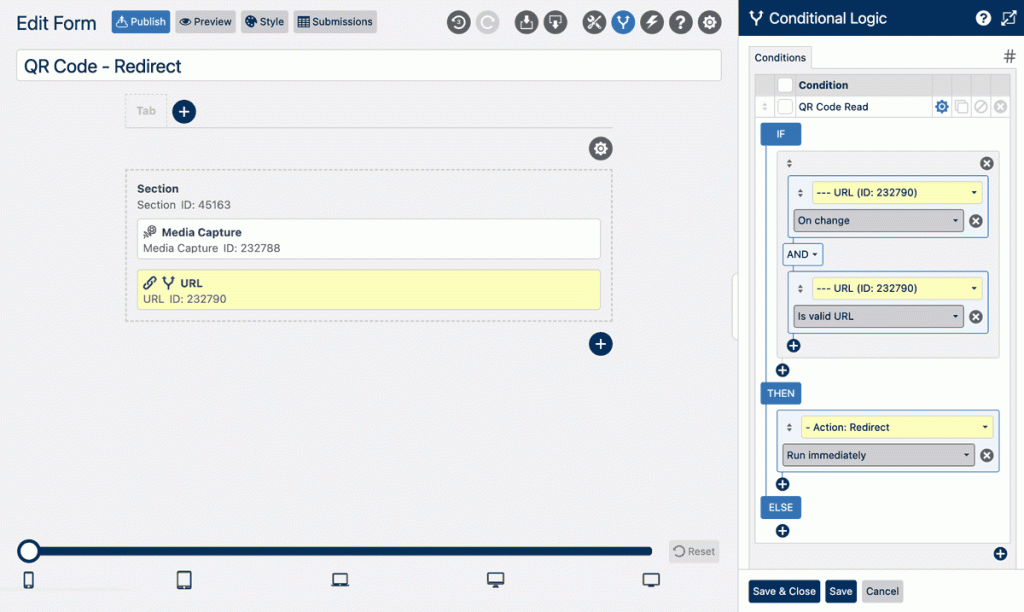
- A Redirect action runs

- The user is automatically sent to that URL
This effectively turns your form into a browser-based QR scanner that instantly opens the scanned link.
Looking Up QR Codes Using an API
Another powerful use case is validating or looking up data using an API.
For example, imagine a QR code containing an RSVP ID:
RSVP12345
Once the QR code is scanned and stored in a hidden field, you could trigger a Webhook action that sends the value to an API endpoint.
The API could then return data such as:
- Attendee name
- Registration status
- Ticket type
- Seat or table assignment
If the RSVP ID is invalid, the API could return an error message that the form displays to the user.
This approach makes it possible to build lightweight event check-in systems using nothing more than a form and an API.
Storing QR Code Data
Because the scanned value becomes part of the form submission, it can be stored or processed just like any other field.
For example, you could:
- Store the QR value in a submission record
- Send the data to a CRM
- Push it to a spreadsheet
- Trigger additional workflows
Using the available actions in WS Form, you could even send scanned data directly to services like Google Sheets for reporting or tracking.
Conference Badge Scanning
Conference badges often include QR codes that represent an attendee ID.
With WS Form you could build a simple check-in tool where staff scan the badge and the form automatically:
- Looks up the attendee information
- Displays their name
- Records the check-in time
- Stores the data in a submission
This can be done entirely through form configuration and actions.
Inventory or Product Lookups
QR codes are frequently used for product IDs or asset tracking.
A form could scan the code and then:
- Look up product information
- Display inventory details
- Log product movement
- Record maintenance activity
This is useful for internal dashboards or mobile workflows where scanning is faster than typing.
Using QR Codes for Discounts or Promotions
QR codes can also contain promotional values such as unique discount codes.
For example, a QR code might contain:
SUMMER25
Once scanned, that value could automatically populate a coupon or promo code field in your form.
You could then use conditional logic to apply the discount, validate the code, or trigger other promotional workflows.
Why Use Browser-Based QR Scanning?
Adding QR scanning to a website provides several advantages:
- No mobile app required
- Works on phones, tablets, and modern browsers
- Fast scanning using the device camera
- Easy integration with form workflows
- No custom QR decoding libraries required
For many use cases, a form-based solution is all you need to implement a QR workflow.
Build Powerful QR Workflows With WS Form
The Media Capture field in WS Form makes it easy to bring QR scanning directly into your forms.
Once the QR value is captured, it can trigger redirects, API requests, validation logic, data storage, or integrations with other systems.
This opens the door to a wide range of applications including:
- Event check-ins
- Conference badge scanning
- RSVP validation
- Inventory systems
- Product lookups
- Promotional codes
- Quick QR redirects
Instead of building a scanner from scratch, you can configure the workflow directly inside your form and start scanning immediately.