
This tutorial shows how to add a discount code field to a WS Form that applies a percentage discount to the cart total.
Example used in this guide
- Coupon code: 50OFF
- Discount: 50%
You can change these values to match your own coupon setup.
Demo
How it works
The demo form includes these main fields:
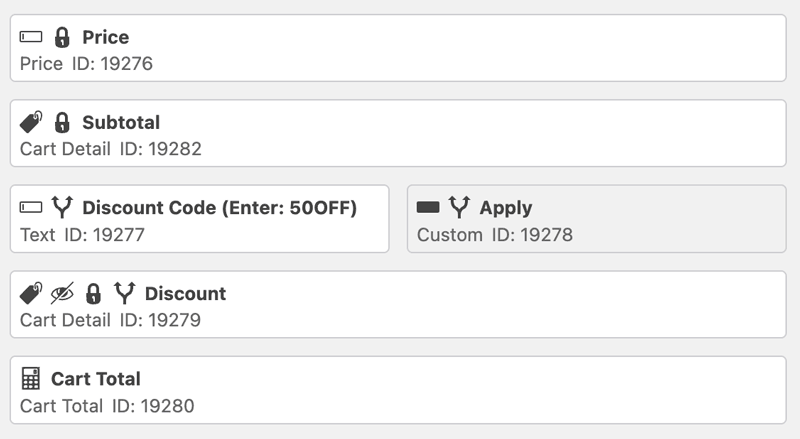
- Price Determines the cart subtotal amount.
- Cart Detail (Subtotal) Shows the subtotal of the e-commerce fields.
- Cart Detail (Discount) Applies the percentage discount when visible.
- Cart Total Shows the final total after the discount.
Step 1 – Add a Discount Field
In WS Form, discounts are created using a Cart Detail field set to type Discount.
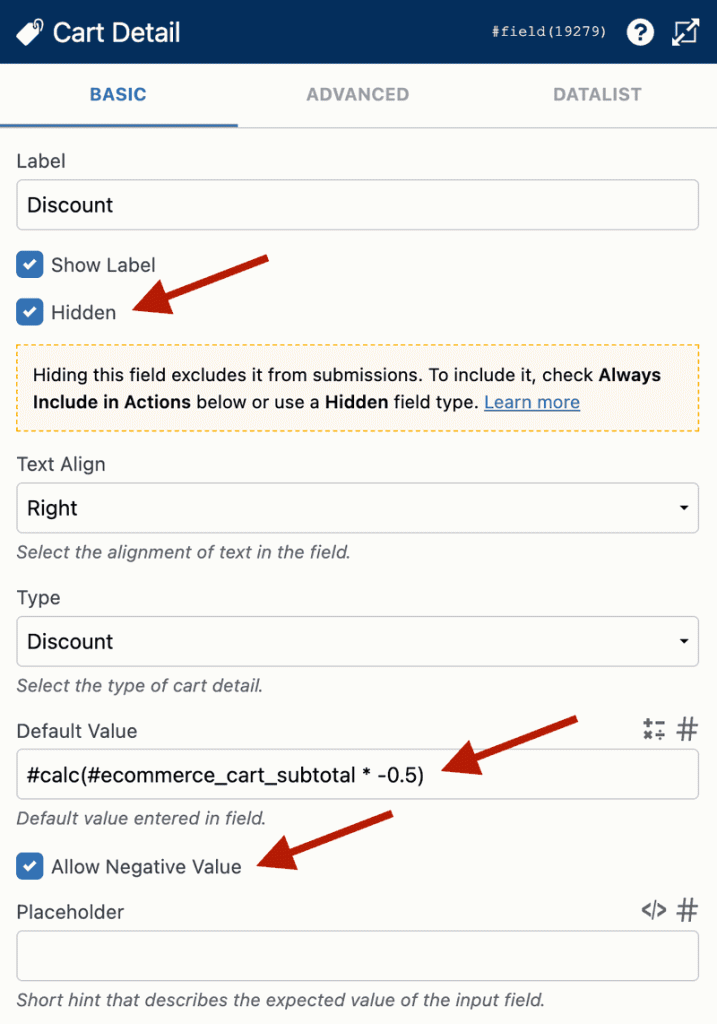
Configure the field as follows:
- Hidden: Checked
- Type: Discount
- Allow negative values: Checked
Hidden e-commerce fields are excluded from totals until they are shown. This prevents the discount from applying before the coupon is entered.
Step 2 – Add the Discount Calculation
In the Default Value of the Discount field, add this WS Form calculation:
#calc(#field(123) * -0.5)
What this does
#field(123)= Gets the cart subtotal (where 123 is the ID of the subtotal field)* -0.5= 50% discount (negative so it reduces the total)
Example
- Sub-total = 150
- Discount = −75
- Cart total = 75
Step 3 – Add Coupon Input and Button
Add two fields to your form:
- Text field Label: “Discount Code”
- Custom Button Label: “Apply”
The user will enter the coupon and click Apply.
Step 4 – Add Conditional Logic
We only want the discount applied when:
- The correct code is entered (50OFF)
- The Apply button is clicked
Open Conditional Logic:
- Click the Conditional Logic icon in the layout editor.
- Click Add.
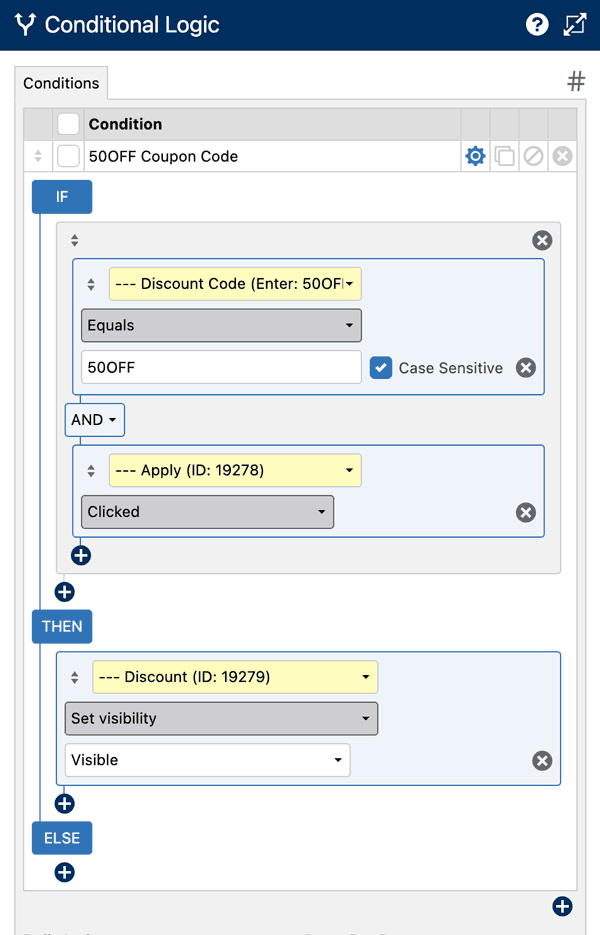
Condition
- Discount Code field =
50OFF - Apply button = clicked
Action
- Set Discount field → Visible
When the field becomes visible, WS Form includes it in the cart calculation and the discount is applied.
Adding more coupon codes
You can repeat this method to support multiple coupons:
- Change the code value
- Change the percentage in the calculation
- Add another conditional rule
Example
- 25% off →
#calc(#field(123) * -0.25) - Code: 25OFF
Summary
To create a percentage discount coupon in WS Form:
- Add a hidden Cart Detail field set to Discount
- Add a negative percentage calculation
- Add a coupon text field and Apply button
- Use conditional logic to show the discount when the correct code is entered
This approach works for any number of coupon codes or discount amounts.