
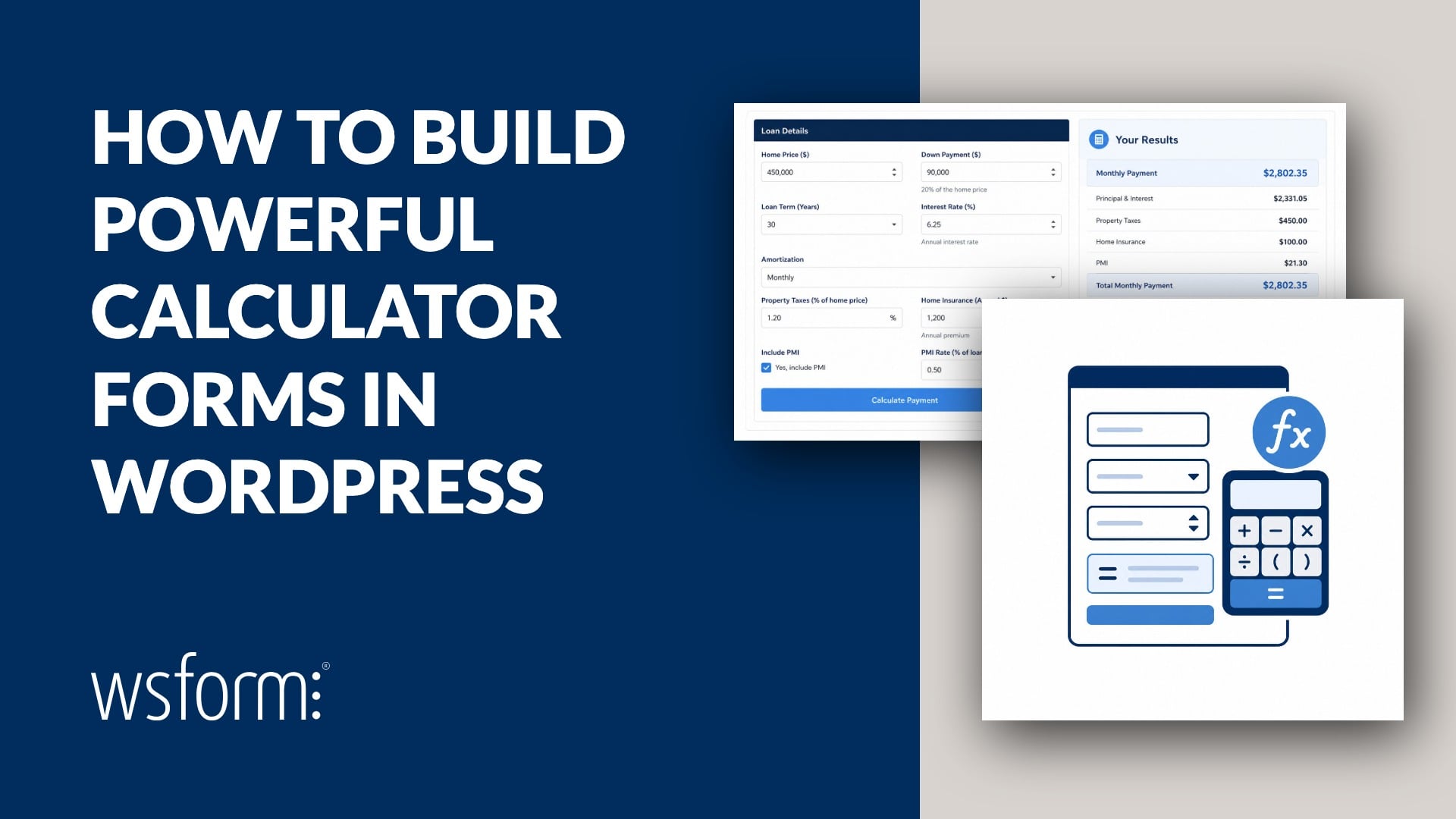
A form in WordPress can do much more than collect information. It can behave like a lightweight spreadsheet, calculating live totals, applying percentages, comparing values, counting selections, and adjusting numeric limits while the visitor completes it.
WS Form gives your form a formula bar through #calc(). You can use it to build quote estimators, scoring tools, cost calculators, measurement forms, and other interactive experiences without writing PHP.
The formulas can be simple or surprisingly powerful. Start by adding two fields together, then combine field values with rounding, averages, minimums, maximums, powers, square roots, and other mathematical functions as your requirements grow.
What Is #calc()?
#calc() is WS Form variable evaluates a mathematical expression and returns a numeric result.
Here is a simple example:
#calc(#field(5) + #field(6))
This adds the value from field ID 5 to the value from field ID 6.
As the visitor changes either value, WS Form recalculates the result immediately in the browser. This gives the form the responsive feel of a spreadsheet formula without requiring a page refresh.
You can use familiar mathematical operators inside #calc():
+for addition-for subtraction*for multiplication/for division( )to control the order of operations
For example:
#calc((#field(123) + #field(124)) * #field(125))
WS Form adds the values from field IDs 123 and 124 first, then multiplies the result by the value from field ID 125.
Every field in WS Form has a numeric ID. Select a field in the layout editor and its field ID is shown in the sidebar.
Throughout this article, field IDs such as 123 and 124 are placeholders. Replace them with the field IDs from your own form.
Create a Calculator Using AI
If you are using WordPress 7, the WS Form Create from AI template can build a complete calculator from a plain-language prompt.
First, configure a supported AI connector by going to Settings > Connectors in the administration menu. You can install and configure a provider such as Anthropic, Google, or OpenAI.
Once a connector is active, open the WS Form Add Form page. Hover over the Create from AI template and click Use Template.
You can then describe the calculator you want in everyday language.
For example:
Create a project cost calculator with fields for estimated hours and hourly rate. Show the total project cost in a read-only price field with a dollar prefix.
You can also start with a very short prompt:
Create a mortgage calculator form.
WS Form will determine the appropriate fields, settings, and calculations based on your request.
For a more specialised calculator, describe the information the visitor will enter and the result you want the form to produce:
Create a landscaping quote calculator. Ask for the lawn area in square feet, the price per square foot, and an optional preparation fee. Show the estimated total in a read-only price field.
Other calculator ideas include:
- Loan repayment estimators
- Sales commission calculators
- Profit margin calculators
- Material cost estimators
- Shipping estimators
- Event quotation forms
- Service pricing calculators
- Health and fitness calculators
The generated form can be edited in the WS Form layout editor just like any other form. You can adjust its fields, formulas, labels, prefixes, suffixes, minimums, maximums, and styling before publishing it.
Preview the calculator with several combinations of values to confirm the results match your requirements.
Where You Can Use #calc()
You can use a #calc() expression in supported field settings such as:
- Label
- Default Value
- Content in HTML and Text Editor fields
- Placeholder
- Help
- Minimum
- Maximum
The most common approach is to add a field that will hold the result, then enter the formula in its Default Value setting.
For example, a Number field could use:
#calc(#field(123) * #field(124))
The Number field displays the result and updates it whenever the visitor changes either source value.
Calculated values work with fields that accept numeric input, including Number, Price, Rating, and Progress fields. They can also use numeric values returned by other supported fields and variables.
Use E-Commerce Fields for Order Forms
For order forms and other e-commerce forms, WS Form also includes dedicated e-commerce field types.
These fields provide ready-made behaviour for product selection, quantities, subtotals, discounts, shipping, tax, and cart totals. They are often the most direct way to build an order form because they understand your configured currency, decimal separator, and thousand separator.
Useful e-commerce fields include:
You can use these fields to create a conventional order form and use #calc() when you need additional calculations or a more specialised pricing model.
When an e-commerce field is referenced inside #calc(), WS Form interprets its value using your currency configuration. This makes it easy to combine selected prices with quantities, fixed fees, percentages, or other calculated values.
Your #calc() Math Build
#calc() supports mathematical variables that help you build more advanced formulas without recreating common operations manually.
| Variable | Purpose | Example |
|---|---|---|
#round() |
Rounds a value to a specified number of decimal places | #calc(#round(#field(123), 2)) |
#ceil() |
Rounds a value up to the next whole number | #calc(#ceil(#field(123))) |
#floor() |
Rounds a value down to the previous whole number | #calc(#floor(#field(123))) |
#avg() |
Returns the average of the supplied values | #calc(#avg(#field(123), #field(124))) |
#min() |
Returns the lowest supplied value | #calc(#min(#field(123), #field(124))) |
#max() |
Returns the highest supplied value | #calc(#max(#field(123), #field(124))) |
#abs() |
Returns the absolute value of a number | #calc(#abs(#field(123))) |
#pow() |
Raises a number to a specified power | #calc(#pow(#field(123), 2)) |
#sqrt() |
Returns the square root of a number | #calc(#sqrt(#field(123))) |
#positive() |
Returns the value when positive, or zero when negative | #calc(#positive(#field(123))) |
#negative() |
Returns the value when negative, or zero when positive | #calc(#negative(#field(123))) |
#pi |
Provides the value of pi for circular measurements | #calc(#pi * #pow(#field(123), 2)) |
WS Form also includes trigonometric and logarithmic functions such as #sin(), #cos(), #tan(), #asin(), #acos(), #atan(), #log(), and #exp().
These functions make #calc() suitable for everything from everyday price calculations to engineering, geometry, finance, scoring, and measurement tools.
10 Practical #calc() Recipes
1. Create a Live Order Total
Problem: I want to add together the prices selected in an order or quotation form.
Formula:
#calc(#field(123) + #field(124) + #field(125))
Where to paste it: Add the formula to the Default Value setting of the Number or Price field that will display the result.
Field IDs 123, 124, and 125 could refer to Price Checkbox, Price Radio, or Price fields.
When the visitor selects or clears an option, the result recalculates immediately.
For a standard order form, you can also use WS Form’s e-commerce fields to calculate the cart subtotal and total automatically. Use #calc() when the required total combines values in a more specialised way.
2. Add a Fixed Base Fee
Problem: I want to add a fixed booking, shipping, call-out, or setup fee to variable selections.
Formula:
#calc(50 + #field(123) + #field(124))
Where to paste it: Add the formula to the Default Value setting of the field showing the final amount.
In this example, 50 is the fixed base fee. WS Form adds the values from field IDs 123 and 124.
When the visitor changes either source field, the variable part of the result updates while the fixed amount remains.
You can combine a base fee with a quantity calculation:
#calc(50 + (#field(123) * #field(124)))
For example, a cleaning quote could include a fixed $50 call-out charge plus a price per room.
3. Calculate a Percentage, Tax, or Discount
Problem: I want to calculate a percentage of another value.
Formula for 15% of a value:
#calc(#field(123) * 0.15)
Where to paste it: Add the formula to the Default Value setting of the field displaying the calculated amount.
If the visitor enters 200 into field ID 123, the result is 30.
To add 15% to the original amount:
#calc(#field(123) + (#field(123) * 0.15))
To apply a 10% discount:
#calc(#field(123) - (#field(123) * 0.10))
As the visitor changes the original amount, WS Form recalculates the percentage and final result in real time.
4. Count Checked Options
Problem: I want to count how many Checkbox or Price Checkbox options the visitor has selected.
Formula:
#calc(#checkbox_count(123))
Where to paste it: Add the formula to the Default Value setting of a Number field.
Replace 123 with the field ID of your Checkbox field or Price Checkbox field.
The result increases or decreases as options are selected or cleared.
You can use the selection count in a pricing formula:
#calc(#checkbox_count(123) * 10)
This assigns a value of 10 to every selected option.
5. Count Characters
Problem: I want a numeric character count for text entered into a field.
Formula:
#calc(#field_count_char(123))
Where to paste it: Add the formula to the Default Value setting of a Number field positioned near the source Text field or Textarea field.
Replace 123 with the field ID of the text-based source field.
As the visitor types or deletes content, the character count updates immediately.
You can also apply a regular expression filter:
#calc(#field_count_char(123, "/[^0-9a-z]/gi"))
This example counts the letters and numbers in the value.
6. Count Words
Problem: I want to count the words entered into a Textarea field.
Formula:
#calc(#field_count_word(123))
Where to paste it: Add the formula to the Default Value setting of a Number field near the source Textarea field.
Replace 123 with the field ID of the Textarea field.
The result updates while the visitor writes, edits, or removes words.
You can also calculate the remaining allowance for a 250-word recommendation:
#calc(250 - #field_count_word(123))
The result decreases as the visitor adds words.
7. Find the Minimum or Maximum Value
Problem: I want to find the lowest or highest value from several inputs.
Formula using field IDs:
#calc(#field_min_value(5, 6, 7, 8))
#calc(#field_max_value(5, 6, 7, 8))
Where to paste it: Add the appropriate formula to the Default Value setting of a numeric result field.
These formulas compare field IDs 5, 6, 7, and 8.
You can also use #min() and #max() to compare supplied numeric expressions:
#calc(#min(#field(5), #field(6), #field(7), #field(8)))
#calc(#max(#field(5), #field(6), #field(7), #field(8)))
When any source value changes, WS Form identifies the new minimum or maximum automatically.
8. Calculate and Round an Average
Problem: I want to calculate an average and present a tidy result.
Formula:
#calc(#round(#avg(#field(10), #field(11), #field(12)), 2))
Where to paste it: Add the formula to the Default Value setting of a Number field.
This formula calculates the average of the values from field IDs 10, 11, and 12, then rounds it to two decimal places.
As the visitor changes any source value, the average recalculates.
You can use the same rounding approach with other formulas:
#calc(#round(#field(123)))
This rounds the value from field ID 123 to the nearest whole number.
#calc(#round(#field(123) / 50) * 50)
This rounds the value from field ID 123 to the nearest 50.
For more patterns, see the number rounding examples.
9. Set a Dynamic Minimum or Maximum Limit
Problem: I want the allowed range of one field to depend on a value elsewhere in the form.
Example maximum formula:
#calc(#field(123))
Where to paste it: Add the formula to the Maximum setting of a supported field.
For example, field ID 123 might contain the number of units available. A Quantity field or Number field can then use that value as its maximum.
You can calculate the limit too:
#calc(#floor(#field(123) / 2))
This sets the maximum to half the value from field ID 123, rounded down to a whole number.
As the source value changes, WS Form updates the minimum or maximum immediately, including when the source field is hidden.
10. Use Calculations in Repeatable Sections
Problem: I want calculations to respond as visitors add, remove, edit, or reorder repeated rows.
Formula for summing a repeated field:
#calc(#field(123))
Where to paste it: Add the formula to the Default Value setting of a result field outside the repeatable section.
When field ID 123 is inside a repeatable section, WS Form automatically adds its values from all rows.
For example, field ID 123 could contain a line-item cost. As the visitor adds or removes rows, the overall total updates.
You can calculate the average across the repeated rows by dividing the total by the row count:
#calc(#field(123) / #section_row_count(456))
Replace 456 with the section ID of the repeatable section.
This is useful for:
- Expense forms
- Quotation line items
- Timesheets
- Product lists
- Material estimates
- Multi-entry scoring forms
Use the Built-in Calculator Interface
WS Form PRO includes a visual calculator interface in the layout editor.
The calculator provides controls for:
- Inserting compatible fields
- Adding mathematical operators
- Selecting math variables
- Editing and clearing formulas
Click the calculator icon beside a supported setting to open it.
The Insert Field button adds a compatible #field() variable, while the f button provides functions such as #round(), #cos(), and #sin().
You can create the formula using the keypad, type it manually, or use a combination of both.
Helpful Tips for Reliable Formulas
- Check each field ID. Select the source field in the layout editor and confirm its field ID in the sidebar.
- Use numeric source values. Number and Price fields are natural choices for arithmetic calculations.
- Use parentheses for clarity. Parentheses make the intended order of operations easy to understand.
- Round the final result. Use
#round(),#ceil(), or#floor()when the result should use a specific number of decimal places or whole units. - Preview several scenarios. Try minimum values, maximum values, empty values, repeated rows, and fields controlled by conditional logic.
- Use the Debug Console. WS Form logs calculated-field activity to help you review how formulas are being evaluated.
Choose the Right Calculation Tool
#calc() is ideal for live totals, estimates, measurements, counters, averages, scores, and numeric limits that respond as the visitor completes the form.
For a standard order form, WS Form’s e-commerce fields provide a complete set of product, quantity, subtotal, discount, shipping, tax, and total features.
For calculations connected to an external service, WooCommerce workflow, or specialized business process, WS Form actions, premium integrations, and developer features provide additional ways to extend the form.
This flexibility lets you use the most appropriate approach for each project while keeping everyday calculations inside the visual form builder.