
Novamira enables AI agents to interact with WS Form through the WordPress Abilities API and MCP (Model Context Protocol). This allows compatible AI tools to discover and run WS Form abilities for creating, managing, styling, and reviewing forms in WordPress.
This article explains how to connect WS Form with Novamira, which capabilities are available, and how to use prompts to complete common form management tasks.
What Is Novamira?
Novamira is a WordPress plugin that acts as an MCP server for AI agents. It provides access to WordPress abilities registered by compatible plugins and makes those abilities available through several AI interfaces.
Novamira can be used through:
- Novamira Chat in wp-admin.
- Novamira Visual.
- External MCP clients such as Claude Desktop, Cursor, and similar compatible tools.
When Novamira discovers abilities registered by WS Form, an AI agent can use those abilities to perform real operations in WS Form. It does not create temporary HTML forms or approximate WS Form behavior.
Requirements
- WordPress 6.9 or later with support for the WordPress Abilities API.
- WS Form LITE or WS Form PRO.
- The Novamira plugin.
- A supported Novamira interface or external MCP client.
How WS Form Works With Novamira
WS Form registers a collection of WordPress abilities under the ws-form category. These abilities describe operations that an AI agent can perform, such as creating a form, adding fields, retrieving submissions, or applying a style.
When Include in MCP Discovery is enabled in WS Form, Novamira can discover these abilities and make them available to its AI agents.
No custom glue code is required for basic use. Novamira handles the MCP connection, while WS Form provides the abilities used to complete each task.
Enable MCP Discovery
- Install and activate WS Form.
- Install and activate Novamira.
- In WordPress, go to WS Form > Settings > AI.
- Enable Include in MCP Discovery.
- Save the settings.
After MCP discovery is enabled, open Novamira Chat, Novamira Visual, or connect a compatible external MCP client. The client can then discover the WS Form abilities available on the site.
Allowing Updates And Deletions
WS Form separates read-only operations from operations that modify data.
To allow an AI agent to edit forms, fields, styles, or related configuration, enable Allow Updates in WS Form > Settings > AI.
To allow an AI agent to delete supported resources, enable Allow Deletes.
Available WS Form Abilities
Novamira can use the abilities registered by WS Form to work with forms, form structure, styles, submissions, notes, and statistics.
Forms
Form abilities allow an AI agent to create and manage forms throughout their lifecycle.
- List forms.
- Create a form from a natural-language description.
- Retrieve a form as structured JSON.
- Update a form from structured JSON.
- Publish a form.
- Change a form to draft status.
- Clone a form.
- Delete a form.
- Restore a deleted form.
- Retrieve shortcode for a form.
- Retrieve block markup for a form.
This allows a prompt to move from a plain-language requirement to a working WS Form form without manually adding every component.
Tabs, Sections, And Fields
An AI agent can inspect and modify the internal structure of a form, including its tabs, sections, and fields.
- Add, update, and delete tabs.
- Add, update, and delete sections.
- Add, update, and delete fields.
- Position fields within the appropriate section.
- Change supported field settings.
For example, an AI agent can add a Company field after the Email field without rebuilding the rest of the form.
Actions
WS Form actions control operations that run when a form is submitted, including email notifications.
Email notifications are actions, not general form settings. When asking an AI agent to create or update a notification, describe the required recipient, subject, message, and any conditions that should apply.
An AI agent can inspect, add, update, and remove supported actions without changing unrelated parts of the form.
Conditional Logic
Conditional logic abilities allow an AI agent to review and manage rules that control form behavior.
Prompts should clearly describe the condition and the required outcome. For example, specify which field value should trigger another field, section, action, or validation rule.
Submissions And Notes
Novamira can use WS Form abilities to list and inspect submissions. It can also work with notes attached to a submission.
- List submissions.
- Retrieve submission details.
- Create a submission note.
- Update a submission note.
- Delete a submission note.
Access remains subject to WordPress authentication, permissions, and the configuration of the connected AI client.
Statistics
WS Form statistics abilities allow an AI agent to retrieve form performance data.
This can be used to answer questions about form views, submissions, conversion performance, or activity during a specified period, depending on the statistics available for the form.
Working With Styles
WS Form exposes abilities for managing styles used by the WS Form Styler and framework styles.
Style abilities should be used when a prompt specifically asks for a visual theme, brand colors, typography, border radius, spacing, or another aspect of the form’s appearance.
Creating an ordinary form does not require creating a new style. In most cases, the form should be created first and a style should only be created or assigned when the prompt includes visual requirements.
Available Style Operations
- List styles.
- Retrieve a style.
- Create a style.
- Update a style.
- Delete a style.
When retrieving a style, the returned data can include the root palette used by the style, such as form colors, fonts, border radius, and grid gap.
A style can be created from an available template, such as standard-light or standard-dark, and then adjusted to use the required palette.
A style can be:
- Assigned to a specific form.
- Set as the site default style.
- Set as the conversational default style.
Recommended Style Workflow
- Create or identify the form.
- Describe the required visual appearance.
- Create or update a suitable style.
- Assign the style to the form.
- Review the result before using it on a production site.
This workflow keeps the form structure separate from its visual presentation and avoids creating unnecessary styles.
Example Prompts
The following prompts can be entered in Novamira Chat, Novamira Visual, or a connected MCP client.
Create A Contact Form
Create a contact form with Name, Email, Phone, and Message fields. Add spam protection and a Send Email action that notifies the site administrator when the form is submitted.
Clone And Adapt A Form
Clone the Demo Request form and adapt it for webinar registration. Add fields for Company, Job Title, and Number of Attendees. Keep the existing email notification.
Add A Field
Add a Company field immediately after the Email field on the Partnership form. Include the field in the existing email notification.
Create Conditional Logic
On the Quote Request form, show the Project Budget field only when the Project Type field is set to Website Development.
Apply A Dark Style
Create a dark style for form 12 using navy buttons, light text, and rounded corners. Assign the style to the form without changing the form structure.
Create A Branded Conversational Form
Create a conversational lead form with Name, Email, Company, Project Type, and Message fields. Create and assign a style using #0B1F3A as the primary color and #F5C542 as the accent color. Publish the form and give me its shortcode.
Review Form Statistics
Show me the submission statistics for the Contact form for the previous calendar month.
Add A Submission Note
Find the most recent submission for the Support Request form and add a note stating that the request has been assigned for review.
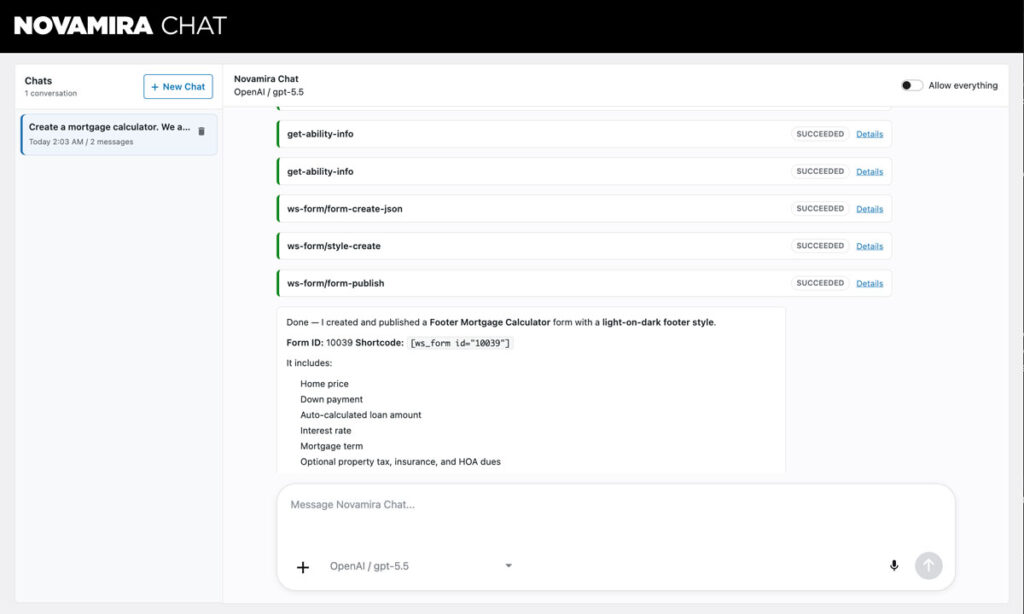
Create, Style, And Embed A Form In One Conversation
A single Novamira conversation can include several related WS Form operations.
For example, you can ask the AI agent to:
- Create a form from a description.
- Add the required fields and actions.
- Create a style that matches the site branding.
- Assign the style to the form.
- Publish the form.
- Return the shortcode or block markup.
Complete Form Workflow
Create a consultation request form with Name, Email, Phone, Service, Preferred Contact Method, and Message fields. Add spam protection and an email notification to the site administrator. Create a style that matches our existing dark blue and gold branding, assign it to the form, publish the form, and return the shortcode and block markup.
Using Novamira Visual
Novamira Visual provides additional page context while working with an AI agent. This can be useful when a form needs to be created and then placed into an existing page.
A typical workflow is to ask Novamira to create the form with WS Form, retrieve the block markup, and then add that block to the appropriate page location.
Always review the resulting page, form configuration, actions, conditional logic, and style before publishing changes.
Permissions And Safety
Novamira does not bypass WordPress authentication or permissions. The connected user and AI client must have permission to perform the requested operation.
WS Form provides additional controls for MCP discovery, updates, and deletions. Use these settings to limit what an AI agent can do.
- Enable Include in MCP Discovery only when WS Form abilities should be available to MCP clients.
- Leave Allow Updates disabled when the AI agent only needs to inspect data.
- Leave Allow Deletes disabled unless deletion operations are specifically required.
- Test prompts in a development or staging environment.
- Review form actions before sending live notifications.
- Review style assignments before changing a site default.
- Confirm destructive operations before allowing them to proceed.
Granting update or delete access allows an AI agent to modify real WS Form data. Use the minimum permissions required and maintain a current backup of the site.
Troubleshooting
WS Form Abilities Are Not Available
- Confirm that WS Form and Novamira are active.
- Confirm that the site meets the WordPress version requirement.
- Go to WS Form > Settings > AI and verify that Include in MCP Discovery is enabled.
- Refresh or reconnect the MCP client so it can repeat ability discovery.
- Confirm that the connected WordPress user has the required permissions.
The AI Can Read Forms But Cannot Edit Them
Go to WS Form > Settings > AI and confirm that Allow Updates is enabled.
The connected WordPress user must also have permission to edit the requested resource.
The AI Cannot Delete A Form Or Style
Confirm that Allow Deletes is enabled in the WS Form AI settings and that the connected user has sufficient permissions.
Summary
Novamira provides an AI environment that can discover and run the WordPress abilities registered by WS Form.
After MCP discovery is enabled, supported AI agents can create and manage forms, edit fields and sections, configure actions and conditional logic, inspect submissions, manage submission notes, retrieve statistics, and work with WS Form styles.
Use a development or staging site when first testing the integration, enable only the permissions required, and review all AI-generated changes before using them in production.