
This tutorial shows how to add a discount code field to a WS Form that applies a fixed discount amount to the cart total.
Example used in this guide
- Coupon code: 50OFF
- Discount: 50.00
You can change these values to match your own coupon setup.
Demo
How it works
The demo form includes these main fields:

- Price
Determines the cart subtotal. - Cart Detail (Discount)
Applies the fixed discount when a valid coupon is entered. - Cart Total
Shows the final total after the discount.
Step 1 – Add a Discount Field
In WS Form, discounts are created using a Cart Detail field set to type Discount.
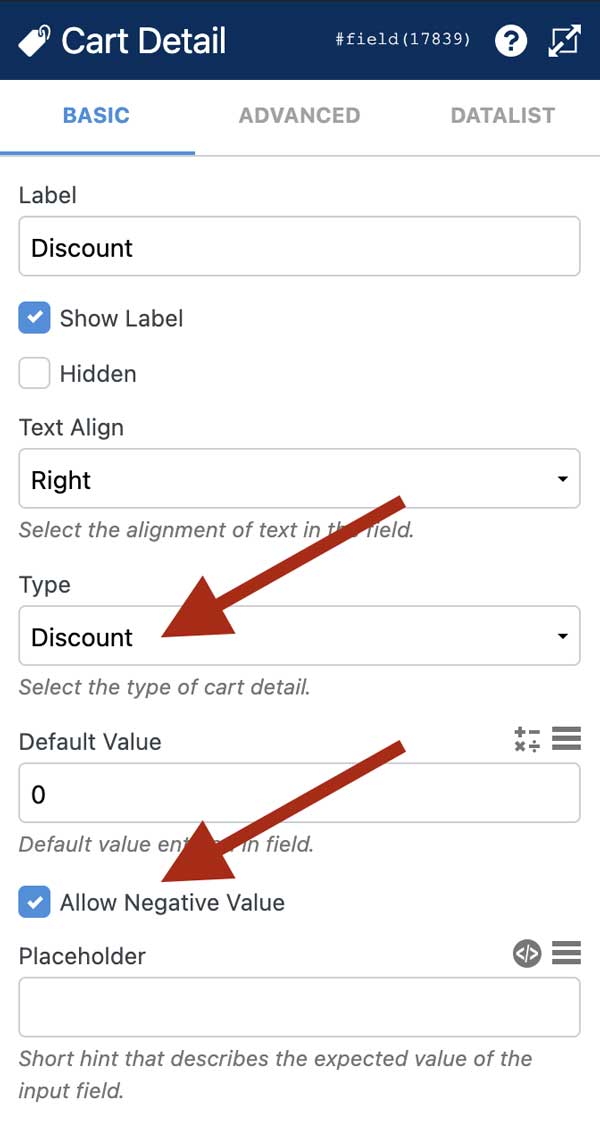
Configure the field as follows:
- Type: Discount
- Allow negative values: Checked
- Default value: 0
- Read only: Optional
The discount field starts at zero so no discount is applied until the coupon is validated.
Step 2 – Add Coupon Input and Button
Add two fields to your form:
- Text field
Label: “Discount Code” - Custom Button
Label: “Apply”
The user enters the coupon and clicks Apply.
Step 3 – Add Conditional Logic
We only want the discount applied when:
- The correct code is entered (50OFF)
- The Apply button is clicked
Open Conditional Logic:
- Click the Conditional Logic icon in the layout editor.
- Click Add.

Condition
- Discount Code field =
50OFF - Apply button = clicked
Action
- Set Discount field value →
-50
When this value is applied, WS Form includes it in the cart calculation and the discount is deducted from the total.
You can disable Case Sensitive so the coupon also works if users enter 50off.
Adding more coupon codes
You can repeat this method to support multiple coupons:
- Change the code value
- Change the discount amount
- Add another conditional rule
Example
- 25 off → value
-25 - Code: 25OFF
Summary
To create a fixed discount coupon in WS Form:
- Add a Cart Detail field set to Discount
- Allow negative values and set default to 0
- Add a coupon text field and Apply button
- Use conditional logic to set the discount value when the correct code is entered
This approach works for any number of coupon codes or discount amounts.