
When using date/time field on mobile devices, the virtual keyboard that appears when you tap the date field can make interacting with the calendar distracting.
WS Form includes a Disable Virtual Keyboard setting on the date/time field. When checked, the mobile browser will be instructed to not show a virtual keyboard when the date/time picker is clicked.
Demo (Mobile Only)
How to Disable the Virtual Keyboard
To disable the virtual keyboard, first click on the settings icon on the date/time field.
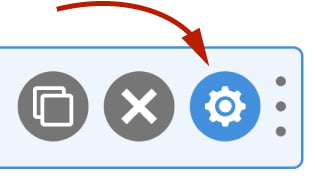
Next check the Disable Virtual Keyboard option, then click Save & Close.

Compatibility
This feature adds an attribute of inputmode="none" to the date/time input.
Learn more on caniuse.com about the cross browser compatibility of this setting.
Alternative Method
WS Form also offers an inline date/time picker. Simply check the Inline setting when editing a date/time field.