
WS Form includes a native integration with WPBakery, making it easy to add any WS Form to a page or post built with WPBakery. Whether you’re creating a contact form, quote request, registration form, calculator, survey, payment form, or any other form in WordPress, you can insert it directly into your page layout using the built-in WS Form element.
The integration is registered automatically whenever both WS Form and WPBakery Page Builder are active. No additional plugins, extensions, or configuration are required.
WS Form supports both the WPBakery backend editor and frontend editor, allowing you to build pages visually while working with your forms.
This integration is available in both WS Form LITE and WS Form PRO.
Requirements
- WordPress
- WS Form 1.11.17 or later
- WPBakery Page Builder
How to Add a Form to WPBakery Page Builder
To display a form in WPBakery:
- Edit the page or post where you want the form to appear.
- Open the page in either the WPBakery backend editor or frontend editor.
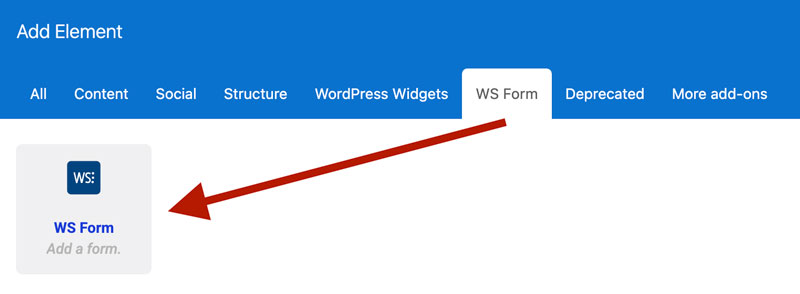
- Click Add Element.
- Select the WS Form element.
- Open the element settings.
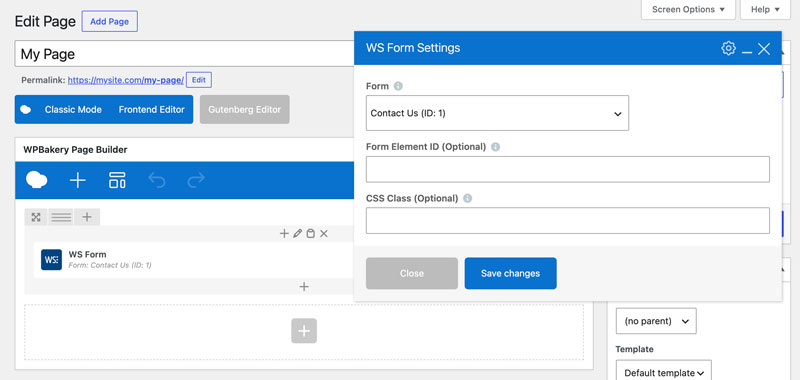
- Select the form you want to display using the Form dropdown.
- Optionally configure the Form Element ID and CSS Class settings.
- Save or update the page.
The selected form will be embedded into your WPBakery layout and rendered using the standard WS Form engine.
WS Form Element Settings
The WS Form element provides the following configuration options.
Form
Select the form you want to display. The dropdown lists every form available in WS Form. This setting is required.
Form Element ID (Optional)
Adds a custom HTML id attribute to the form wrapper. This is useful when targeting a specific form with custom CSS, JavaScript, analytics, or page anchors.
CSS Class (Optional)
Adds one or more CSS classes to the form wrapper, allowing you to apply custom styling or integrate with your site’s existing CSS framework.
These settings correspond to the attributes available when embedding forms using the WS Form shortcode.
Live Preview in the WPBakery Editor
After selecting a form, the WS Form element displays a live preview directly inside the WPBakery editor. This works in both the backend and frontend editors, making it easier to position and design your page without repeatedly switching to the published view.
If a form has not yet been selected, the element displays a placeholder reminding you to choose one from the element settings. This placeholder is only visible while editing and is never shown on the published page.
Forms are automatically re-initialized whenever the element is added, duplicated, moved, or updated, ensuring features such as conditional logic, calculated fields, AJAX submission, multi-step navigation, and other interactive functionality continue to work correctly while editing.
Published Page Output
When the page is published, the selected form is rendered using the standard WS Form rendering engine. The WPBakery integration behaves the same as embedding a form using the WS Form shortcode, so all WS Form functionality remains available. This means you can build pages visually with WPBakery while taking advantage of the full feature set available in WS Form.