
When showing a country select field, you can automatically set the user’s country using a client-side IP geolocation lookup.
Demo
Tutorial
To create a select field containing countries:
- Add a Select field to your form.
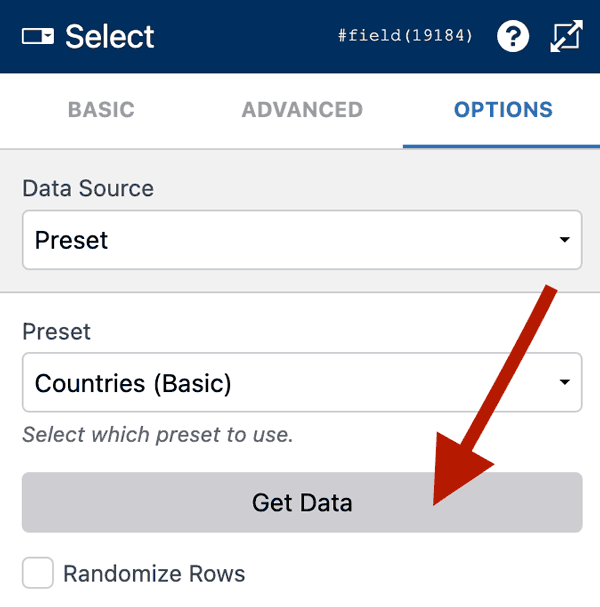
- Edit the Select field and click on the Options tab.
- Under Data Source choose Preset.
- Choose Countries (Basic).
- Click Get Data.
- Under Column Mapping choose Code for the Values setting.
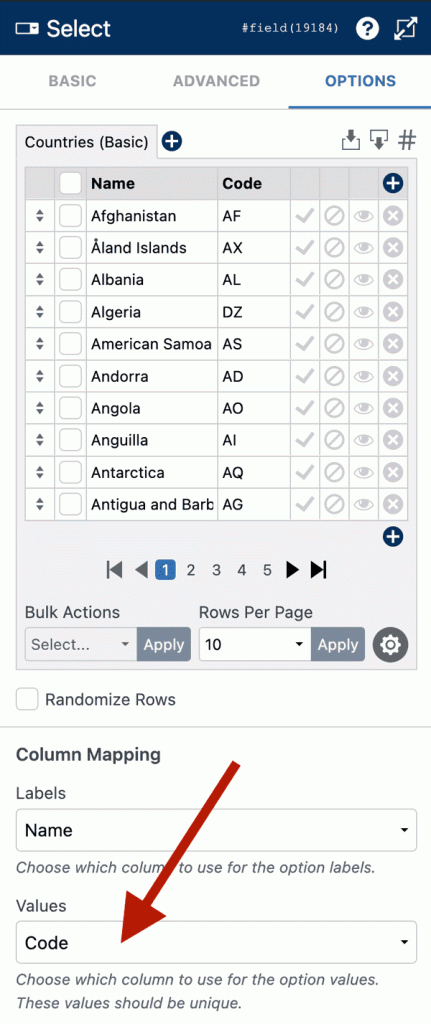
- Click Save & Close.
Next, enable geolocation on the form:
- Click the Form Settings icon at the top of the layout editor.
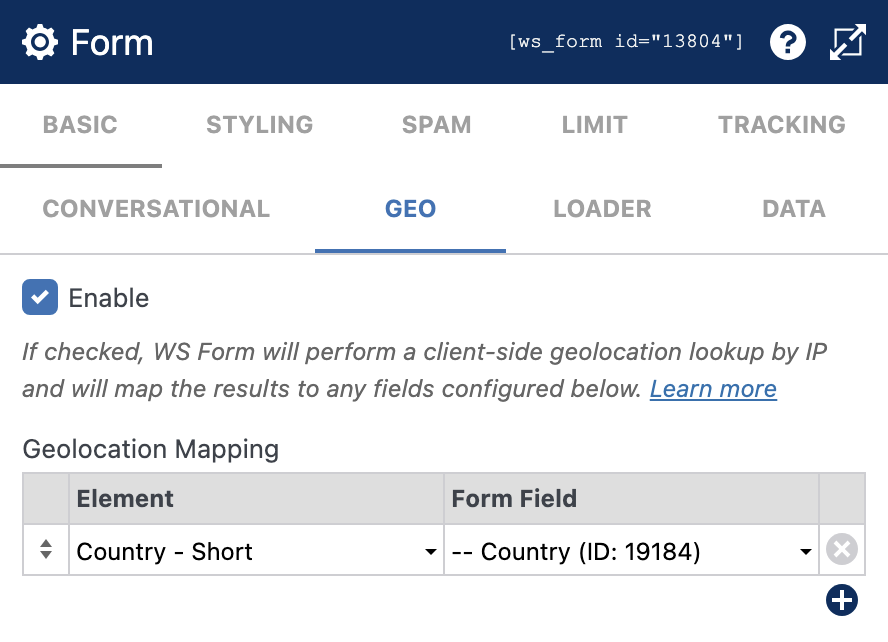
- Click the Geo tab.
- Check the Enable setting.
- Click the + icon to add a new Geolocation Mapping.
- In the left column choose: Country – Short
- In the right column choose your country select field.
- Click Save & Close.
Now if you preview the form you should find that the country select field defaults to your country.
WS Form makes geolocation requests to third party IP lookup services client-side so that the user’s IP address does not pass through your web server.
If you opt to use this feature we would recommend updating your privacy policy accordingly.
Accuracy
Geolocation lookups based on IP addresses provide approximate location information, but their accuracy varies. Factors like dynamic IP assignments, VPN usage, and data availability can impact precision. While useful for certain purposes, relying solely on IP geolocation for critical decisions or precise location determination is not recommended.
Users accessing your website via a cellular signal are more likely to return inaccurate results whereas land-based users will return more accurate results.
The quality of the data returned will also depend on the Geolocation Lookup by IP service you have chosen in Global Settings (Advanced tab).