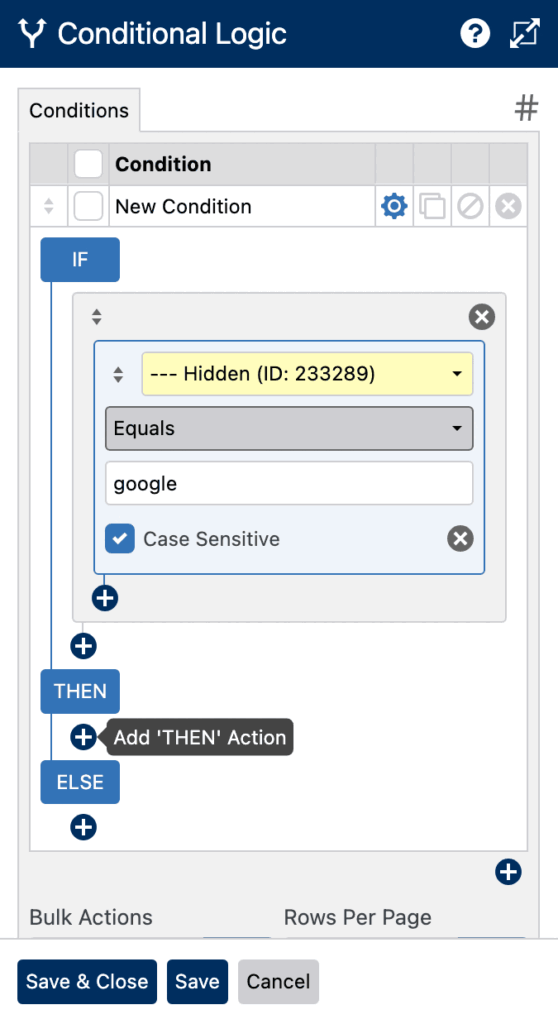
This tutorial explains how to use a query string parameter in WS Form and apply conditional logic based on its value.
This is useful when you want your form to behave differently depending on how a user arrived on the page. For example, showing specific sections, fields, messages, or use of actions based on a URL parameter.
Add a Hidden Field
To begin, add a Hidden field to your form.
- Open your form in the layout editor
- Click or drag a Hidden field onto the form
This field will store the value of your query string parameter.
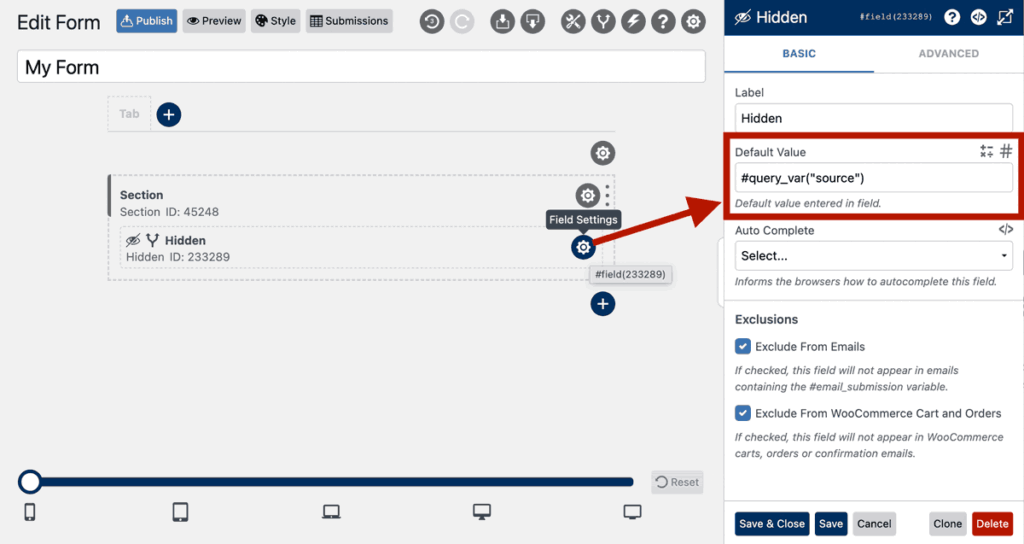
Set the Default Value Using a Query Variable
In the Hidden field settings, enter the following:
#query_var("parameter")
Replace "parameter" with the name of your query string parameter.
Example
If your URL is:
https://mysite.com/my-form/?source=google
Then your Default Value should be:
#query_var("source")
This will store the value google in the Hidden field.
Create Your Conditional Logic
- Click the Conditional Logic icon at the top of the layout editor. The Conditional Logic sidebar will open.
- Click the Add icon icon to add a new condition.
- You can now use the Hidden field in your logic rules. For example:
IF [Hidden Field] [Equals] google THEN ...