
WS Form data grids support groups, making it easy to create <optgroup> labels in Select fields. This is useful when you want to organize large option lists into categories such as countries by region, products by type, or services by department.
In this tutorial, you’ll learn how to use the Data Grid feature to create grouped Select field options in WS Form.
What Are Optgroups?
Optgroups are labeled groups of options inside a Select field.
Example:
<select>
	<optgroup label="Fruits">
		<option>Apple</option>
		<option>Orange</option>
		<option>Tomato</option>
	</optgroup>

	<optgroup label="Vegetables">
		<option>Carrot</option>
		<option>Broccoli</option>
		<option>Spinach</option>
	</optgroup>
</select>
In WS Form, optgroups are created using Data Grid Groups.
Step 1: Add a Select Field
First, add a Select field to your form.
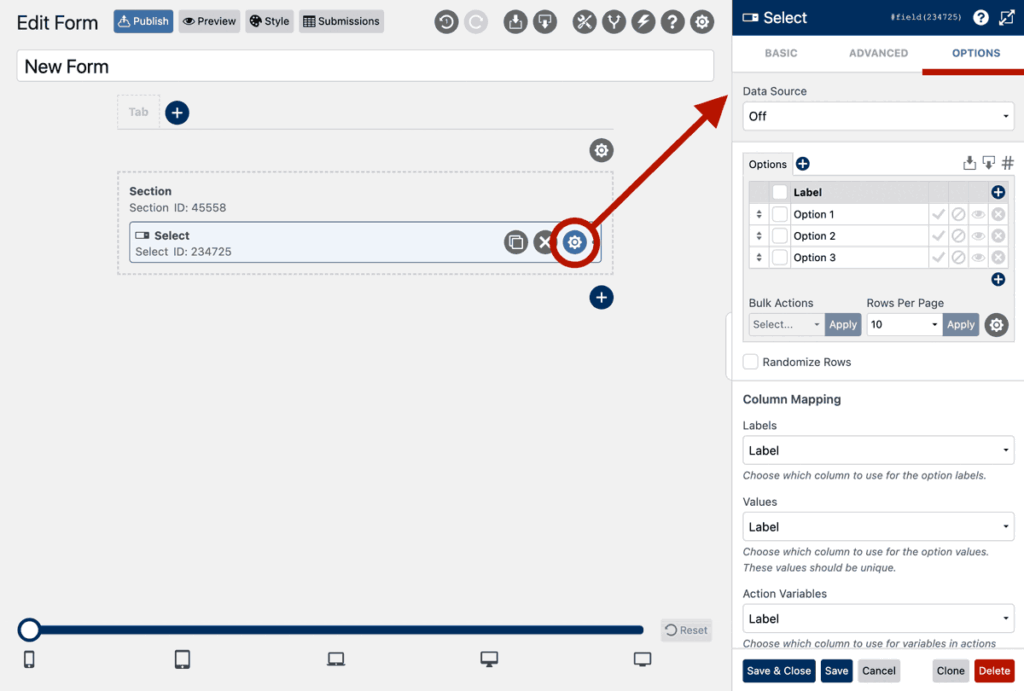
- Edit your form.
- Drag a Select field onto the canvas.
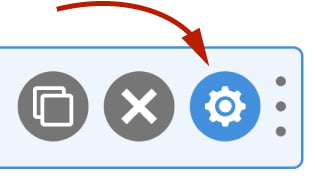
- Click the field settings icon.
- Click the Options tab.
You’ll now see the data grid editor.
Step 2: Create Groups
Groups in a WS Form data grid become optgroup labels in the Select field.
To add groups:
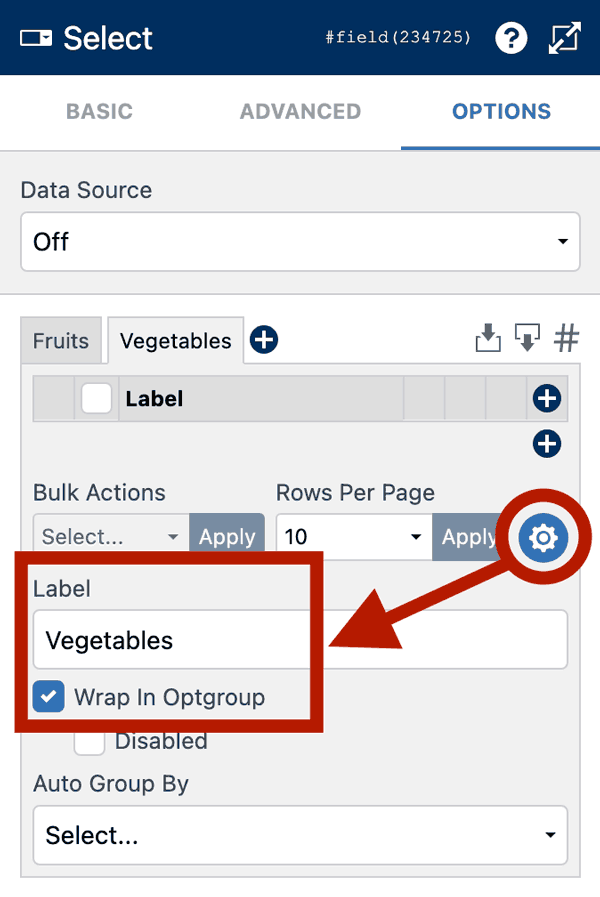
- Click the Add Group icon.
- Click the Settings icon on the group tab.
- Check the Wrap in Optgroup setting.
- Use the Label setting to rename the Optgroup.
Step 3: Add Rows to Each Group
Each row becomes an option within that optgroup.
- Click the Add Row icon.
- Enter a label for that row.
- Repeat this for each row you want in that Optgroup.

Step 4: Save and Preview
Click Save & Close, then preview your form.
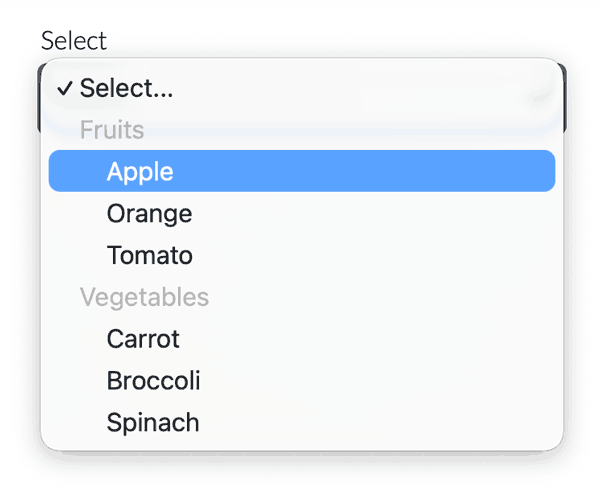
Your Select field will now render grouped options automatically.
Tips
Expand the Data Grid Editor
Click the expand icon in the top-right corner of the data grid editor to work in full-width mode.
Reorder Groups
You can click and drag the group tabs to change the order in which optgroups appear.
Related Articles