
WPML is a multilingual plugin for WordPress that enables server-side translation using string translation.
WS Form integrates directly with WPML and can automatically register translatable form strings for translation.
Requirements
WPML integration requires:
The String Translation integration is included with paid WPML plans.
Installing WPML
- Install and activate the WPML Multilingual CMS plugin.
- Install and activate the WPML String Translation plugin.
- Complete the WPML setup wizard.
Note: When choosing the Language URL format you should choose:
The language name added as a parameter option (example: ?lang=fr) is not supported.
Setting Up Form Translation
- Create or edit a form in WS Form.
- Click the Form Settings icon at the top of the layout editor.
- Click on the Translations tab.
- Check the Enable setting.
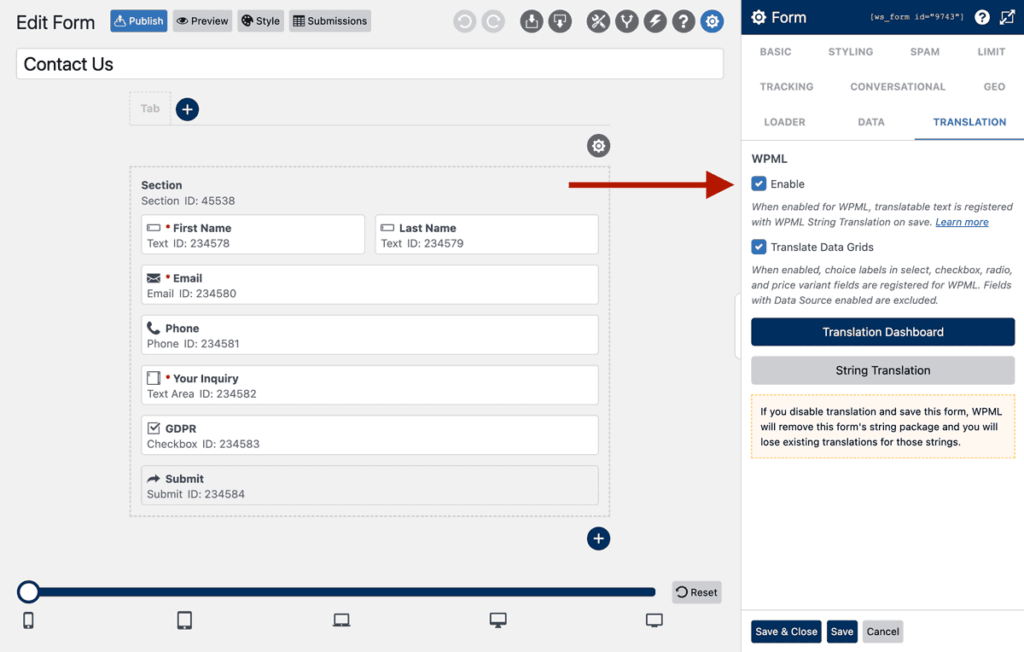
- Click the Translation Dashboard button.
- Locate the WS Form package and check your form.
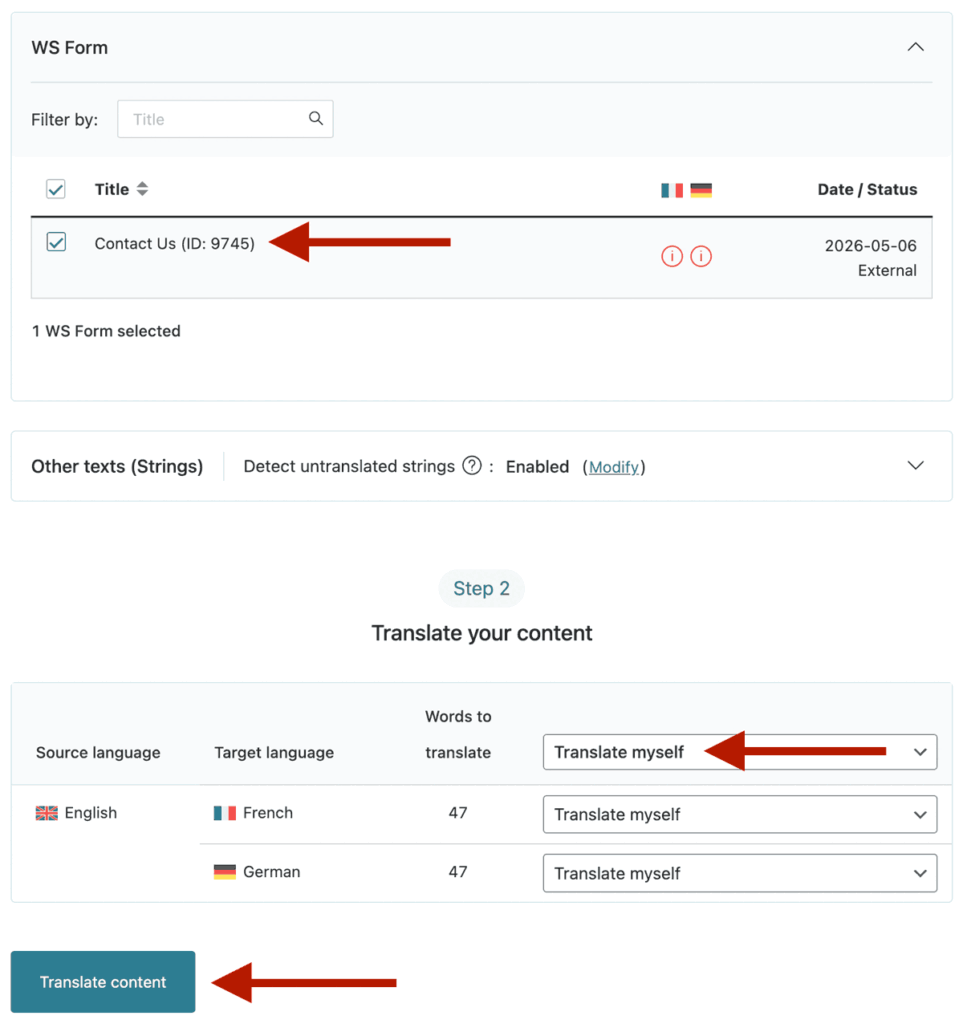
- Choose how to translate the content (e.g. Translate myself) then click the Translate content button.
- Translate each element of the form in the WPML Advanced Translation Editor and then click Save and Complete.
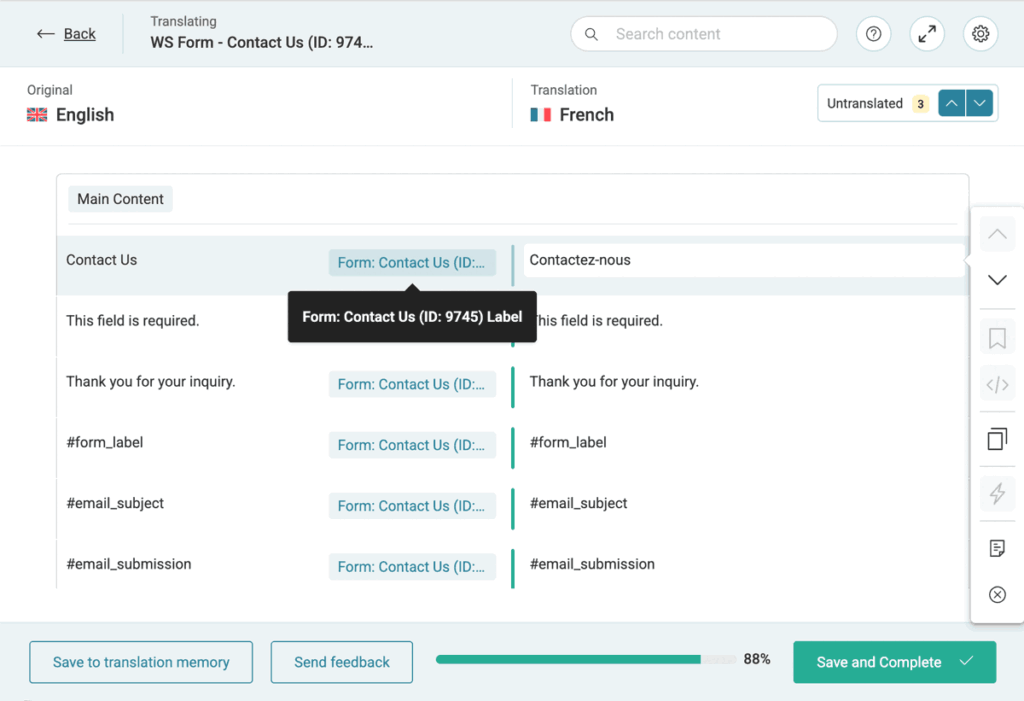
Once translated, forms will automatically display in the active language.
Translation Settings
When WPML is installed and activated, WS Form adds a Translation tab to Form Settings.
Enable
Enables integration with WPML and registers strings automatically for the form.
WS Form also installs a WPML translation package for each form to make translations easier to manage.
Translate Data Grids
Data grids are used by Select, Checkbox and Radio fields to store the choices shown on the form.
Data grid translation adds one translatable string per Select, Checkbox and Radio choice. The Label column mapping is used for the translation. This can produce a considerable number of translatable strings and therefore you can use this setting to disable translation of data grids.
The following field types include data grids.
Note that only data grids that do not have a data source can be translated. Data sources cause a data grid to be dynamic and for that reason persistent translatable strings cannot be generated.
Translation Dashboard
Click this button to go to the WPML translation dashboard (Recommended translation method).
String Translations
Click this button to go to the WPML string translations admin page.
What Can Be Translated?
WPML string translation supports translation of:
- Form settings
- Tab labels
- Section labels
- Field labels
- Field placeholders
- Field help text
- Field default values
- Action settings (e.g. Show Message content or Send Email subject lines)
- ARIA accessibility strings
Troubleshooting
Translatable String Not Appearing
If a particular setting is not appearing as a translatable string, you should first enter a value in the setting. Blank settings are not registered with WPML. Once you have entered a value in the setting it should appear in WPML.
If it still does not appear it is possible that particular setting is not available for translation.
Form Changes Not Showing Up in Advanced Translation Editor
You may need to Save and Complete in the Advanced Translation Editor and then reopen it
Troubleshooting
A Translatable String Is Not Appearing
WPML only registers settings that contain a value. If a setting is blank, it will not appear as a translatable string.
To resolve this:
- Enter a value in the setting.
- Save the form.
- Check WPML again.
If the string still does not appear, that particular setting may not currently support translation.
Form Changes Are Not Showing in the Advanced Translation Editor
If recent form changes are not appearing in the WPML Advanced Translation Editor, try the following:
- Open the translation in the Advanced Translation Editor.
- Click Save and Complete.
- Reopen the translation.
This usually refreshes the translation data and displays the latest form changes.
If the changes still do not appear, you can also try recreating the translation job.