
The Legal field is used to output a legal notice on your forms such as a privacy policy, terms and conditions or disclaimer. You can enter your own legal notice or automatically create content using a third-party service such as Termageddon.
Demo
Adding a Legal Field
To learn how to add, edit, clone, move, resize, offset, or delete a legal field, please click here.
Field Settings
To edit the settings for this field type, click the settings icon on the field itself. Click the Save & Close or Save button to save your changes. If you do not want to save your changes, you can click the Cancel button or click any other form element to close the field settings sidebar. 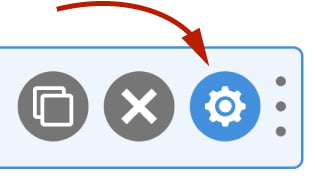
Basic
The basic tab contains settings that the majority of WS Form users will need to control a field. The settings are as follows:
Label
The label is used solely for identifying the legal field when editing your form. The label is not shown to the website visitor.
Show Label
If enabled the label will be shown on your form. If you do not want the label to appear for a particular field, uncheck this box.
Required
If checked this field will be required when the website visitor completes your form.
In order to validate the field, the user is required to scroll to the bottom of the legal agreement.
Hidden
If checked the field will be hidden on the form. It can be shown again using conditional logic or your own JavaScript.
Source
Select the source for your legal notice. The available options are:
- Termageddon (U.S. only)
- Own Copy
Termageddon
Termageddon generates required policies for websites and apps and updates them whenever the laws change.
Disclaimer: WS Form has no control over and accepts no liability in respect of this service and content.
To use Termageddon as your legal notice source, follow these directions:
- Register with Termageddon
- Create a policy
- View the embed code
- Copy the key from the Termageddon embed code into the legal field Key setting.
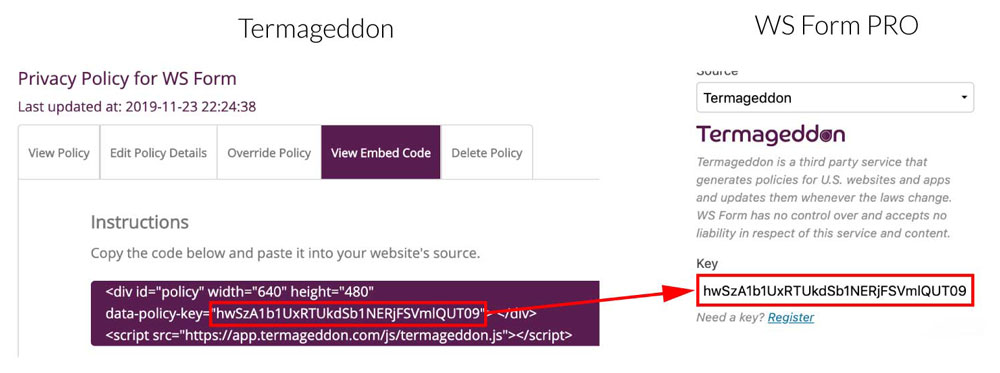
- Choose whether or not to hide the policy title using the Hide title checkbox
- Click Save
Your Termageddon policy will now appear on your form!
Own Copy
If you choose Own Copy, use the visual editor to enter your own legal notice.
Help Text
The help text setting enables you to add smaller text under the field to assist the website visitor in completing that field.
In addition to inserting plain text, WS Form can also display character and word count information in this field.
WS Form variables can be entered into this field.
Advanced
The breakpoint settings define the width of a field and also what the offset (how many columns from the left-hand side of the form or the previous field) of a field is for each breakpoint. For more information about the breakpoint settings and capabilities of WS Form, click here.