
This article applies to WS Form version 1.10.60 and above. Features described here may change in future updates.
WS Form integrates with Angie, Elementor’s agentic AI assistant for WordPress. This integration allows Angie to create and modify WS Form forms using natural language. For example, you can ask Angie to create a contact form, add a field, or translate form labels.
Angie connects to WS Form through the Model Context Protocol (MCP), which provides a secure way for AI agents to communicate with WordPress plugins.
What is Agentic AI?
Agentic AI can perform actions rather than just generate text. It can analyze a situation, plan steps, and complete tasks automatically. In WordPress, that could include creating a page, installing a plugin, or building a form without manual setup.
What is Angie?
Angie is Elementor’s agentic AI plugin. It connects your site to your Elementor account and provides AI-powered automation. When used with WS Form, Angie can create and manage forms directly in WordPress.
Getting Started
Install and Connect Angie
- In your WordPress admin, go to Plugins > Add New.
- Search for Angie.
- Click Install Now, then Activate.
After activation, click Sign in to Angie to connect your site to your Elementor account. You must be signed in for Angie to access AI-powered services. Angie includes free daily credits. For extended or commercial use, select an Elementor AI plan.
Once Angie is connected, it will automatically detect WS Form.
Configure WS Form
Warning: AI-generated form modifications are experimental. While Angie provides powerful automation capabilities, AI technology can produce unexpected or incorrect results. We strongly recommend reviewing all AI-generated form changes before publishing and never using AI-driven edits directly on production forms. Always test modifications in a staging environment first. WS Form and its authors assume no responsibility for data loss, form errors, or other issues arising from AI-assisted actions.
AI editing is disabled by default for security reasons. If you would like to experiment with making form edits with AI:
- Go to WS Form > Settings > AI.
- Under Abilities API, check Allow Updates.
- Click Save Changes.
Using Angie with WS Form
After setup, you can communicate with Angie using plain language prompts. Angie will interpret your request and perform the task through WS Form’s API and schema.
Here are some example actions you can request:
Get Forms
Get a List of the Published Forms
List all published forms in WS Form, including their IDs and labels.
How Many Forms?
Count the total number of forms in WS Form and return the result. Include both published and unpublished forms.
Add Form
Create a Contact Us Form
Create an accessible Contact Us form with helpful field descriptions.
Create a Specific Contact Form
Create a simple contact form with first name, last name, email address, phone number (optional), subject line dropdown (General Inquiry, Support, Sales, Partnership), and a message textarea. Make name and email required. Add help text under the message field saying “Please provide as much detail as possible.”
Dog Adoption Form
Create a dog adoption form.
Job Application
Make me a multi-step job application form, including a PDF file upload field.
Mortgage Calculator
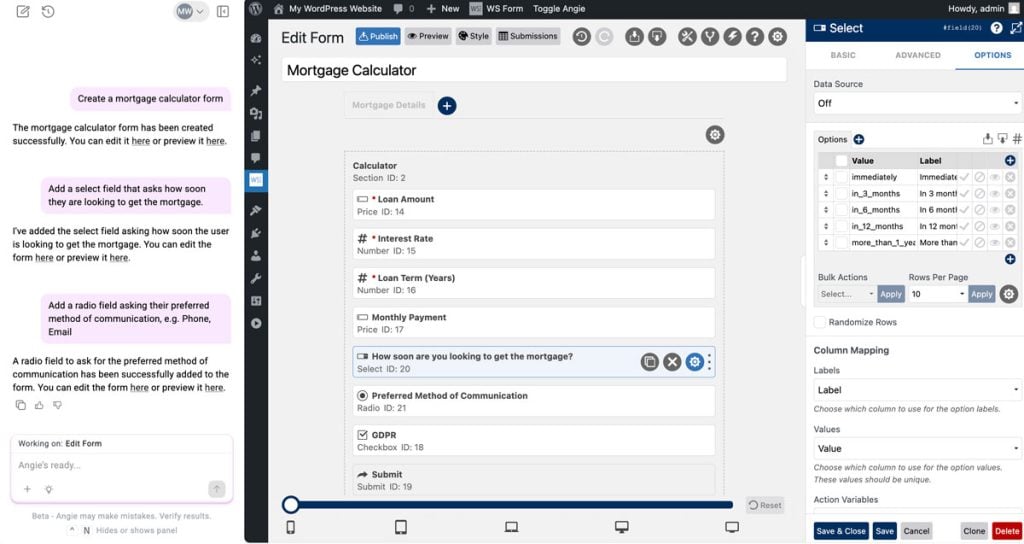
Create a mortgage calculator form
Multi-Lingual Form Creator
Create a contact form in English, then immediately create a Spanish version by cloning it and translating all field labels, placeholders, and help text to Spanish. Give me both shortcodes.
Multi-Step Loan Form
Create a multi-step loan application form with:
Step 1: Personal info (name, email, phone)
Step 2: Employment details (employer, income, job title)
Step 3: Loan details (amount requested, purpose)Include next/previous buttons and make sure all fields are required except the loan purpose.
Support Ticket Form
Design a technical support form with:
– Your name and email (required)
– Product/service affected dropdown: Website, Mobile App, API, Billing, Other
– Priority level radio: Low, Medium, High, Critical
– Issue category dropdown: Bug Report, Feature Request, Access Issue, Performance, Documentation
– Subject line (text field, required)
– Detailed description (textarea, required, placeholder: “Please include
steps to reproduce the issue”)
– Browser/Device info (text field)
– Screenshot upload (file field, optional, help text: “Attachments help us resolve issues faster”)
– Error message (textarea, if applicable)
Workshop Registration
I need a registration form for a workshop. Include fields for full name, email, company, job title, and a checkbox to agree to terms and conditions. Add a dropdown for selecting which session they want to attend with options: Morning, Afternoon, or Evening.
Edit Form
Accessible Help Text
Add help text to all fields to improve accessibility.
Add Multiple Fields
Add three rating fields called Design, Usability, and Support.
Add Placeholders
Add placeholders to the first and last name fields.
Publish a Form
Publish form ID 123.
Translate a Form
Translate form ID 123 into Spanish.
Add Field
Add Fields
Insert an email field before the company field and make it required.
Edit Field
Add Sample Options to a Select Field
Add 20 sample options to the “Programming Language” select field in form ID 123. Use a variety of common languages such as JavaScript, Python, PHP, etc., and include both modern and legacy languages.
Alphabetize Select Options
Reorder the options in the “Country” select field for form ID 123 alphabetically by their label.
Edit a Field
Make the Last Name field required and add help text to it.
Placeholder and Help Text on Email Field
For form ID 5, update the email field to include placeholder text “your@email.com” and make the help text say “We’ll never share your email.”
Statistics
Form View in Past 5 Days
How many times was form ID 123 viewed in the past 5 days?
Saves Last Month
How many times was form ID 123 saved last month?
Submissions in Given Month
How many times was form ID 123 submitted in January 2025?
Total Submission Records
How many submission records does form ID 123 have?
Total Unread Submissions
How many unread submissions does form ID 123 have?
Advice
Ask How to Improve a Form
How could I improve form ID 13?
Get Advice For Poor Performing Form
Show me statistics for form ID 123 from the last 30 days. If it has more than 100 views but less than 10 submissions, suggest improvements to increase the conversion rate.
Help With #calc
Give me an example #calc I can use in WS Form to create a mortgage monthly payment amount.
Tips
- Start a new, fresh chat for each form you work with.
- If you create a new form, you don’t need to specify the form ID in subsequent prompts.
- If you are modifying an existing form, identify it initially in your prompt using the form ID e.g. Publish form ID 123.
- You can insert fields before another field by identifying it by ID or label e.g. Add a select field before the submit button for preferred method of communication.
Available Field Types
Angie can create forms using both WS Form LITE and WS Form PRO field types.
LITE field types:
PRO-only field types:
Supported WS Form features:
- Tabs (multi-step forms)
- Calculations (for example,
#calc(#field(1) + #field(2))) - Field settings such as Required, Placeholder, Default Value, Help, and Invalid Feedback
- Select, Checkbox, and Radio option population
- Responsive field sizing
Current Limitations
- Updates to select, checkbox and radio data grid rows are limited a 2 column format of values and labels.
- Tabs and sections can only be added when initially creating a new form.
- Conditional logic cannot be added.
We hope to add additional functionality as AI technology evolves and becomes more reliable.
Security
All MCP abilities exposed to Angie are protected by WS Form’s capability system. Permission callbacks ensure only authorized users can make changes. Refer to User Capabilities for more information.
Disabling WS Form in Angie
WS Form automatically detects when Angie is installed. To disable the integration:
- Go to WS Form > Settings > AI.
- Under Angie, uncheck Enabled.
- Click Save Changes.