
The Cart Detail field is used to show cart-level amounts, such as the cart subtotal, shipping, and discount fields. These fields are optional.
Their location on a typical cart can be found below:
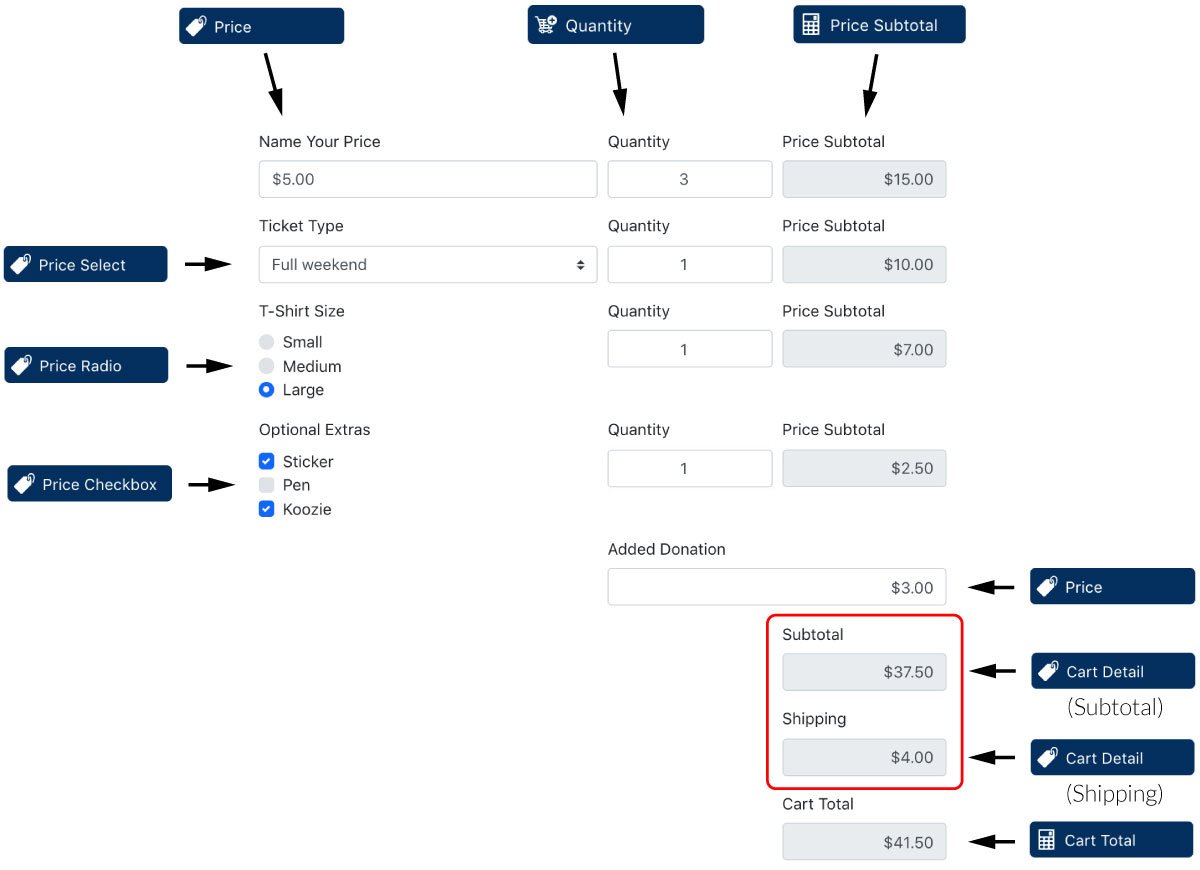
The following types of cart detail fields are available:
- Subtotal – The total amount of all price subtotal fields
- Shipping
- Tax
- Handling Fee
- Discount – Learn more about creating a discount field
- Shipping Discount
- Insurance
- Gift Wrap
- Other
The cart total is calculated from the sum of all the cart detail fields. You are not required to put any cart detail fields on the form in order for the cart to calculate correctly.
Put the amount you want to charge for that detail in the Default Value setting of the field. WS Form variables can be use too.
For example, to charge 10% tax you could configure a Price Detail field as type Tax and then enter the following in the Default Value setting:
#calc(#ecommerce_cart_subtotal * 0.1)
Adding a Cart Detail Field
To learn how to add, edit, clone, move, resize, offset, or delete a price subtotal field, please click here.
Field Settings
To edit the settings for this field type, click the settings icon on the field itself. Click the Save & Close or Save button to save your changes. If you do not want to save your changes, you can click the Cancel button or click any other form element to close the field settings sidebar. 
Basic
The basic tab contains settings that the majority of WS Form users will need to control a field. The settings are as follows:
Label
This is the label shown alongside the field. As well as entering a label into this field, you can also double click the label of the field in the editor. You should enter an easy-to-understand label for your field, for example, Price Subtotal.
Show Label
If enabled the label will be shown on your form. If you do not want the label to appear for a particular field, uncheck this box.
Hidden
If checked the field will be hidden on the form. It can be shown again using conditional logic or your own JavaScript.
Text Align
This setting determines how the price will be aligned in the field. This defaults to Right for ease of reading, but you can change it to different justifications.
Type
Select which type of cart detail field this is. Choose from:
- Subtotal (the total amount of all price subtotal fields)
- Shipping
- Tax
- Handling Fee
- Discount
- Shipping Discount
- Insurance
- Gift Wrap
- Other
Default Value
The default value setting is used to populate the field with some default content. Unlike the placeholder text, default values are stored when the form is saved or submitted.
WS Form variables can be entered into this field.
Allow Negative Value
If negative amounts are permitted in this field, check this box.
Placeholder
Field placeholders are used to place text in a field prior to the website visitor completing the field. The web browser then removes the placeholder text when text is entered into the field. Placeholder text is typically used to provide an example of what should be entered into that field, such as $1.00 for a currency field. If this field is left blank, a placeholder will not be added to the field.
Placeholder text is not stored when the form is saved or submitted.
WS Form variables can be entered into this field.
Help Text
The help text setting enables you to add smaller text under the field to assist the website visitor in completing that field.
In addition to inserting plain text, WS Form can also display character and word count information in this field.
WS Form variables can be entered into this field.
Auto Complete
Web browsers sometimes have features for helping users fill forms in, for example pre-filling the user’s address based on earlier user input. The autocomplete content attribute can be used to hint to the web browser how to, or indeed whether to, provide such a feature.
Use this setting if you would like to specify the value of the autocomplete attribute. Use the off option to prevent auto complete on the field.
Prefix / Suffix
The prefix and suffix settings allow you to add a prefix box and/or suffix box to the field.

For example, you could add a unit of measure as a suffix, or an @ symbol as a prefix.
Accessibility
ARIA Label
Accessible Rich Internet Applications (ARIA) defines ways to make web content and web applications more accessible to people with disabilities.
This setting enables you to define what text is made available to ARIA applications. This would, for example, provide a screen reader with specific text to read to someone with a disability.
The value of this setting defaults to your field label. If you would like to change this, enter a new value.
WS Form variables can be entered into this field.
Exclusions
Exclude From Emails
By default, WS Form uses the #email_submission variable in email templates. This provides a simple way of displaying all of the submitted fields in emails. Sometimes there might be a need to exclude a field from an email, for example, you might want to not include some introductory copy on a form, or hide a field you’re using with conditional logic to show or hide an element.
To hide a field from emails, check this box.
Other WS Form integrations may add exclusions in this section too, such as the WooCommerce integration which allows you to exclude certain fields from the cart entries.
Hidden Behavior
These settings allow you to change the behavior of a field if the hidden setting is checked (See above), or if you set a field as hidden using conditional logic.
Always Include in Actions
The normal behavior for a field that has been hidden is that it will not be included if an action has a Clear Hidden Fields setting enabled. For example, if you have a Send Email action, WS Form will not include fields that are hidden.
If this setting is checked, this field will always be included in actions if it is hidden.
Always Include in Cart Total
The normal behavior for an e-commerce field that has been hidden is that it will not be included in the Cart Total calculation.
If this setting is checked, this field will always be included in the Cart Total calculation if it is hidden.
Advanced
The advanced tab contains additional form attribute settings that provide further control over how a field is rendered.
Styles
Use the Styles settings to change the design of the cart detail field.
Label Position
There are five positions you can choose from for your label:
- Default
- Top
- Left
- Right
- Bottom
The default position will place the label set in the form settings advanced tab. For new forms this will be the Top positioning.
Note that when using some frameworks some label positions may not be available.
Label Width
If your label position is set to left or right, you can specify how wide the label will be. You can consider the overall width of the label and the field to be 12 columns (or whatever value is set in Form Settings). By default, labels are rendered at 3 columns wide (1/4 width), which means the field itself is 9 columns wide (3/4 width). You can change the width of the label using this setting.
To change the default width of all labels in your form:
1. Click the form settings icon. 2. Click the Advanced tab. 3. Scroll down to Default Label Width and change the setting. 4. Click Save at the bottom.
Vertical Alignment
The vertical alignment option allows you to choose how this field will be vertically aligned in relation to fields in the same row. The options are:
- Top
- Middle
- Bottom
Classes
For developers WS Form allows you to add your own classes to fields.
Field Wrapper
The wrapper CSS class setting enables you to add a class (or classes) to a field wrapper. Field wrappers are sections of HTML added around a field to position them on the page. To add multiple classes, add a space between the class names.
Field
To add a class to the actual field element itself, enter a class (or classes) to this setting. To add multiple classes, add a space between the class names.
Restrictions
Field restrictions enable you to define what can or cannot be entered into the field.
Read Only
If checked the field will be read only. Read-only forms provide a way of showing a value in a field without giving the website visitor the opportunity to change the value.
Minimum
This is the minimum number that should be entered into the field in order for it to be valid. Leaving this blank will mean any minimum value can be entered. This can be any negative or positive number.
Maximum
This is the maximum value that can to be entered into the field in order for it to be valid. Leaving this blank will set the maximum character length to infinity. This can be any negative or positive number.
Allow Negative Values
If negative amounts are permitted in this field, check this box.
User Status
Choose from one of the options to filter which user status can see this field:
- Any
- Is Logged In
- Is Logged Out
- Has User Role or Capability
If you choose Has User Role or Capability, additional settings will appear that enable you to choose one or more roles or capabilities.
Validation
Show Invalid Feedback
Invalid feedback text is shown when a form is saved or submitted, and the field has not been completed according to the field settings you have configured. For example if the minimum character count is 10 and you enter 5 characters and then submit the form, the field will be deemed invalid. If this setting is checked, invalid feedback is shown under the field.
Invalid Feedback Text
WS Form automatically builds invalid feedback text for all of your fields. If no text is entered into this field, the value shown in the field in light gray text will be shown. If you would like to specify alternative invalid feedback text, you can enter it within this setting.
WS Form variables can be entered into this field.
Custom Attributes
This setting is used to add custom attributes to the HTML of this field, such as data-my-attribute="1234". You can add as many custom attributes as you need.
To add a custom attributes key value pair:
- Click the Add icon to add a custom attribute row.
- Enter the key in the left column.
- Enter the value in the right column.
- Click Save to save the custom attributes.
Breakpoints
The breakpoint settings define the width of a field and also what the offset (how many columns from the left-hand side of the form or the previous field) of a field is for each breakpoint. For more information about the breakpoint settings and capabilities of WS Form, click here.
Datalist
Many field types have a datalist option. When a website visitor starts to type in a field, the browser will display options that it believes match what the website visitor is typing in. The website visitor can then click on the datalist option to speed up their data entry. Datalist is also used to provide hints to the website visitor as to the available options that can be entered for a field.
Tip: In some browsers you may need to activate a datalist function for this to work, while some older browsers may not support this feature.
To create datalist suggestions for the field, add rows to the datalist data grid. Data grids make entering lists of information quick and easy. You can also use the data grid to import a CSV file of data into the datalist field, which makes adding large suggestion lists easier than entering them one by one.
For more information about using WS Form data grids, click here.